- Go to Time Attend > Settings.
- Open the Geo Locations tab.
- Click on Import Employee Geo Locations to open a new window.
- Download the Excel Template and open it on your system.
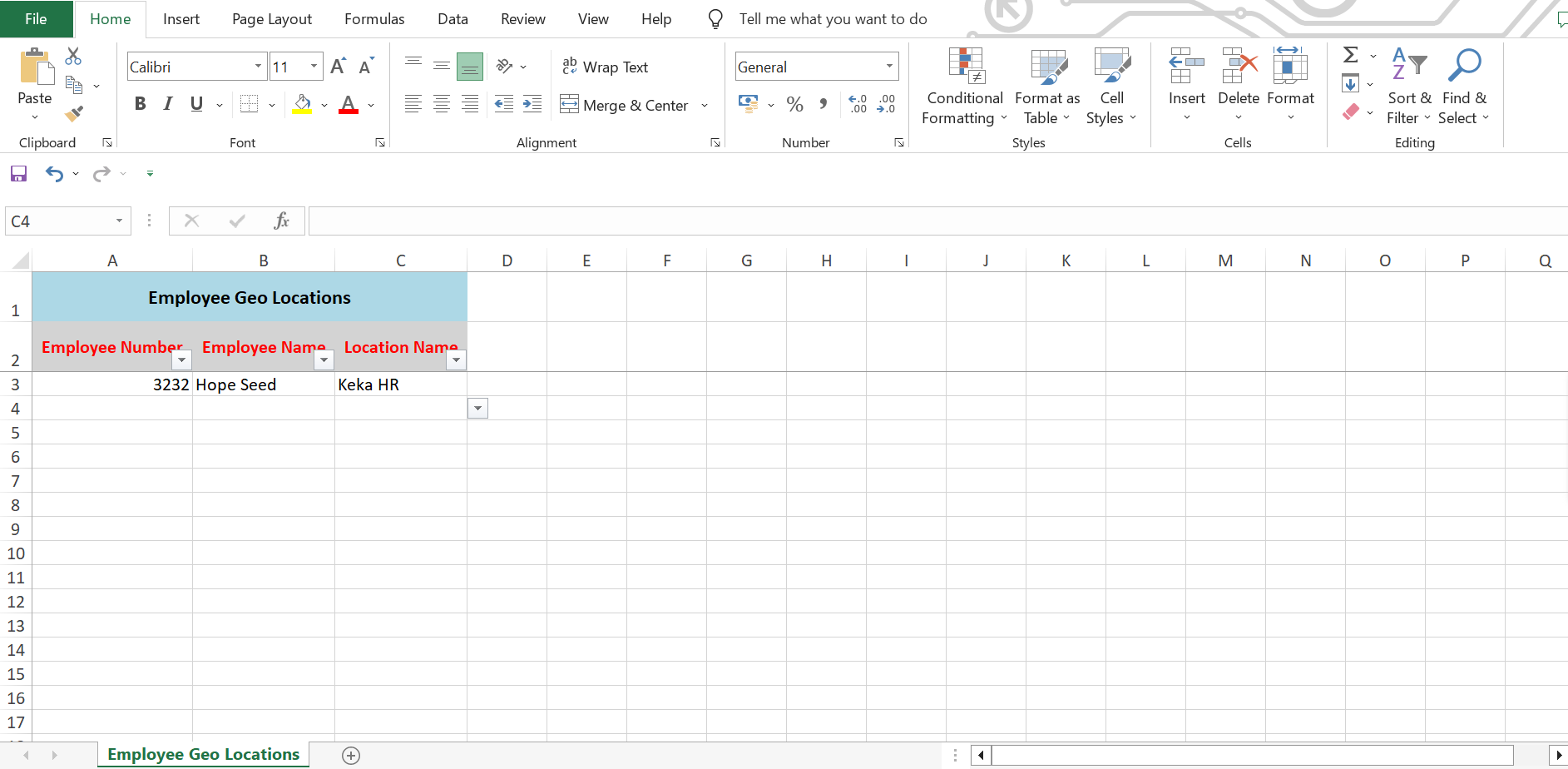
- Fill in the required data:
- Employee Number
- Employee Name
- Location Name
- Save the updated file.
- Return to the Keka portal and click Upload Excel File to upload the sheet.
- Verify that the column headings and data match, then preview the data.
- If no errors are found, click Complete.
- In the confirmation dialogue box, click Confirm to finalize the import.
You have now successfully imported geo locations for multiple employees in bulk.
Comments
0 comments
Please sign in to leave a comment.