Introduction
Payroll processing ensures employees are compensated for their work. However, not all individuals—like consultants or temporary staff—need to be processed through payroll each month. In Keka, you can choose to enable or disable payroll for specific employees as needed.
Important: Employees with disabled payroll will not appear in payroll processing for the month, and any pending payments from earlier periods will be ignored. Additionally, their My Finance page will be inaccessible to both the employee and the admin.
Steps
You can enable or disable payroll using three methods:
Enable or Disable Payroll for a Single Employee
Go to Payroll from the left navigation.
Click on the Payroll Admin tab.
In the Operations section, select Payroll Status, Tax Regime & Financial Details.
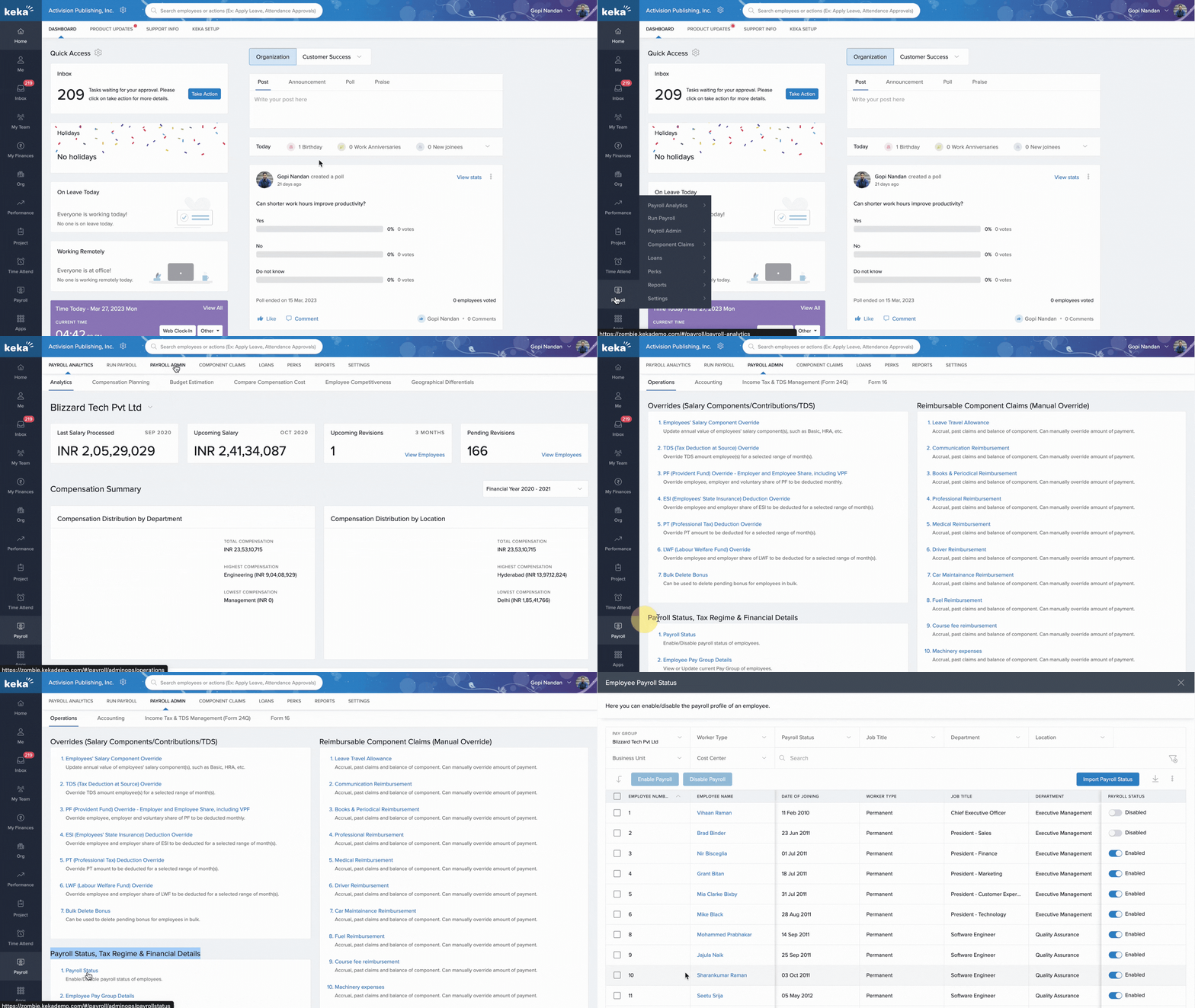
4. Click Payroll Status.
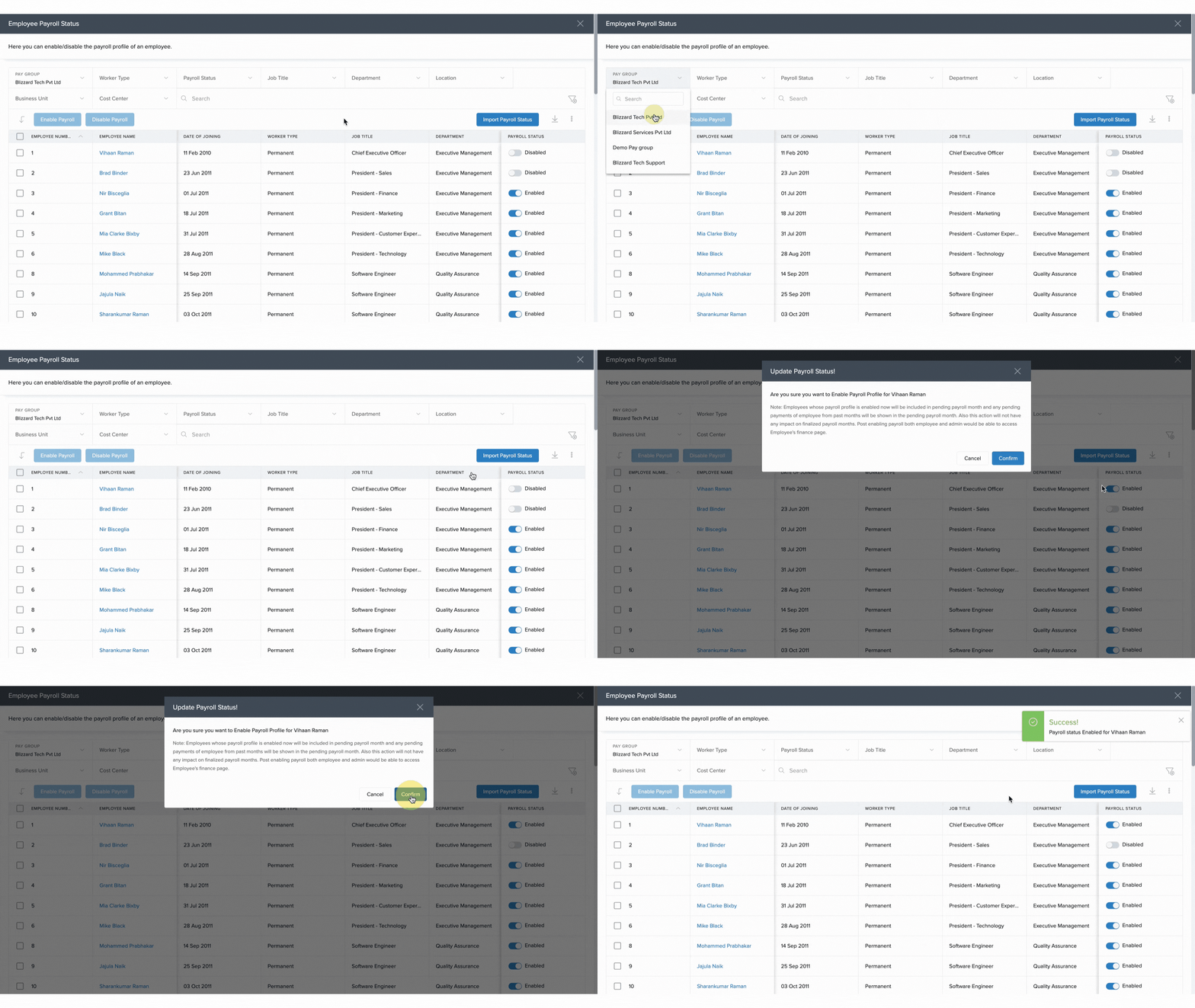
5. If you have multiple Pay Groups, select the appropriate one.
6. Find the employee and toggle payroll status by selecting Enable Payroll or Disable Payroll.
Enable or Disable Payroll in Bulk
Navigate to Payroll > Payroll Admin.
Under the Operations tab, select Payroll Status.
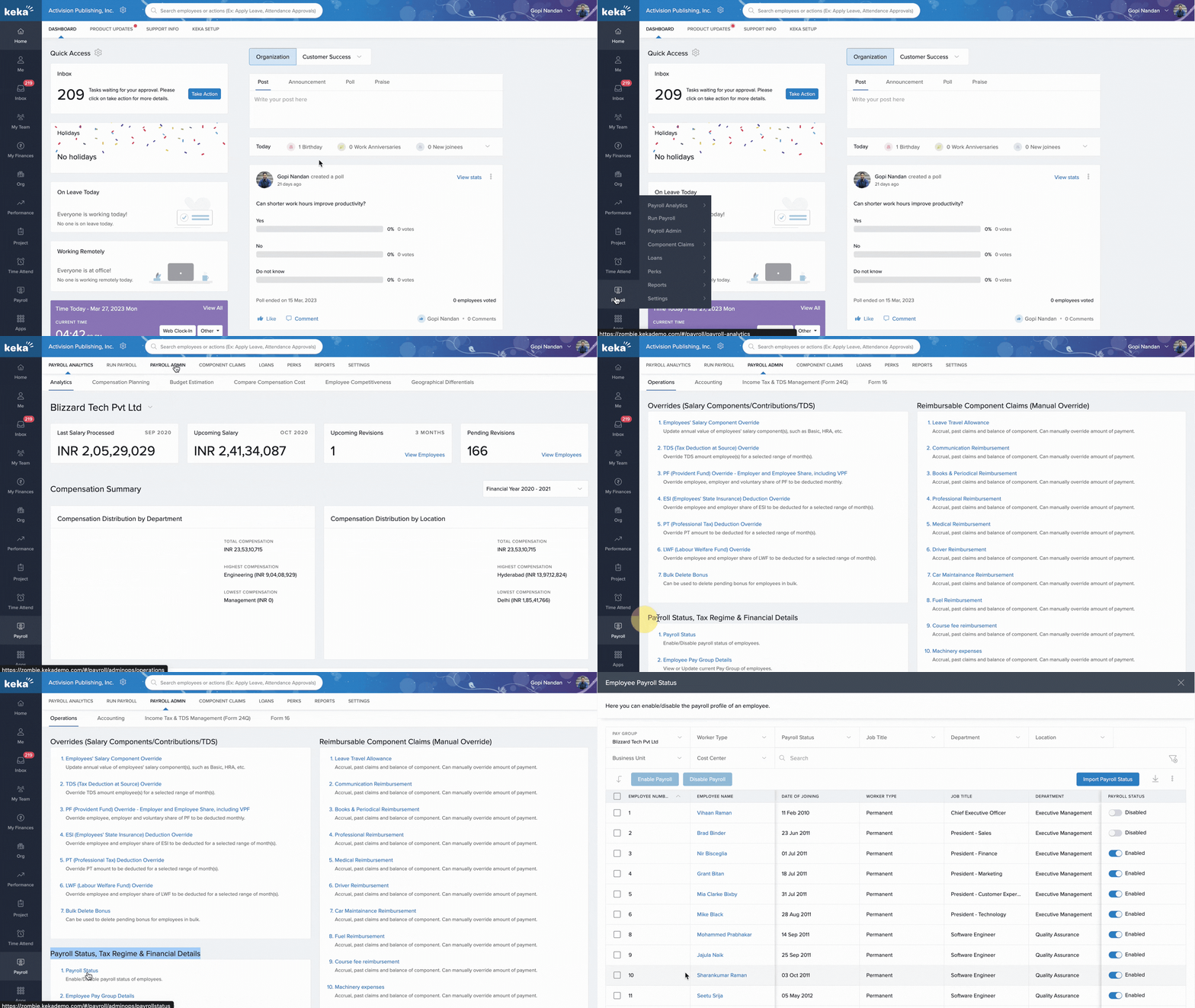
3. Choose the relevant Pay Group.
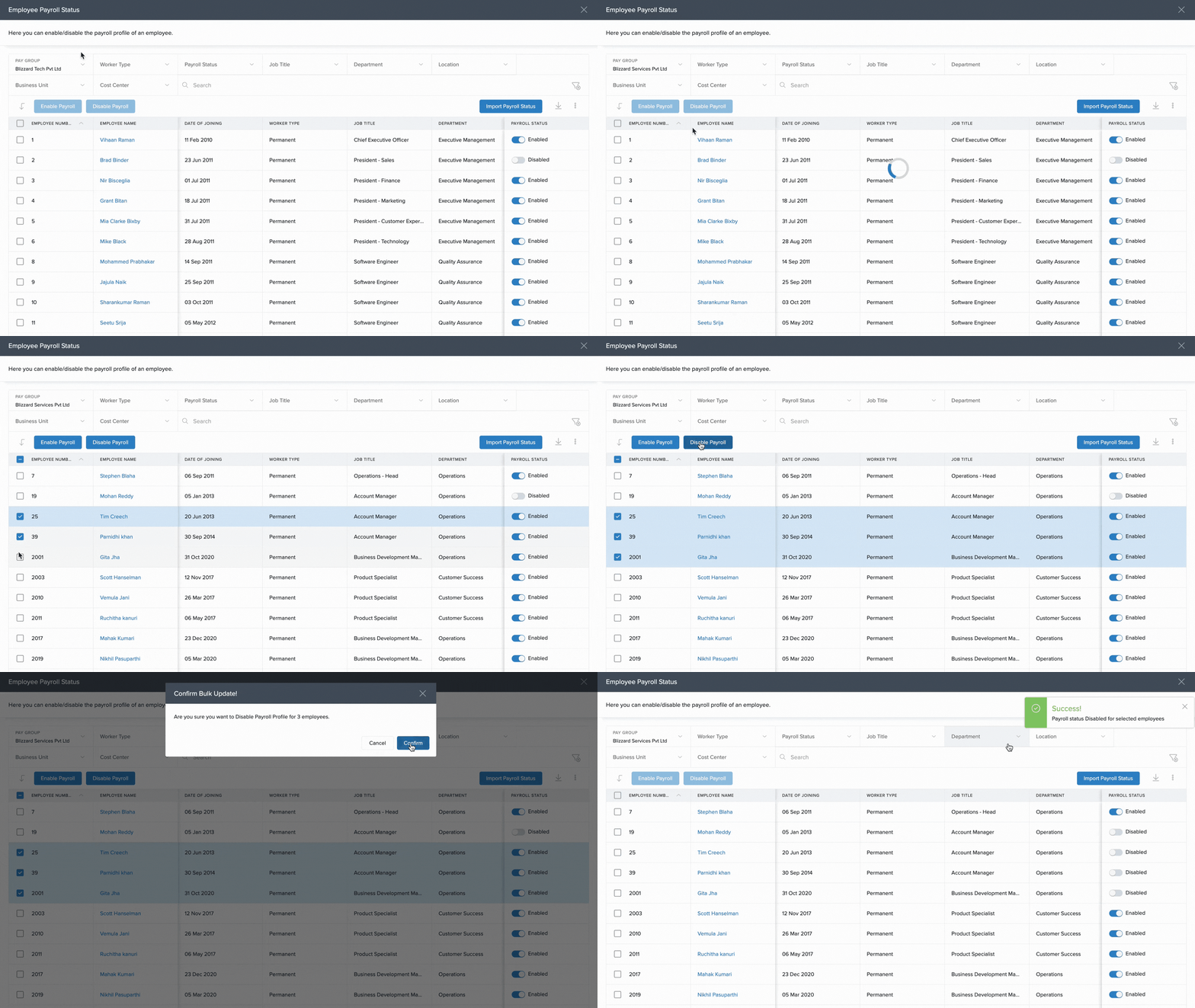
4. Select multiple employees from the list.
5. Click Enable Payroll or Disable Payroll to apply the change in bulk.
Enable or Disable Payroll Using Excel
Go to Payroll > Payroll Admin.
In the Operations section, click Payroll Status.
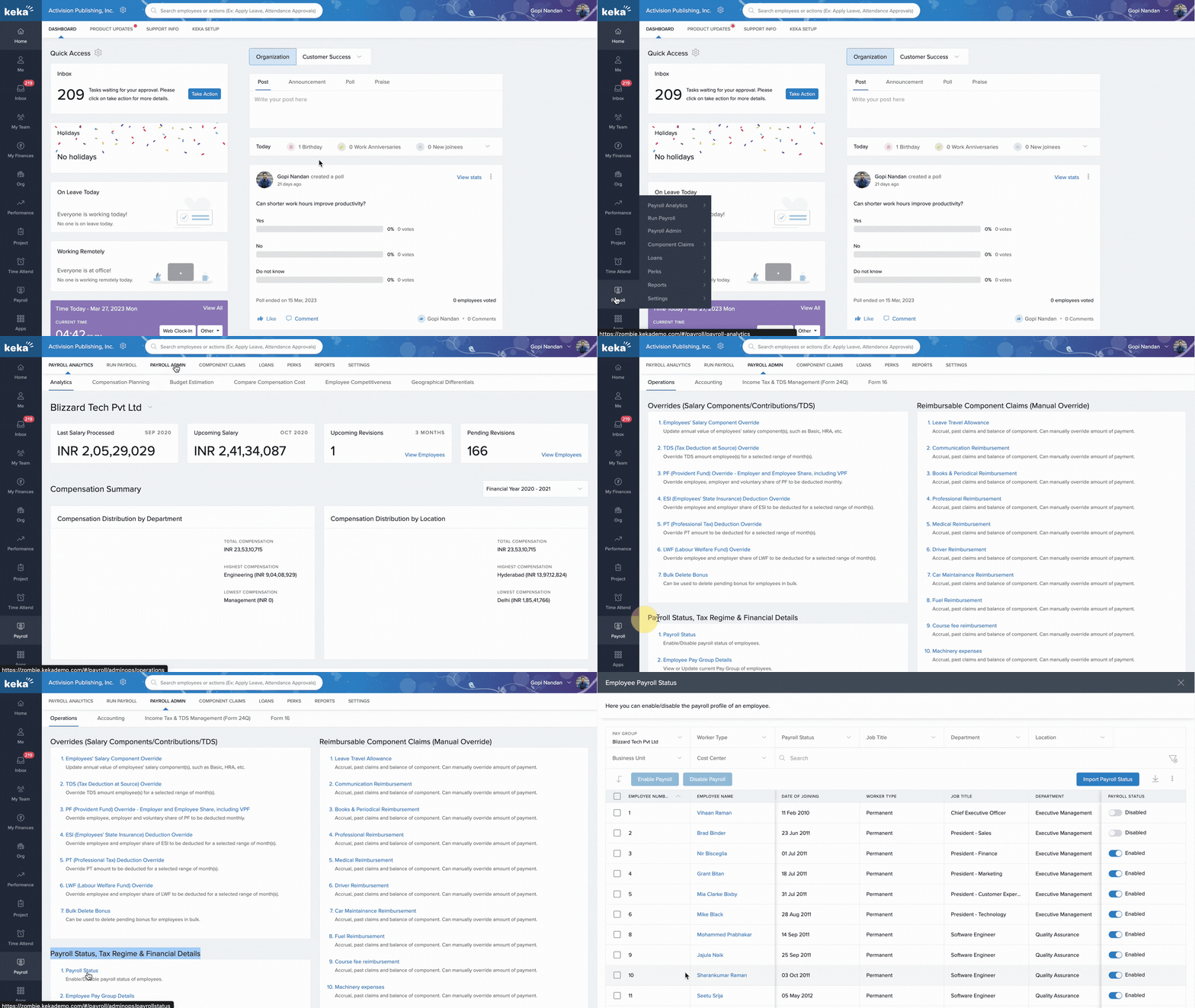
4. On the Payroll Status page, click Import Payroll Status.
5. Download the Excel Template provided.
6. In the Excel file, update the Payroll Status Enabled/Disabled column.
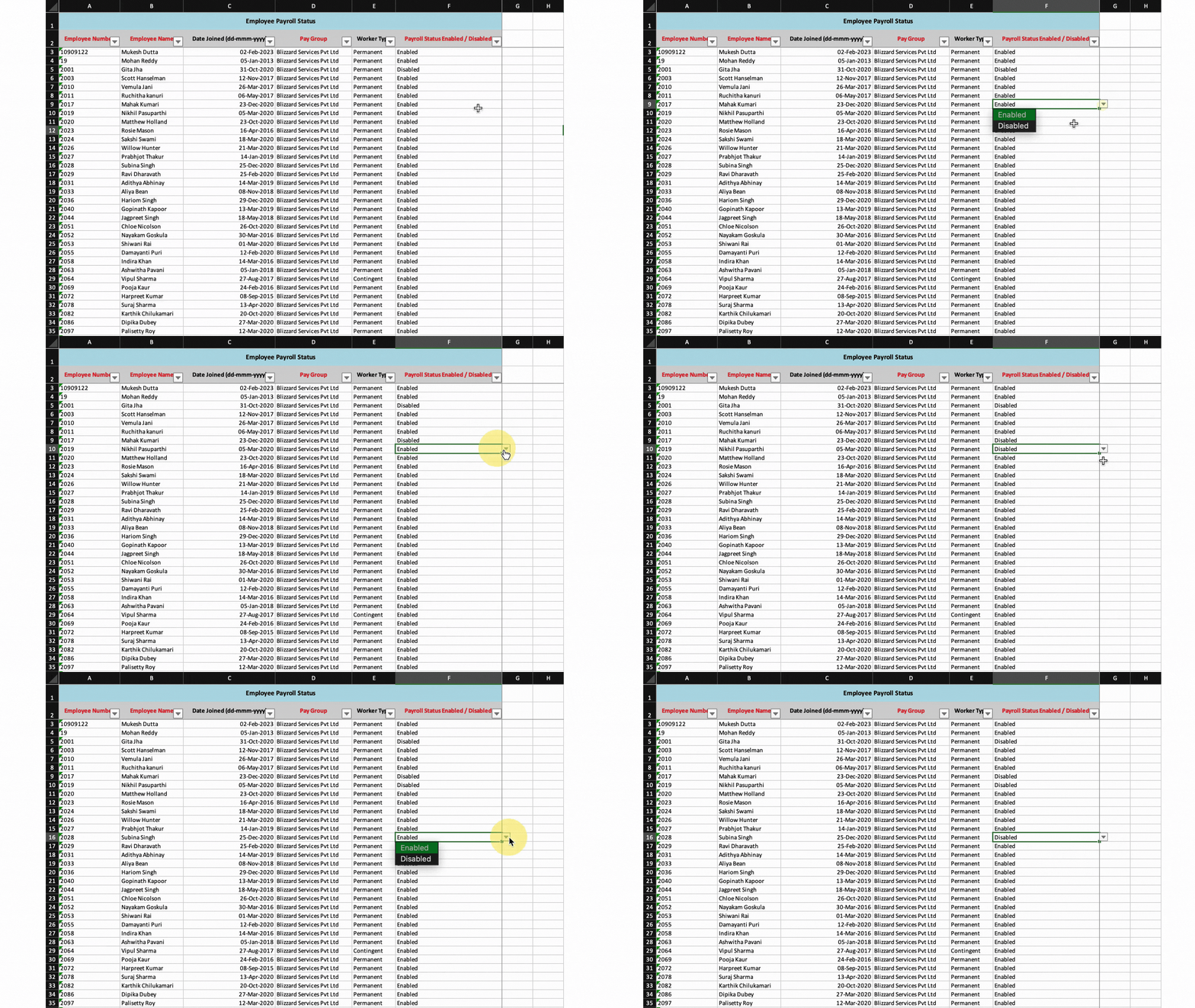
7. Save the file and upload it using the Upload Excel File button.
8. Match the columns in Excel with the corresponding Keka fields.
9. Click Continue to preview the data.
10. Fix any errors if shown, then click Complete to finish the import.
Comments
0 comments
Please sign in to leave a comment.