Introduction
A Holiday Plan is a critical part of an organization's leave management system. It sets the schedule for company holidays, which include government-mandated holidays and any additional holidays granted by the company. Configuring a holiday plan helps ensure that all employees are aware of their time-off rights and company policies surrounding holidays. It also ensures transparency, fairness, and adherence to labor laws.
In this guide, we’ll walk you through the steps to create, customize, and assign holiday plans to employees in Keka HRMS.
1. What is a Holiday Plan?
A Holiday Plan is a company policy that outlines the holidays employees are entitled to throughout the year. This includes government holidays and additional days granted by the organization. Here’s an example of a typical holiday list for India for the year 2023:
JAN 16 - Sankranthi (Monday)
JAN 26 - Republic Day (Thursday)
FEB 18 - Maha Shivratri (Saturday)
MAR 08 - Holi (Wednesday)
MAR 22 - Ugadi (Wednesday)
MAR 30 - Rama Navami (Floater Leave) (Thursday)
APR 07 - Good Friday (Floater Leave) (Friday)
And more...
Your company will want to incorporate similar holidays into its leave policies for employees.
2. Why Should I Care About It?
A well-structured Holiday Plan is crucial for your organization due to several reasons:
Employee Engagement and Satisfaction: Clear communication about holidays helps employees plan their time off, leading to higher satisfaction and productivity.
Compliance: Ensures your organization meets legal requirements by observing mandated public holidays.
Effective Resource Management: Strategic holiday planning ensures that business operations continue smoothly without overburdening staff during peak periods.
Consistency and Fairness: Standardizes holiday entitlement for all employees, ensuring fairness and reducing potential conflicts.
3. Who Creates the Holiday Plan of the Company?
Typically, the HR department is responsible for creating the holiday plan. However, this plan may also be reviewed by Founders or the Legal team to ensure compliance with labor laws and regulations.
4. Can I Create Multiple Holiday Plans for Multiple Groups of Employees?
Yes! If your company has different groups of employees (e.g., based on location or role), you can create multiple holiday plans and assign each group a specific set of holidays. For example, employees in Bangalore may have different holidays compared to those in San Francisco. This feature gives your organization the flexibility to align holiday schedules with local or cultural needs.
5. How Do I Create a Holiday Plan in Keka?
There are three main steps involved in creating a Holiday Plan in Keka:
Creating a Holiday List
Adding Holidays to the List
Assigning Employees to the Holiday Plan
6. Creating a Holiday List
To create a Holiday List in Keka:
Navigate to the Time Attend section in the left-hand menu.
Select Shifts → Weekly Offs & Holidays and click on the Holidays tab.
Click on +Add New Holiday Plan.
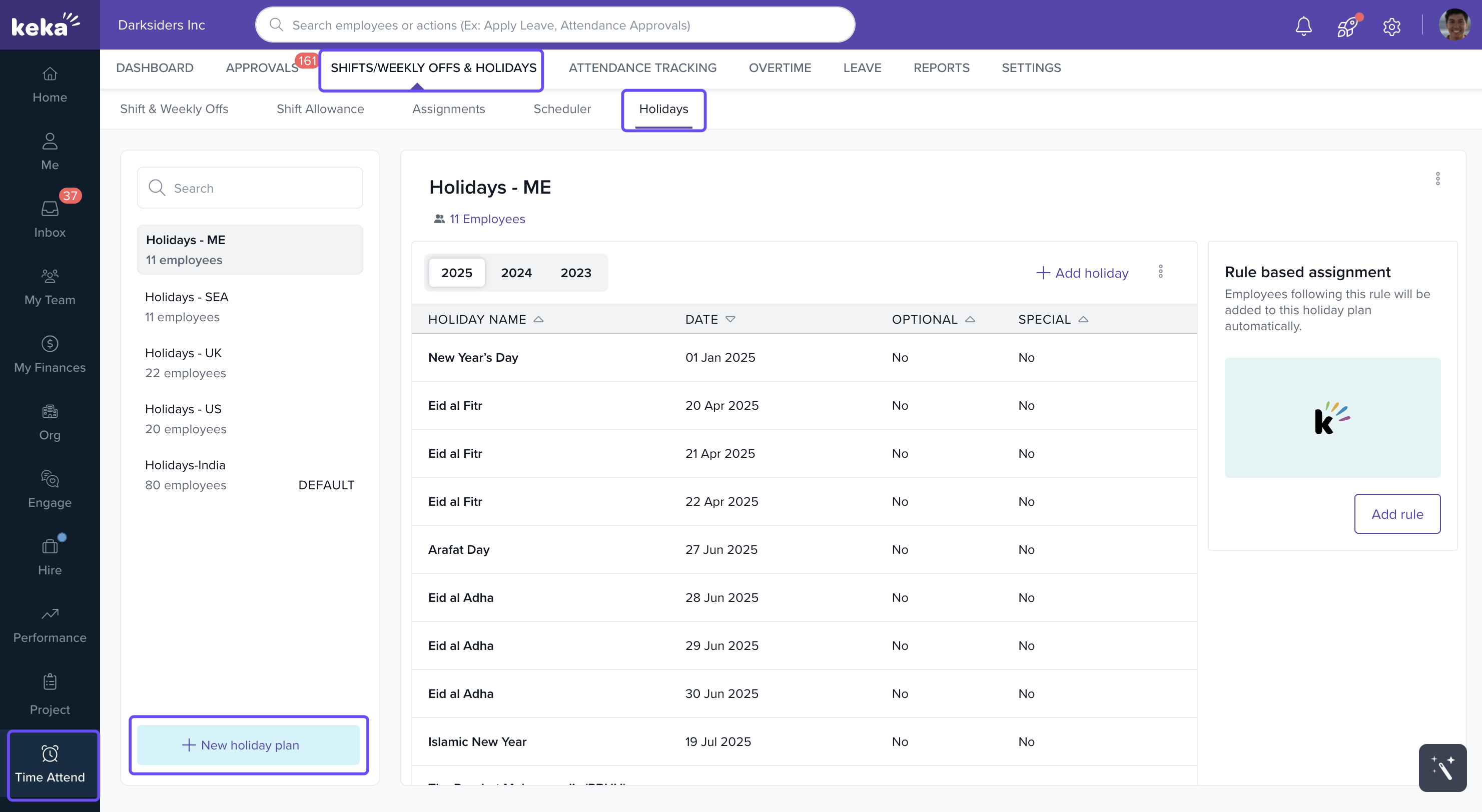
- In the Select from Holiday List window, enter a name for your plan and select the country.
.gif)
You will then see a list of holidays to choose from. Select the holidays to include in your plan, and optionally mark certain holidays as optional or floater leaves.
Once you’ve configured your list, click Continue to save the plan.
Repeat the process as needed to create multiple holiday lists.
7. Adding Holidays to the List
After creating a Holiday List, you need to add specific holidays to it. Keka offers two options:
Adding Holidays One-by-One:
Select the Holiday List where you want to add a holiday.
-
Click on the +Add Holiday button.
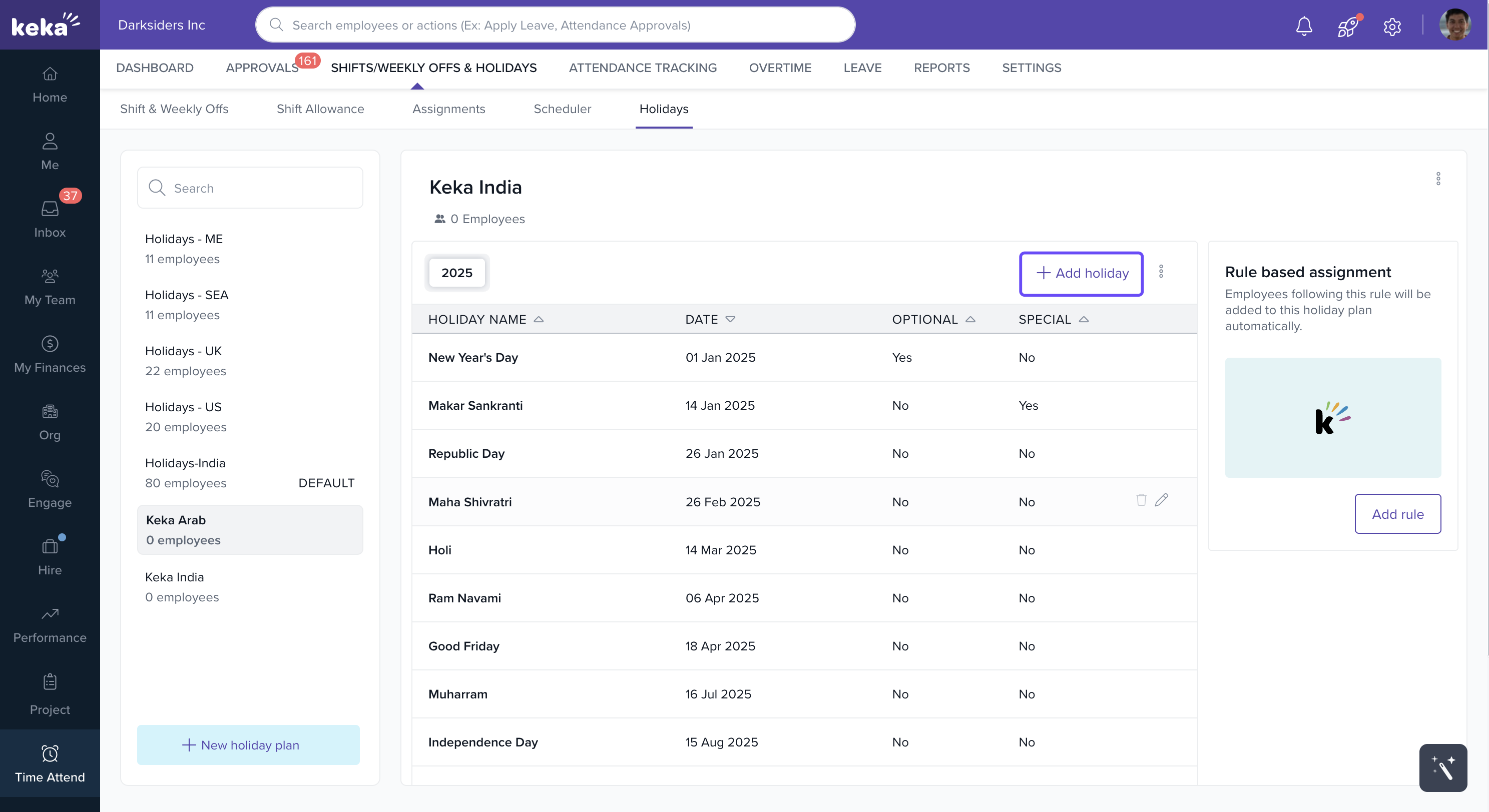
Enter the holiday name, and select the date for the holiday.
Toggle the option to mark the holiday as optional or floater.
-
Click the tick button to save the holiday.
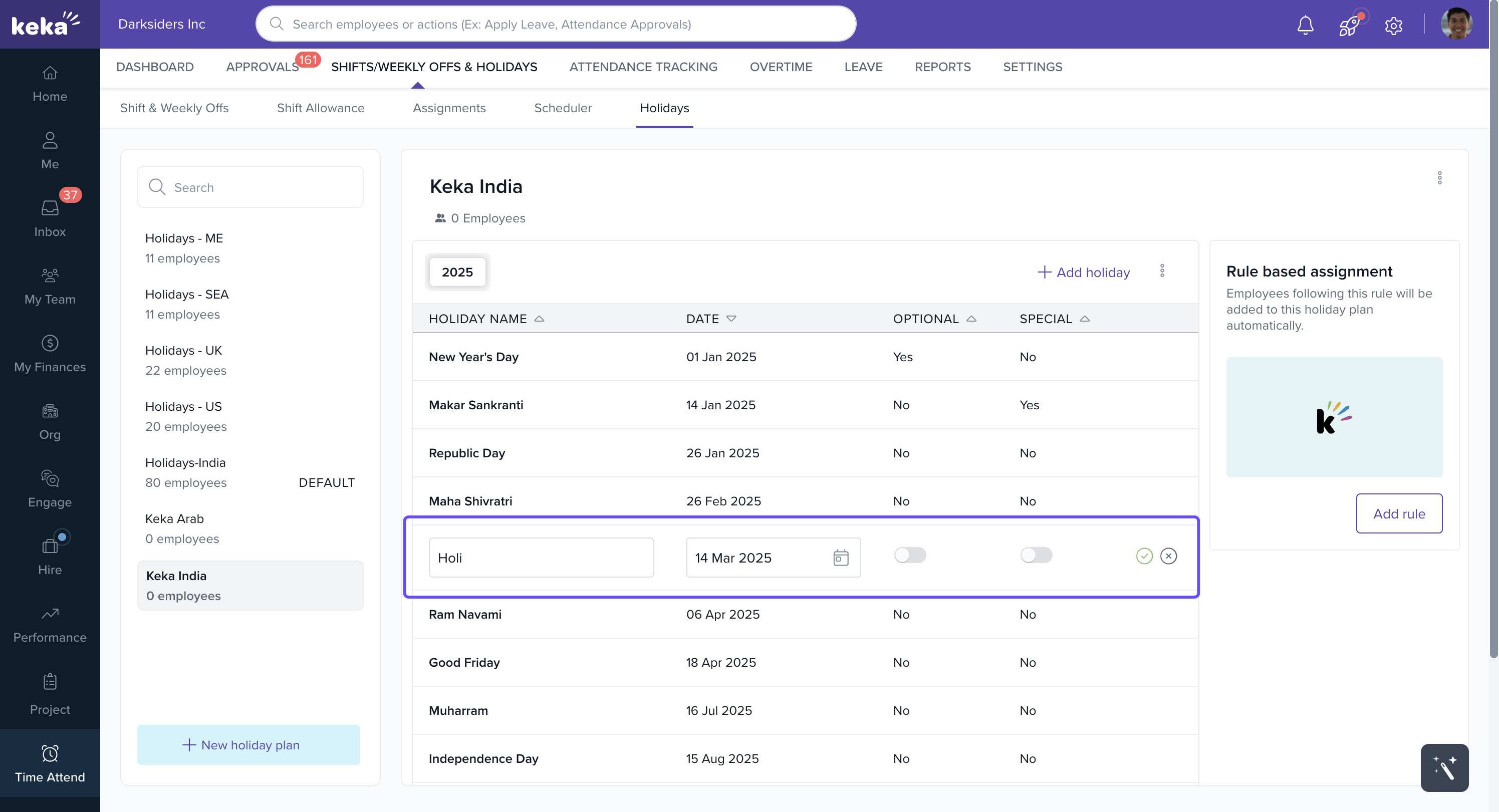
Adding Holidays in Bulk:
For bulk holiday import, follow these steps:
Select the desired holiday list.
- Click on the three dots menu and select Import from Excel.
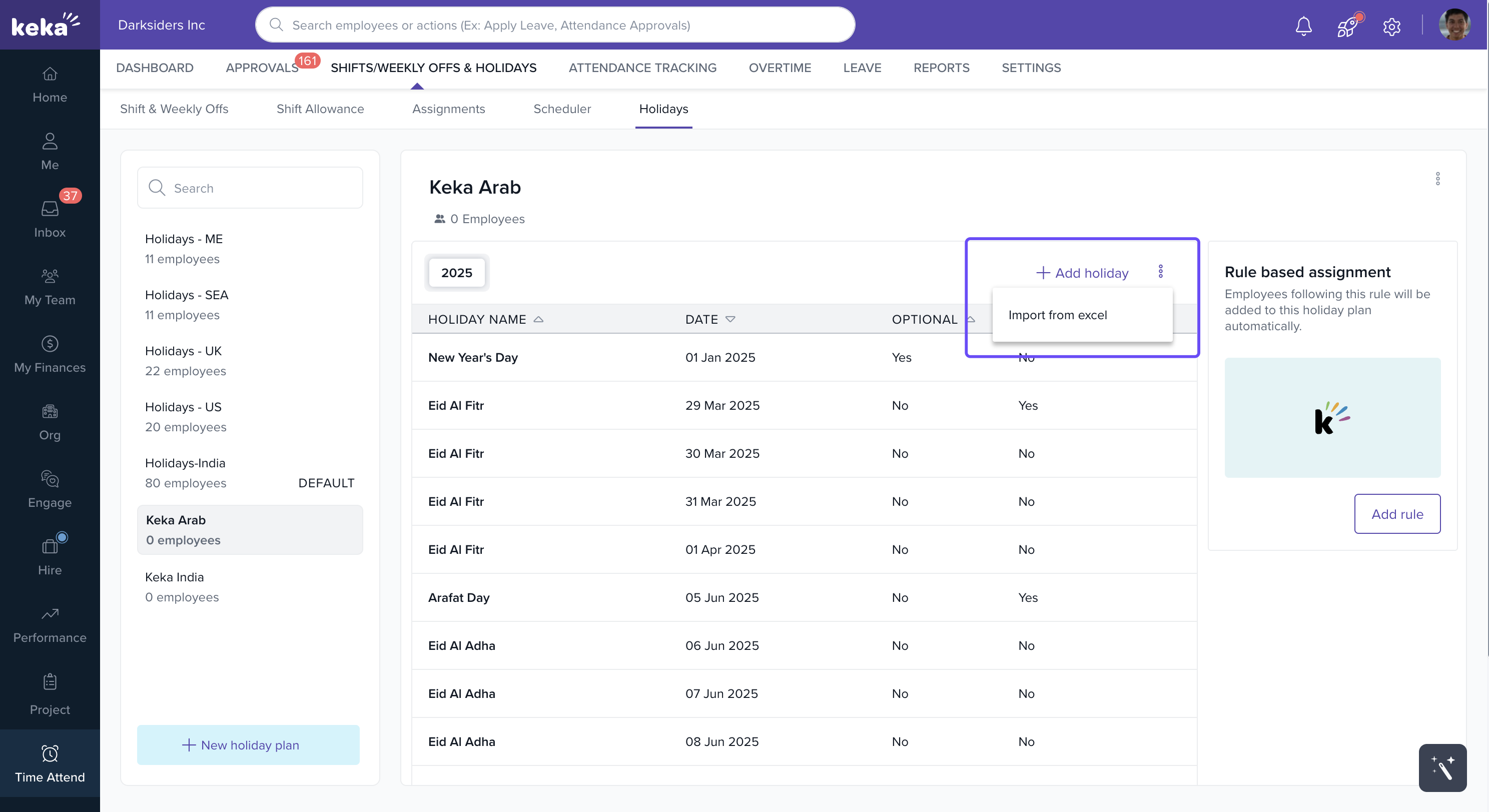
-
Download the Excel template.
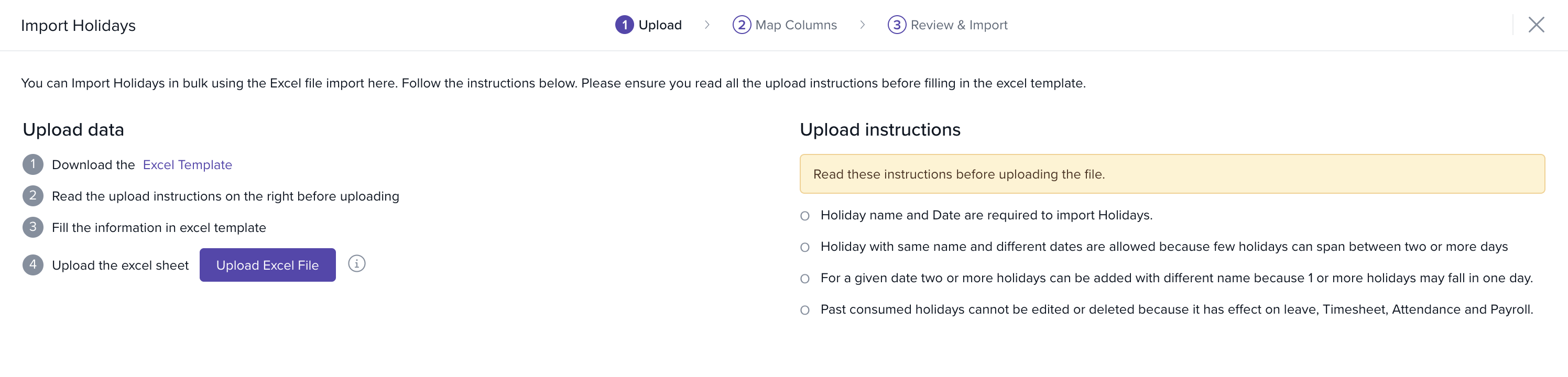
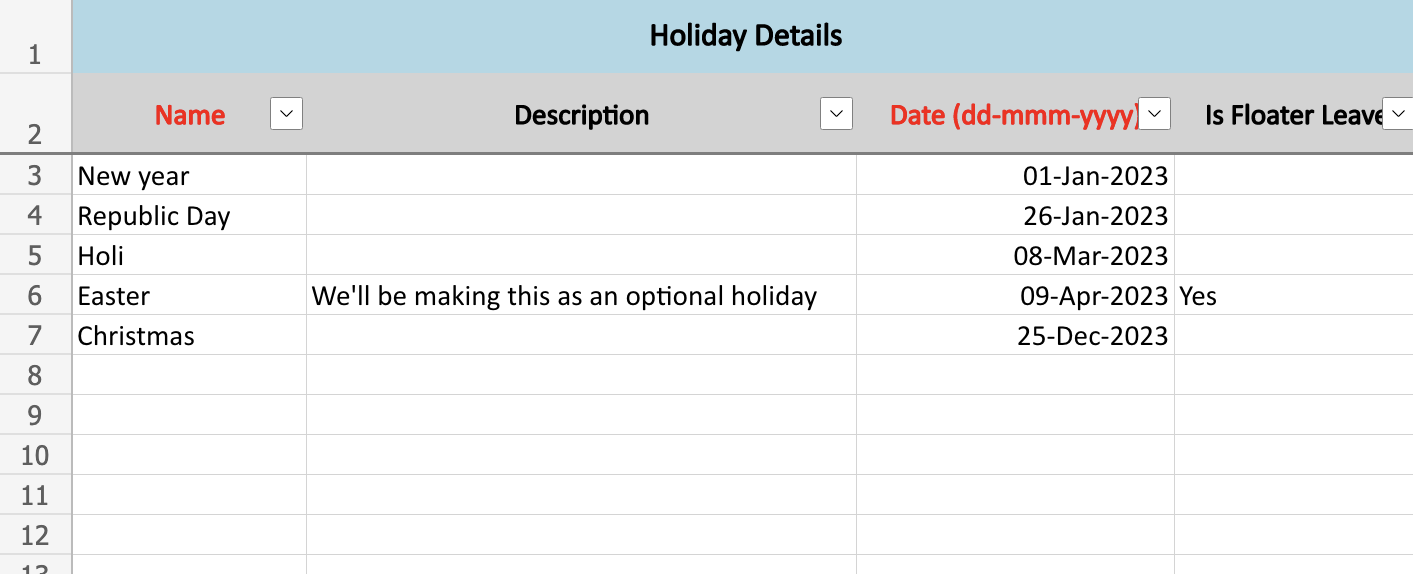
Enter the Name, Description, Date, and Floater Leave information in the template.
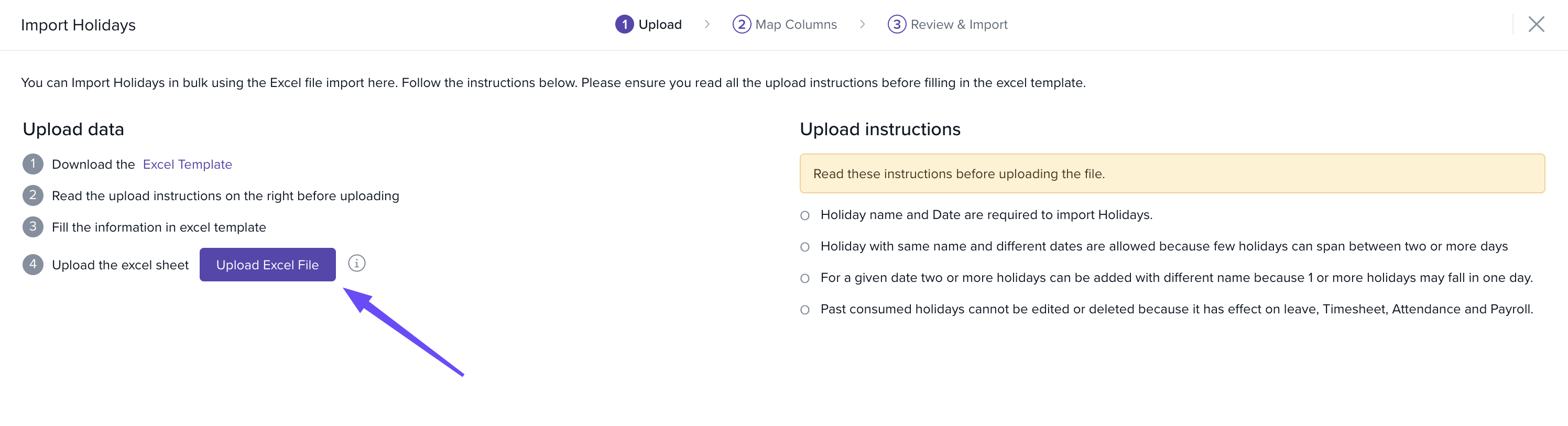
Once your data is updated, upload the Excel file back into the system.
-
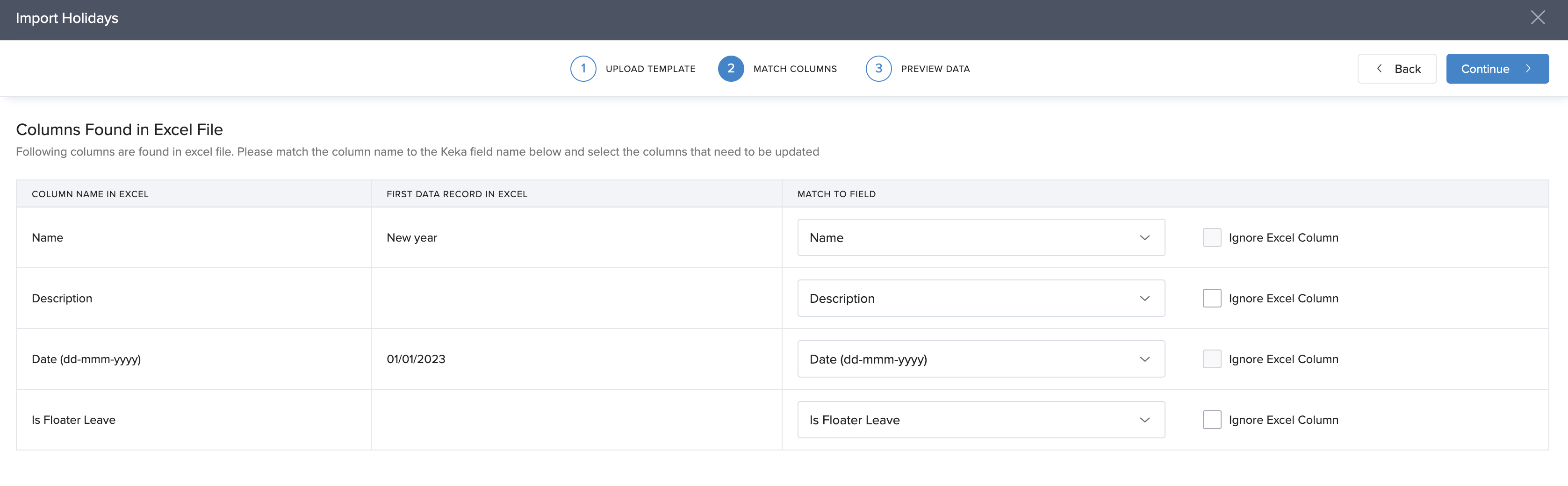
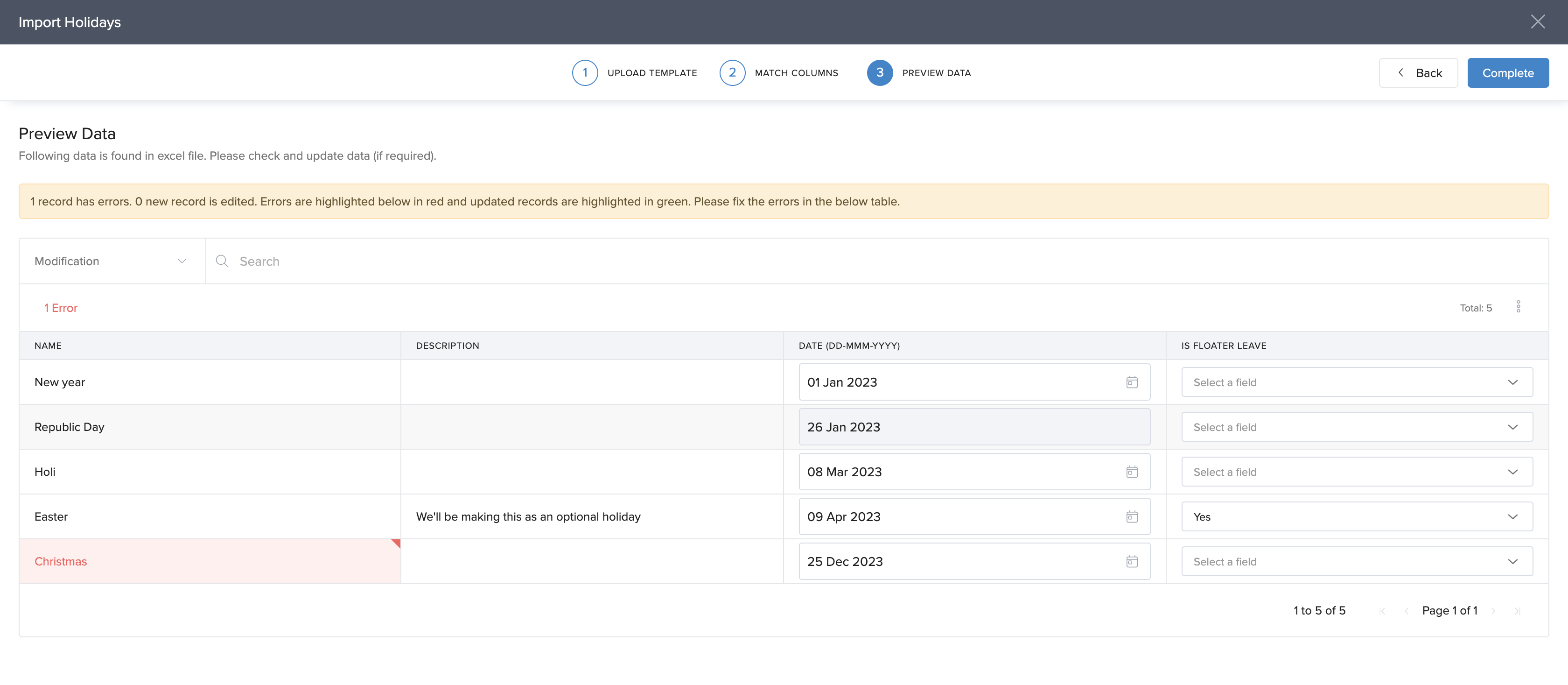
Match the columns in the file to the Keka fields.
-
Preview the data, resolve any discrepancies, and click Continue to complete the import.
8. Assigning Employees to the Holiday Plan
After configuring your Holiday Plan and adding holidays, the final step is to assign it to employees.
Navigate to an employee’s profile.
Go to the Job section and find the Employee Time Card.
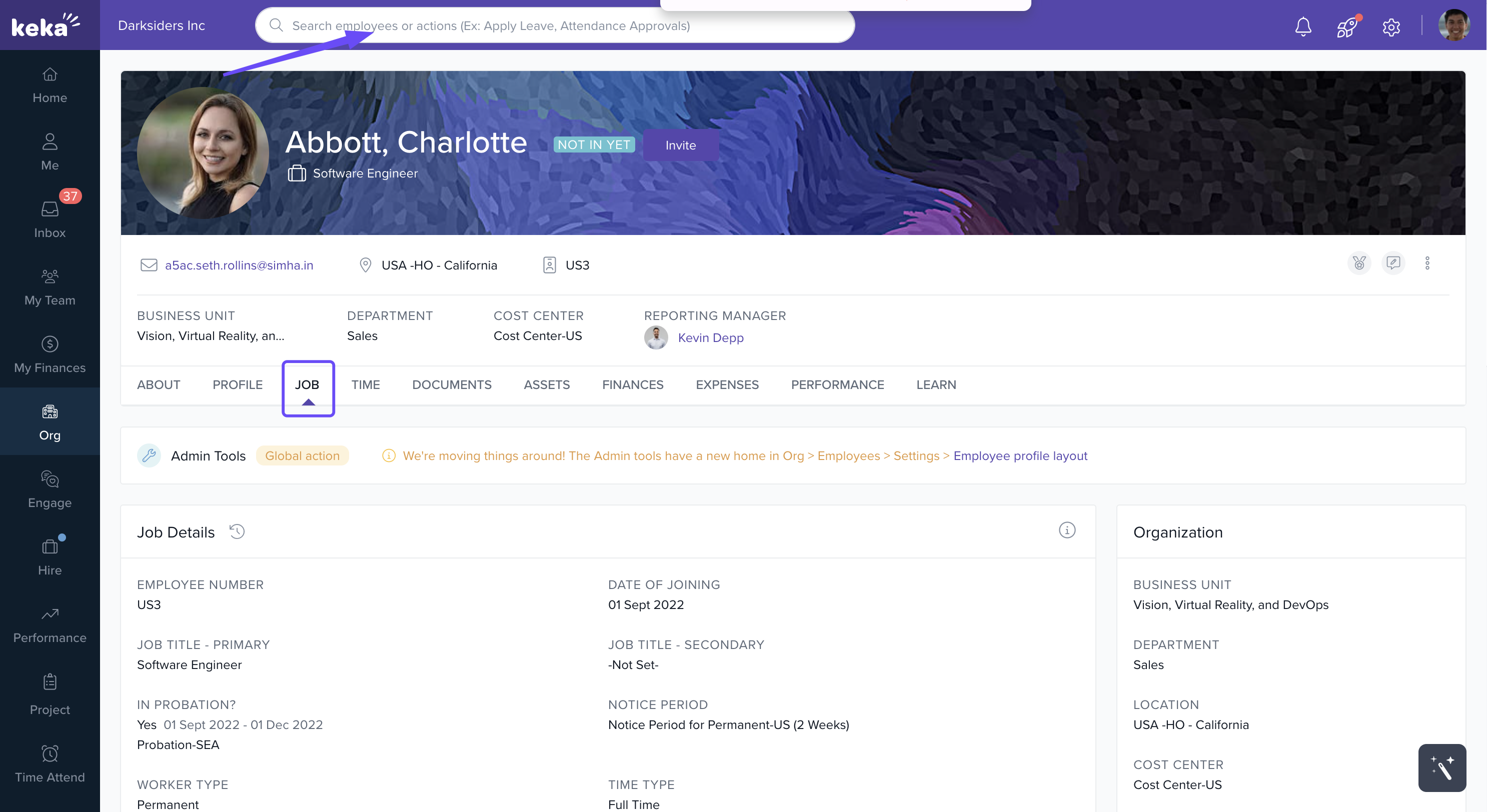
Click the Edit icon next to the Holiday Calendar.
Select the new Holiday Calendar from the dropdown list and click Update.
.gif)
Employees will now see the assigned Holiday List on their dashboard.
Conclusion
Creating a Holiday Plan in Keka HRMS is a straightforward process that ensures your organization maintains clear, fair, and legally compliant holiday schedules for employees. By customizing holiday lists, importing data in bulk, and assigning plans to employees, Keka simplifies the management of holidays across departments or locations.
If you found this guide helpful, let us know or reach out to Keka support for additional assistance!
Comments
0 comments
Please sign in to leave a comment.