Year-end is a critical time to reconcile leave balances before the new year begins. With Keka’s Year-End Processing (YEP), you can manage carry-forwards, encashments, and adjustments in one place—reducing manual effort and giving employees clear leave entitlements.
This guide explains how to prepare, configure, and finalize YEP in Keka. While YEP is pending, Keka shows reminder banners on Home, Attendance Dashboard, and Leave Plans, and enforces validations, warnings, and disabled actions to prevent incorrect processing.
Preparation for Year-End Processing
Before you begin, complete these checks:
Verify balances: Download the Leave Balance Report to confirm accuracy.
Update consumed leaves: Make sure all leaves taken up to December (or the last month of your leave calendar) are updated. See: Updating Consumed Leaves.
Check encashment policy: Ensure your leave encashment policy is set correctly. See: Managing Leave Encashment.
Notify employees: Ask employees to submit pending leave requests before YEP begins. Once finalized, new applications can’t be made for the year.
Avoid moving employees: Do not transfer employees between leave plans until YEP/LYP is complete, as this may cause balance errors.
Review YEP settings: Confirm that year-end rules for each leave type are aligned with your company’s policies.
Once these are in place, you’re ready to start year-end processing.
Steps for Year-End Processing
Go to the Time and Attendance section or simply click the Start Year-End processing on the home screen.
Open the Leave tab and select Leave Plans.
Choose the leave plan you want to process.
Click Year End Processing.
-
Select Begin Year End Processing.
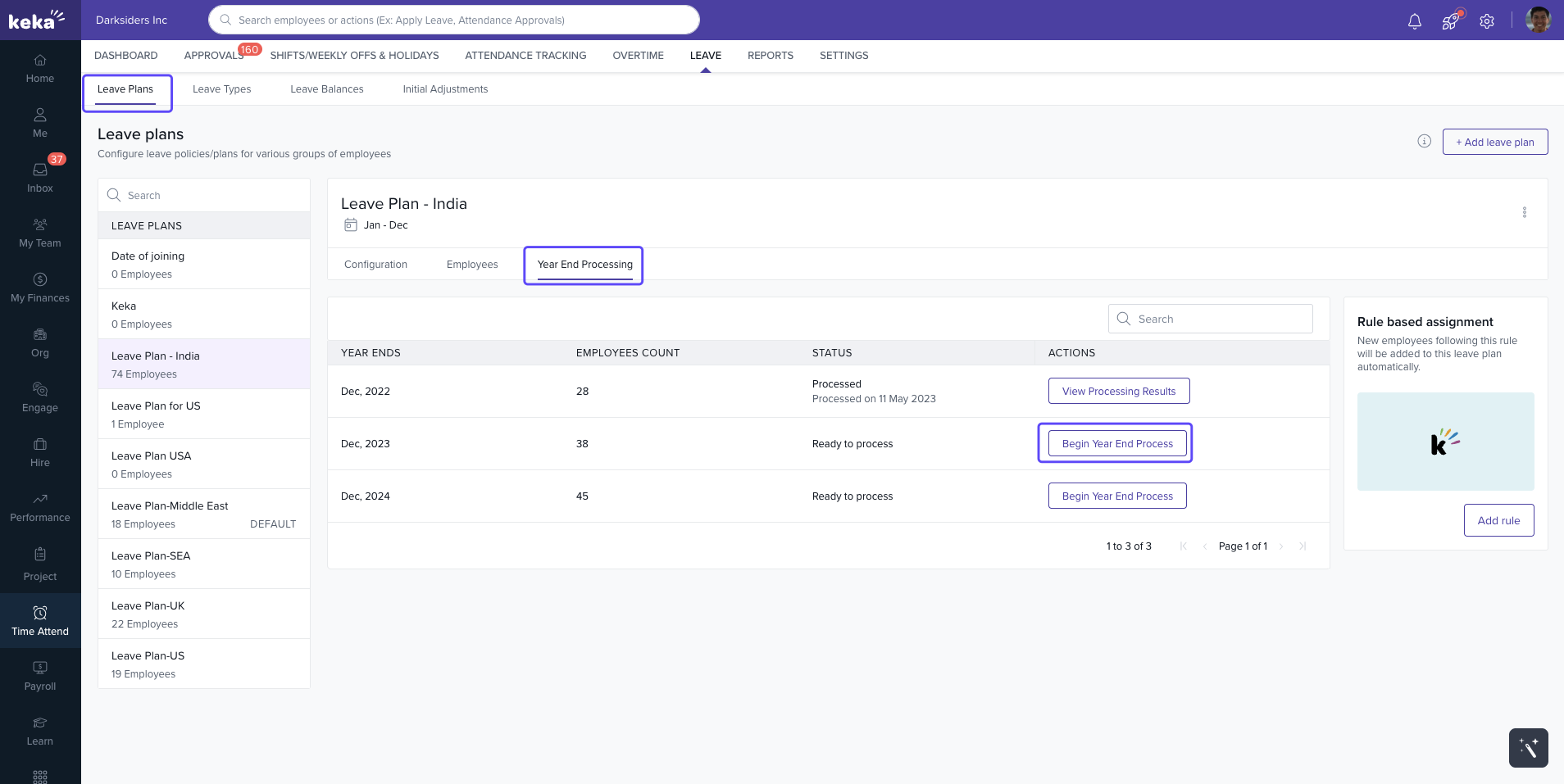
Tip: Until December, you’ll see a Preview Year-End Processing option. This lets you review results without applying changes. From December onward, you can start the final process.
Year-End Processing Sections
When you begin processing, you’ll see three sections:
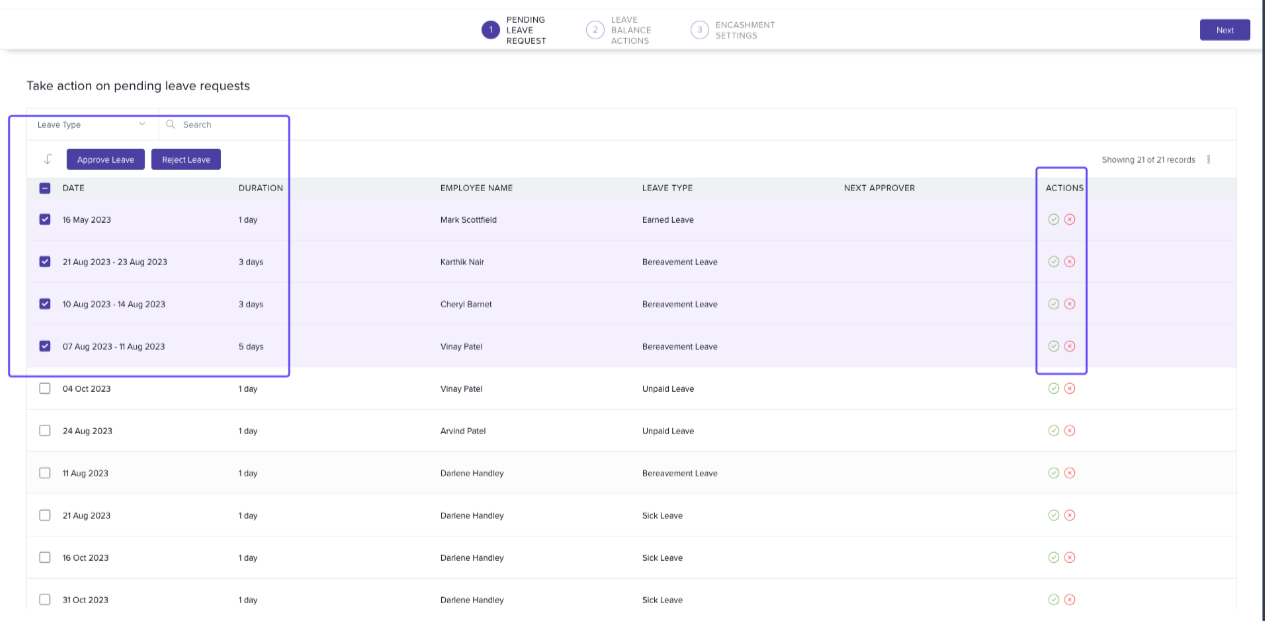
1. Pending Leave Requests
Review any leave requests still pending for the year.
Approve or reject them before moving on.
Note: You must complete this step before continuing.
2. Leave Balance Actions
-
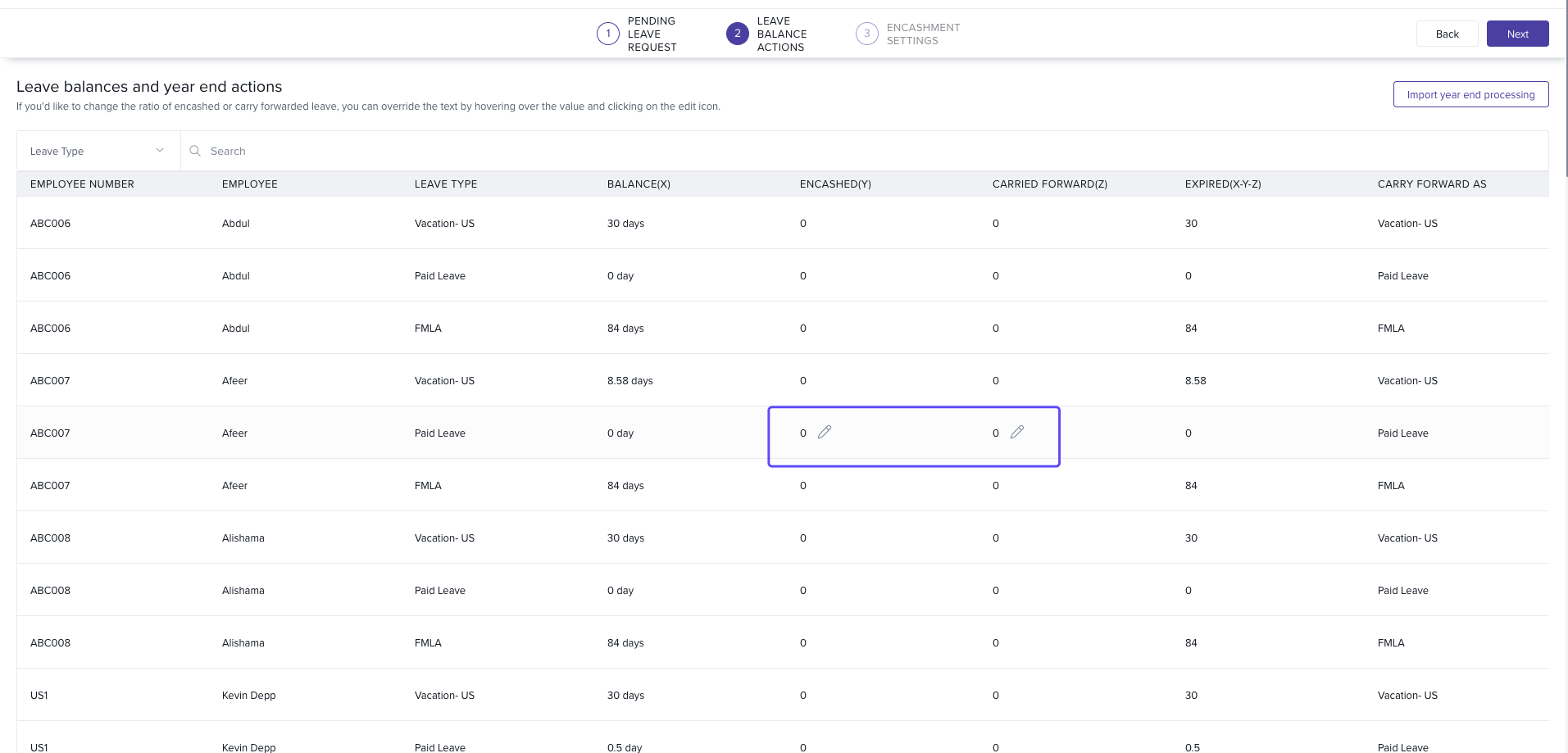
View each employee’s leave summary:
Available balance
Encashed days
Carry-forward days
Expiring days
-
To adjust ratios, hover over a value and click the Edit icon.
3. Leave Encashment
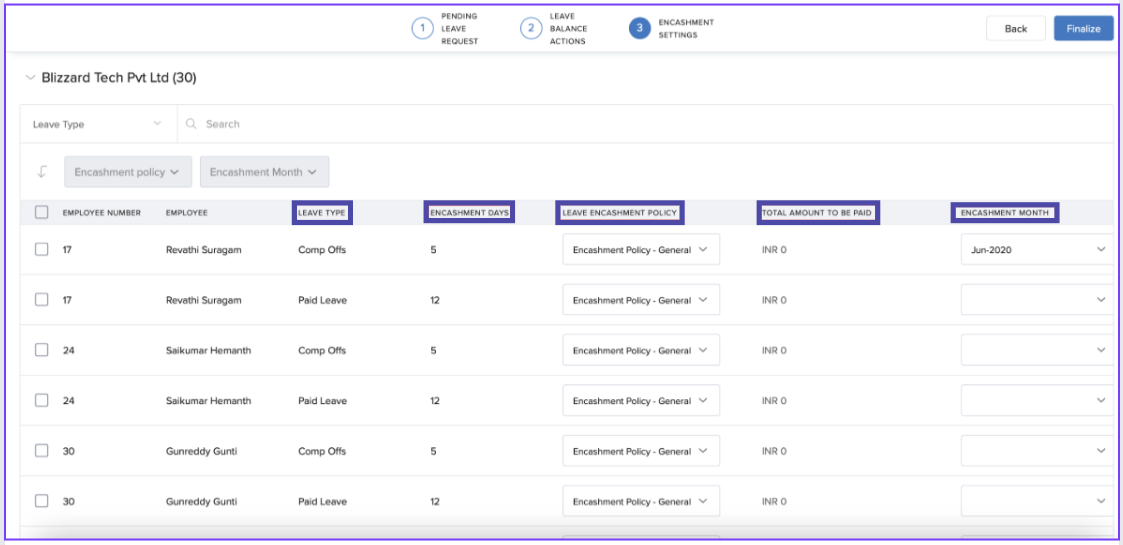
To use this feature, you need a leave encashment policy in payroll.
If no policy exists, set up a default encashment policy in Keka, even if you don’t usually practice encashment.
-
You’ll see details such as:
Type of leave being encashed
Policy applied
Amount to be paid
Month of payout
-
Keka auto-calculates the encashment amounts based on policy formulas, but you can manually adjust them per employee if needed.
Finalizing Year-End Processing
After reviewing pending requests, leave balances, and encashments:
Confirm all details match your organization’s policies.
Click Finalize to complete Year-End Processing.
Once finalized, the leave year closes, and employee records update automatically.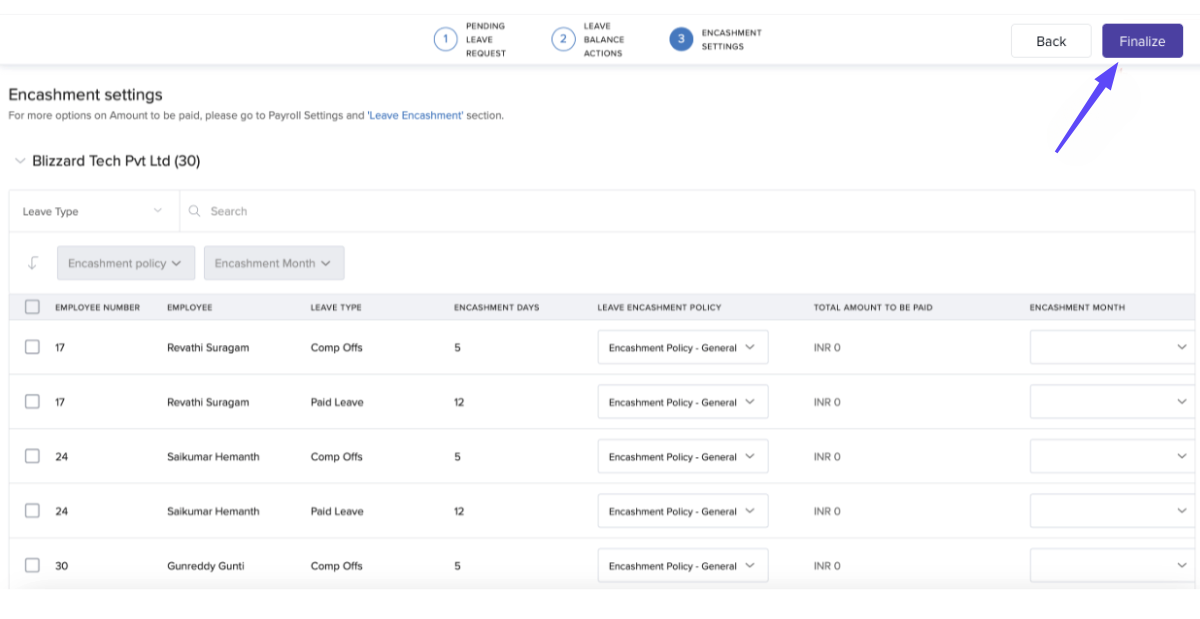
Comments
0 comments
Please sign in to leave a comment.