This guide helps you create a support ticket, check its status, and escalate it if needed within the Keka Help Center. It's intended for any Keka user who needs to contact support for assistance.
You'll need a registered Keka account to submit and track tickets.
How to Create a Support Ticket
Step: 1
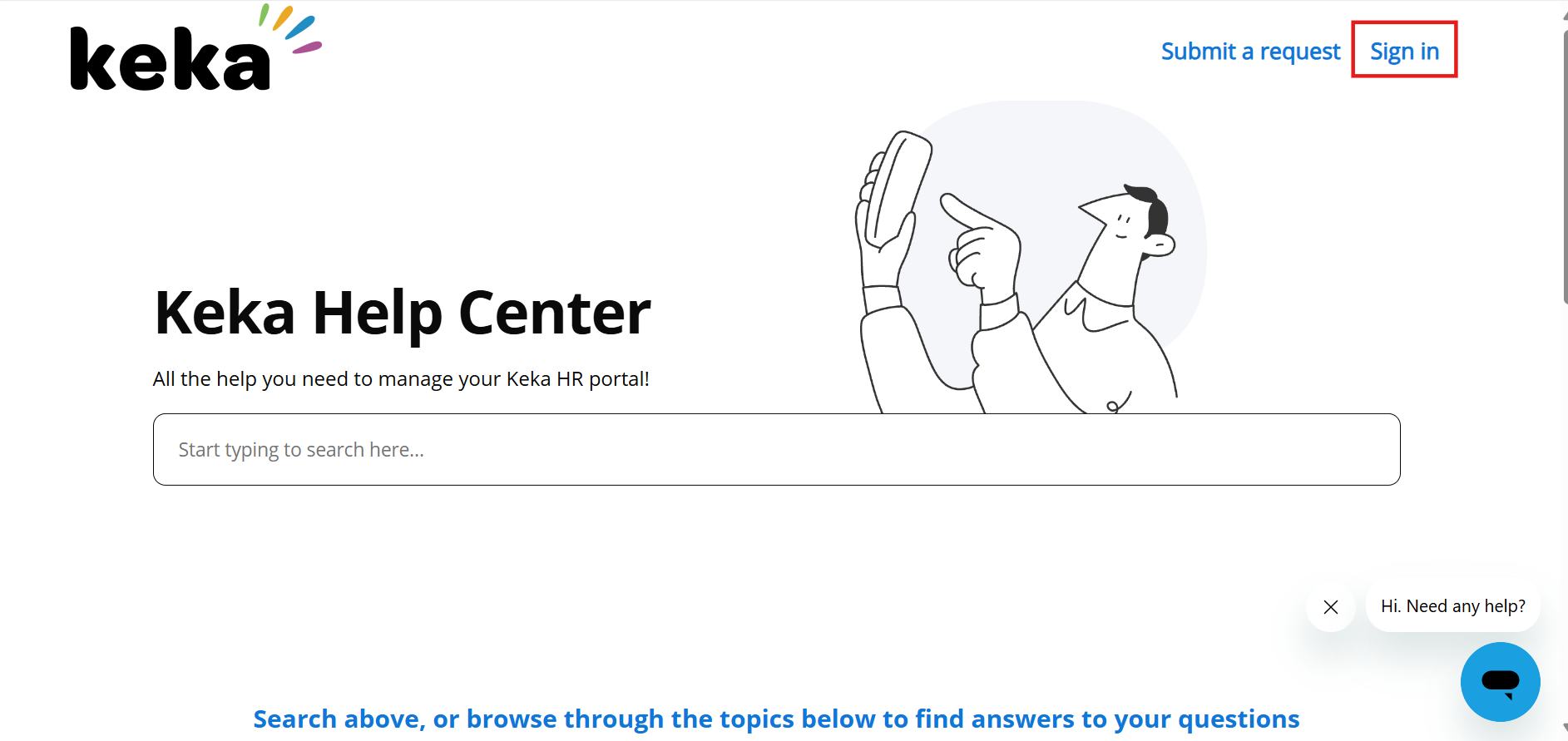
Click on the following link to create a support ticket: help.keka.com. Once the page opens, click on the “Sign In” option as shown below.
Step: 2
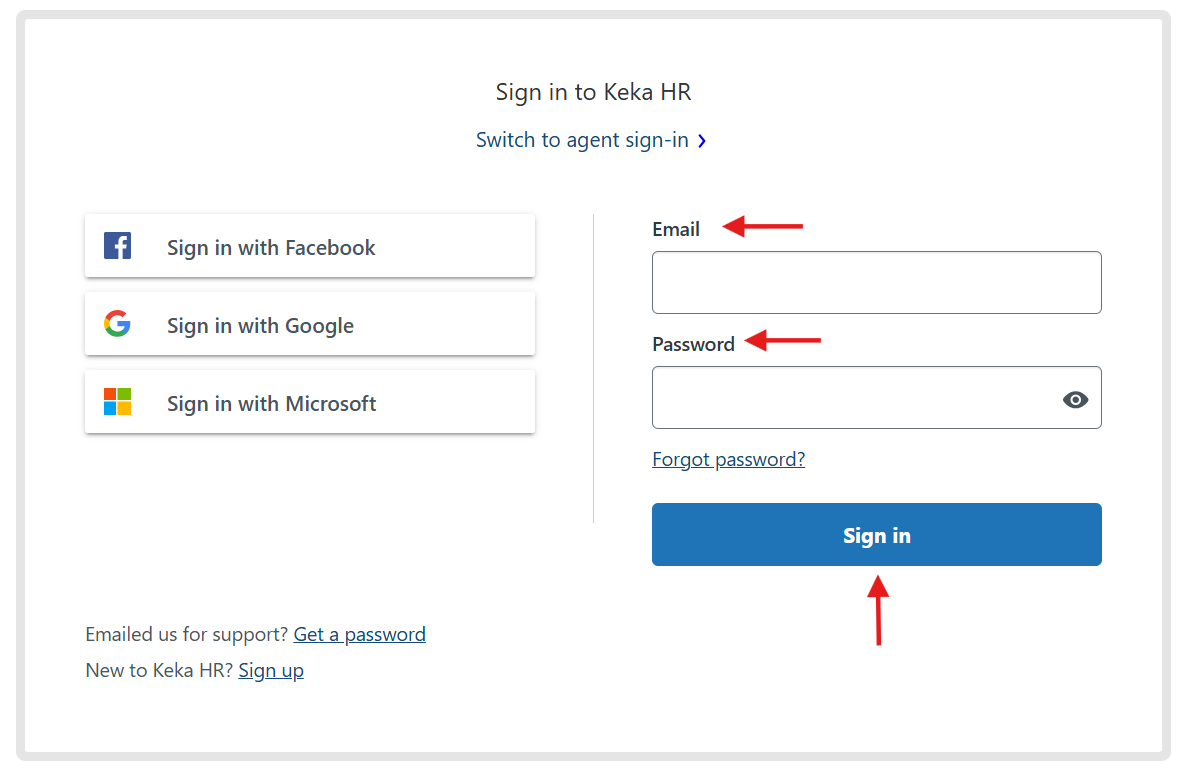
On the Sign In page, enter your registered email ID and password associated with your Keka account.
Step: 3
After logging in, locate the “Submit a Request” button on the top-right corner of the page. Click on it to initiate a new support ticket.
Step: 4
You will be redirected to a new page where you need to fill in all the required fields with relevant details. Once completed, click Submit to raise your request with the Keka Support Team.
How to view the tickets raised?
Step: 1
At the bottom-right corner of the page, click on “Check your request status” to view the progress of your active tickets.
Step 2:
After clicking on “Check your request status,” you will be able to see a list of all tickets raised from your login. Click on any ticket to view the complete conversation and status updates
How to escalate a ticket?
Step 1:
Once you open any ticket, you will find an “Escalate” button on the right-hand sidebar. You may use this option if you are dissatisfied with the response time or require immediate assistance.
Step 2:
After clicking on “Escalate,” provide a brief reason for the escalation in the designated field, and then click “Submit.”
Comments
0 comments
Please sign in to leave a comment.