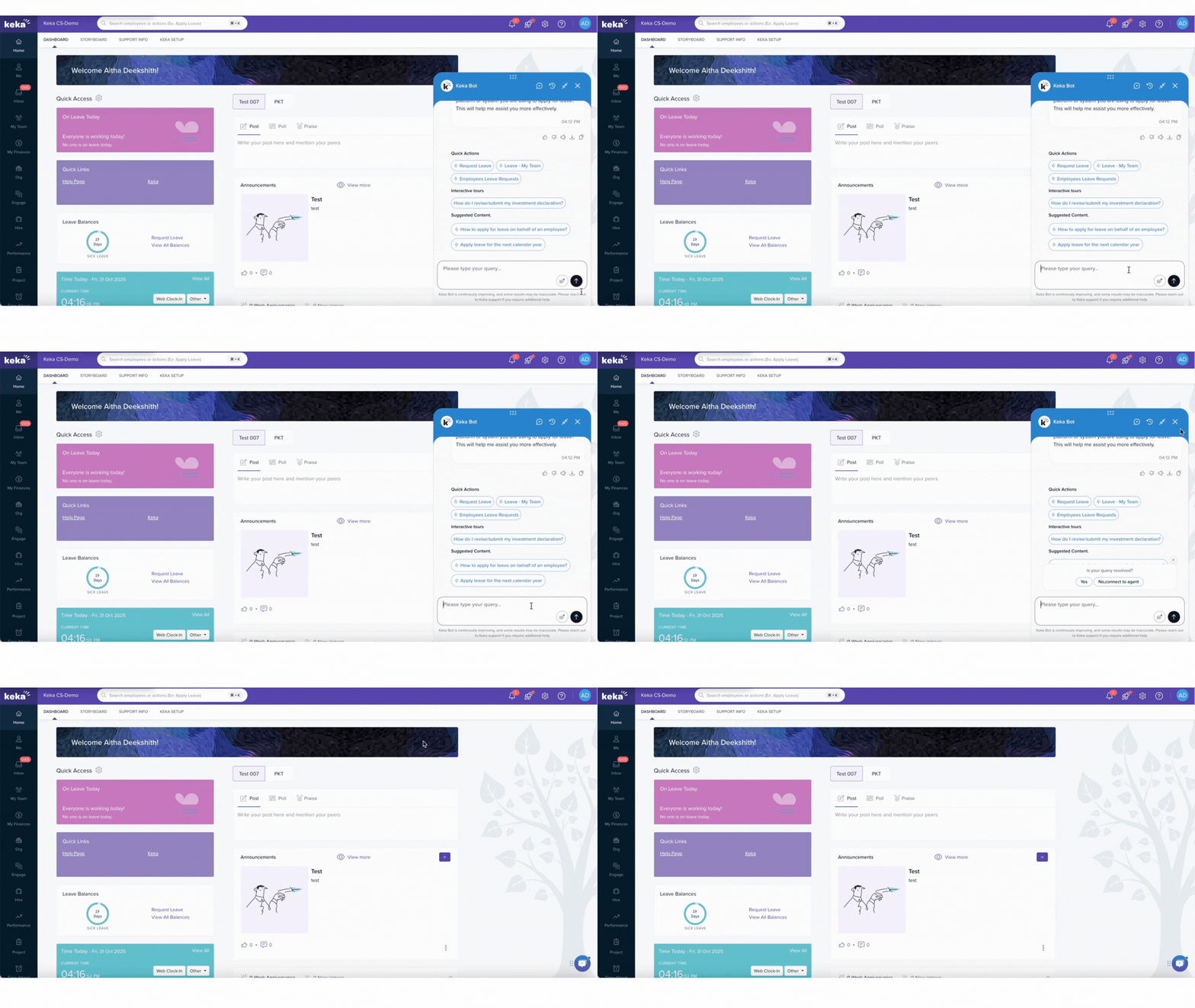
Or you can access the Keka Chat Bot anytime from the bottom-right
corner of your Keka dashboard.
How to Chat
Overview
Keka chat bot is Keka’s in‑app help assistant. It can instantly surface the right knowledge‑base article, point you to a how‑to video, or connect you to our Support team when needed. This guide shows you how to phrase your questions so Keka chat bot can resolve them in a single turn—saving you time and reducing wait‑times for everyone.
Who Can Do This
All Keka employees and administrators who see the Keka chat bot icon after clicking on the❓ Help icon on the top‑right of any Keka page.
Pre‑requisites
- You are signed in to your Keka account.
- Pop‑ups are not blocked for help.keka.com.
- You have your question framed with the module or feature name (e.g., Payroll > Form 16 download).
Accessing the Chat Bot
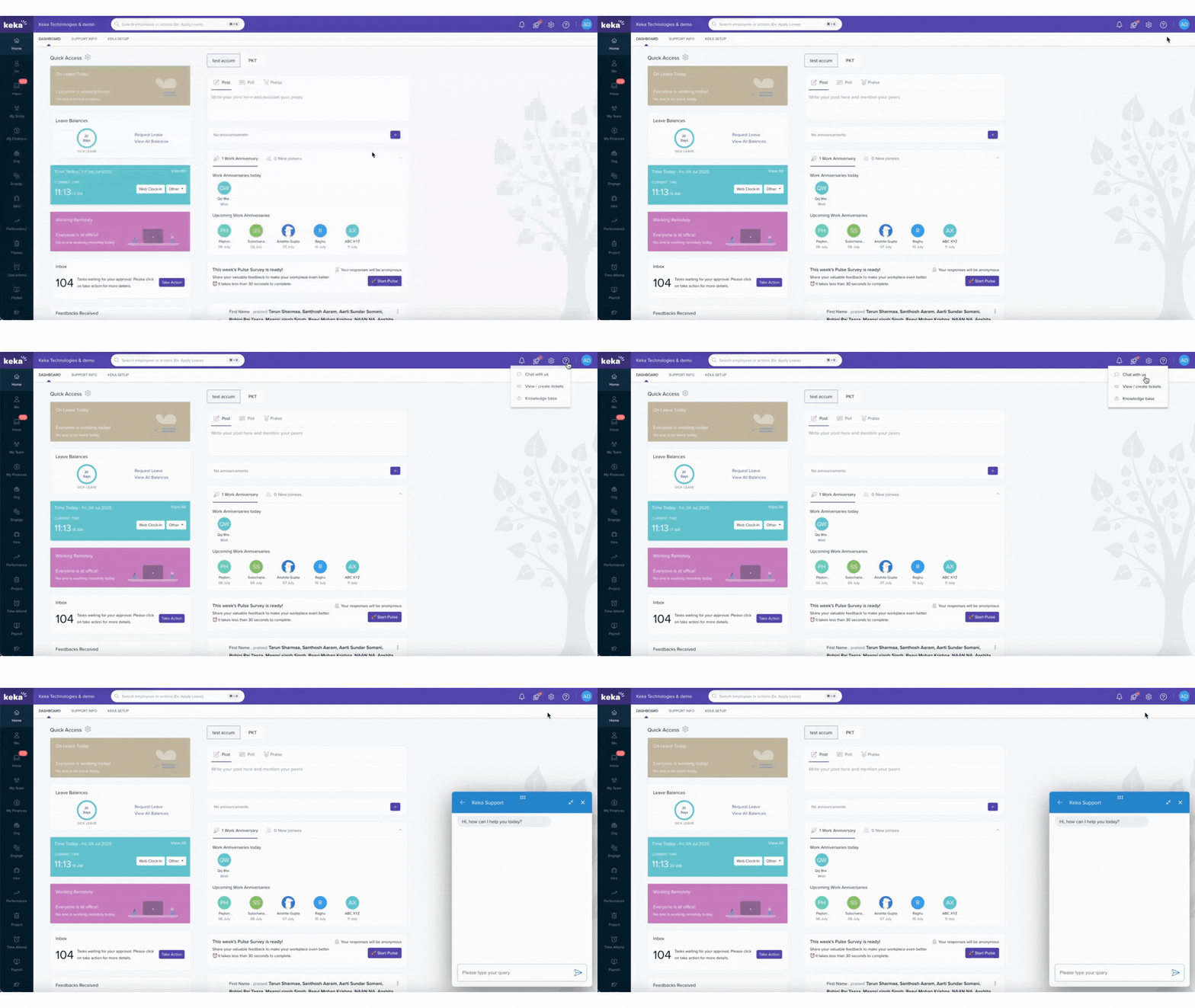
You can access the Keka Chat Bot anytime from the bottom-right corner of your Keka dashboard.
Simply click on the chat icon 💬 to open the support widget and start a conversation with our virtual assistant.
Step‑by‑Step Instructions
- Open Keka Chat Bot
Click the purple ❓ Help icon on the top‑right of any Keka page. - Start with a concise question
Good: “Add employee loss‑of‑pay for May payroll”
Avoid: “Please help”. - Include the module name
Example: “Core HR › Change employee probation period”. - Ask one question at a time
Keka Chat Bot picks the best answer when the intent is clear. - Use keywords that appear in the UI
Copy button labels or menu names verbatim—Keka's Chat bot search is tuned to them. - Skim the suggested article preview
Most answers are in the first 4 lines; click Read Article if it matches. - Still stuck?
Click Talk to an agent, add a brief description and attach a screenshot (use the 📎 clip icon). Screenshots help Support diagnose issues up to 3× faster, so Keka Chat Bot will gently remind you to include one whenever you escalate.
Chat‑Tip Validations
When you submit a question, Keka's Chat bot checks for:
- Length < 5 words – prompts you to add context.
- Multiple question marks – offers to split into separate queries.
- Greeting‑only messages (“hi”, “hello”) – Keka Chat Bot replies: "Hi there! To assist you quickly, please try asking, for example — Payroll › Download payslips".
- Missing module keyword – suggests adding the module name (e.g., Leave, Expense).
Examples – Good vs. Poor Questions
| Too Vague | Clear & Actionable |
|---|---|
| "hi" | "Payroll ▶︎ Download Form 16" |
| "leave problem" | "Leave ▶︎ Apply Comp‑Off for April 24" |
| "reimbursement?" | "Expense ▶︎ Bulk‑upload reimbursement claims" |
| "can't see salary" | "Compensation ▶︎ View CTC breakdown in payslip" |
Use the second‑column style for the quickest answer.
How It Connects with Other Modules
- Help Center Articles – Keka Chat Bot searches the entire KB and shows top matches.
- Product Tours & Videos – If a walkthrough exists, Keka Chat Bot embeds it inline.
- Live Support – Escalates the full chat transcript to an agent, preserving your question history.
FAQs
| Question | Answer |
|---|---|
| Can I attach screenshots? | Yes—use the 📎 icon after Keka Chat Bot asks a follow‑up. |
| What languages does Keka Chat Bot understand? | English. |
| Does Keka Chat Bot know my role? | Yes—permissions are respected, so it won’t suggest admin‑only steps to employees. |
Troubleshooting
- Keka Chat Bot window won’t open – Disable pop‑up blockers or ad‑block extensions for Keka.
- Answer looks outdated – Click Thumbs‑down to flag it; our team reviews daily.
- No results found – Re‑phrase with module + action (e.g., Leave › Apply Comp‑Off).
Comments
0 comments
Please sign in to leave a comment.