Overview
In this guide, you will learn:
- How to access and use the Bulk Import feature in Keka PSA
- The different types of bulk imports available for clients, projects, tasks, and resources
- How to perform a bulk import using Excel templates
Who Can Do This?
- Project Admins
- HR/Admins
- Global Admins with access to the Projects section in Keka PSA
Pre-requisites
- Valid access to the Projects module in Keka PSA
Accessing Bulk Import
- Go to the Projects section in the left-hand navigation pane.
- Click on the Bulk Import tab at the top.
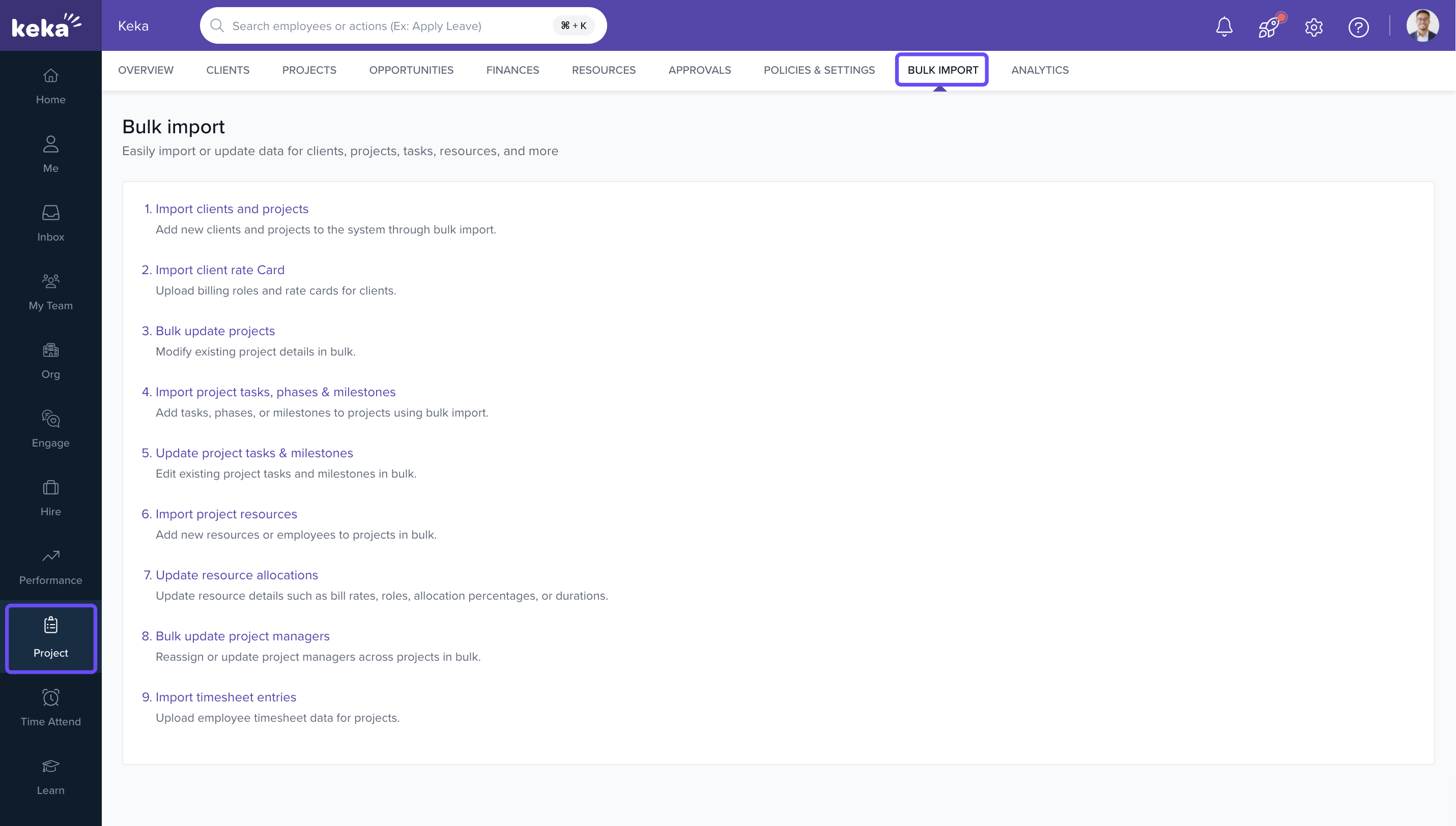
Choosing the Import Type
- Import Clients and Projects: Upload multiple clients and their associated projects at once (can include client address details).
- Import Client Rate Card: Upload billing roles and rates for various clients to keep rate cards updated.
- Bulk Update Projects: Make changes to project-level details such as deadlines, statuses, or names in one go.
- Import Project Tasks, Phases & Milestones: Add a large list of new tasks, phases, and milestones to any existing project.
- Update Project Tasks & Milestones: Modify names, dates, assignees, or statuses for tasks and milestones already in the system.
- Import Project Resources: Add new team members or employees to projects in bulk to streamline resource assignment.
- Bulk Update Project Managers: Update project manager assignments for several projects simultaneously.
Performing the Import
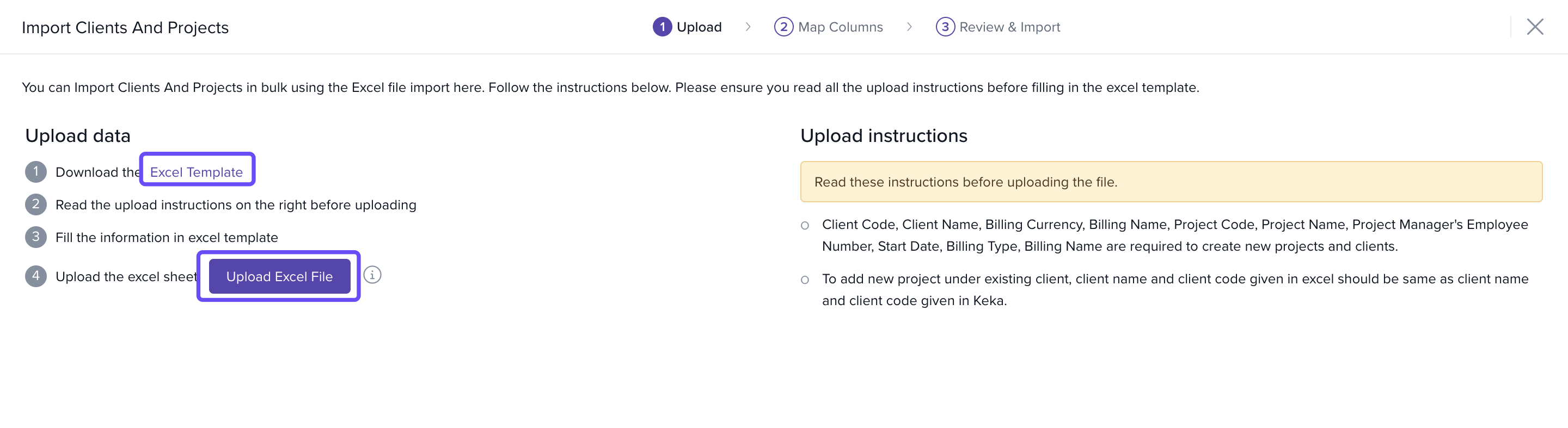
- Click on the relevant import type.
- Download the Excel template provided.
- Fill in the required data in the sheet.
- Upload the completed file back into the portal.
-
Validate the entries and confirm the upload.
How It Connects with Other Modules
- Projects: Updates project-level info such as tasks, milestones, and project managers.
- Resources: Imports or updates employee allocations to active projects.
- Finance & Billing: Ensures rate cards and billing roles are correctly reflected in invoices.
FAQs
-
Q: Where can I get the Excel templates for import?
A: Templates are provided when you click on the desired bulk import option in the portal. -
Q: Can I import custom fields too?
A: Only the fields included in the template can be imported. Custom fields support may be added later. -
Q: What happens if the uploaded file has errors?
A: You'll receive an error log prompting correction before re-uploading the file. -
Q: Can I use the bulk import feature for deleting data?
A: No, bulk import only supports adding or updating data, not deletion. -
Q: Is there a limit to how many rows I can import?
A: The system supports large datasets, but it's best to break it into batches of 1000 rows or fewer for optimal performance.
Troubleshooting
-
Upload failed or partially succeeded?
- Check if all mandatory fields in the Excel template are filled correctly.
- Ensure date formats match system expectations.
- Confirm that related entities (e.g., projects, employees) already exist in the system.
Comments
0 comments
Please sign in to leave a comment.