Overview
In this guide, you will learn:
- How to configure Keka PSA to automate payroll using timesheet and leave data
- What hour restrictions and penalties can be applied
- How to enforce timesheet submission compliance
Who Can Do This?
- Global Admins
- HR/Admins with access to Projects and Timesheet Policies in Keka
Pre-requisites
- A Timesheet Policy must be configured and assigned to employees.
- Payroll and leave modules must be active in your Keka subscription.
Enabling Timesheet Automation for Payroll
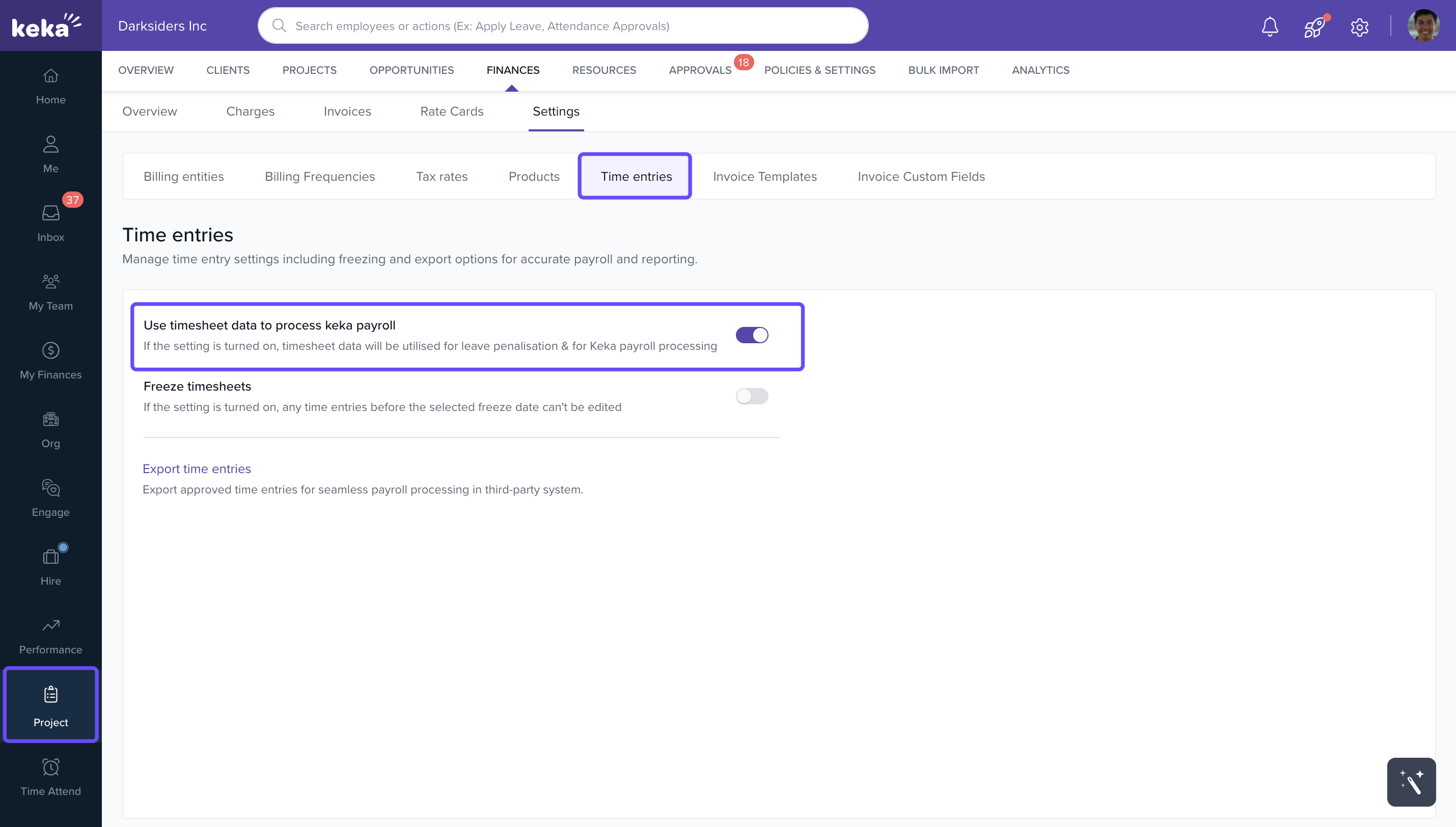
- Navigate to Projects > Settings under the Finances section.
- Under the Time entries tab, enable the toggle for Use timesheet data to process Keka payroll.
Configuring Timesheet Policy Settings
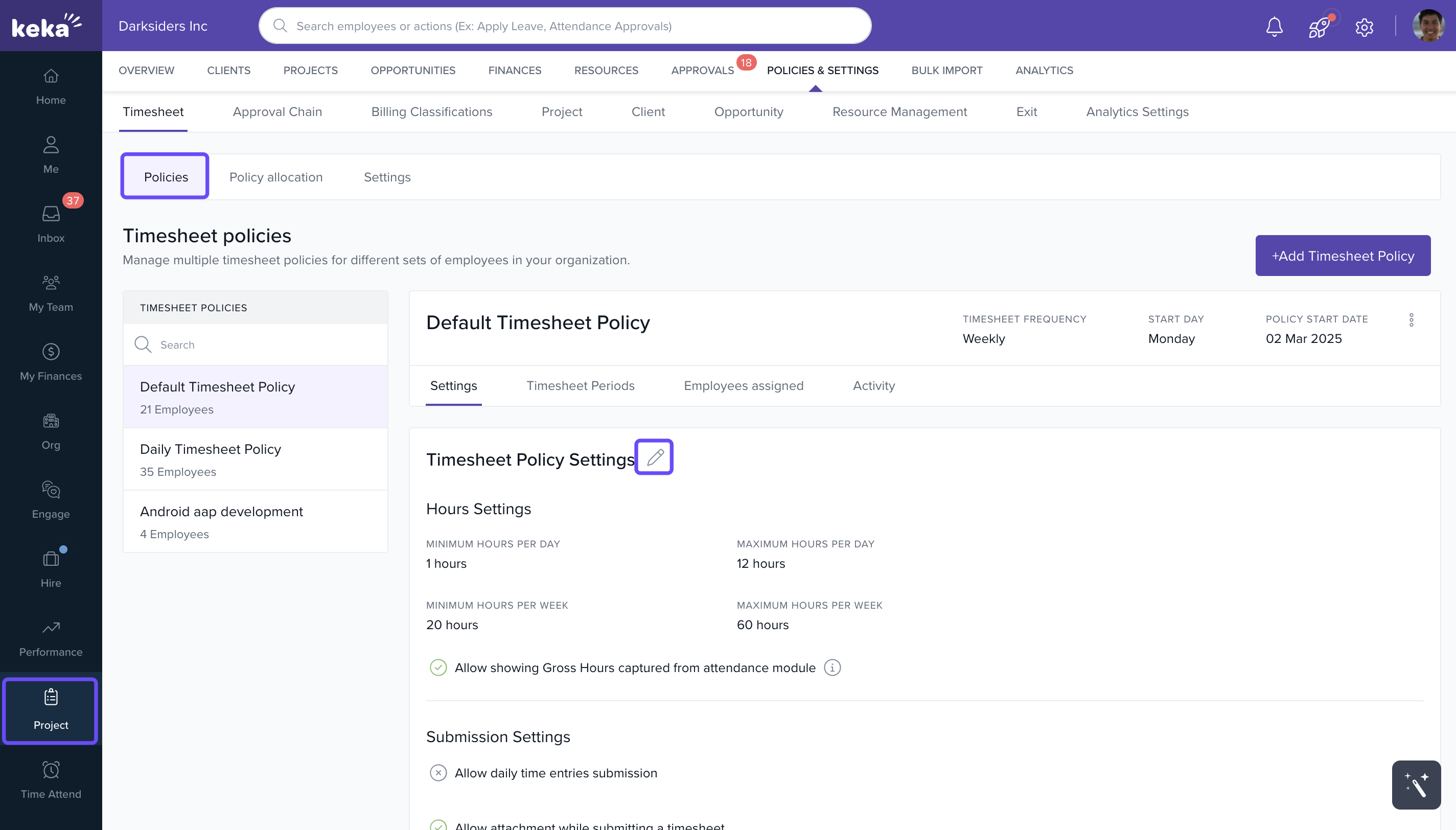
- Go to Projects > Policies & Settings > Timesheet Policies.
- Select a timesheet policy and click on Timesheet Policy Settings.
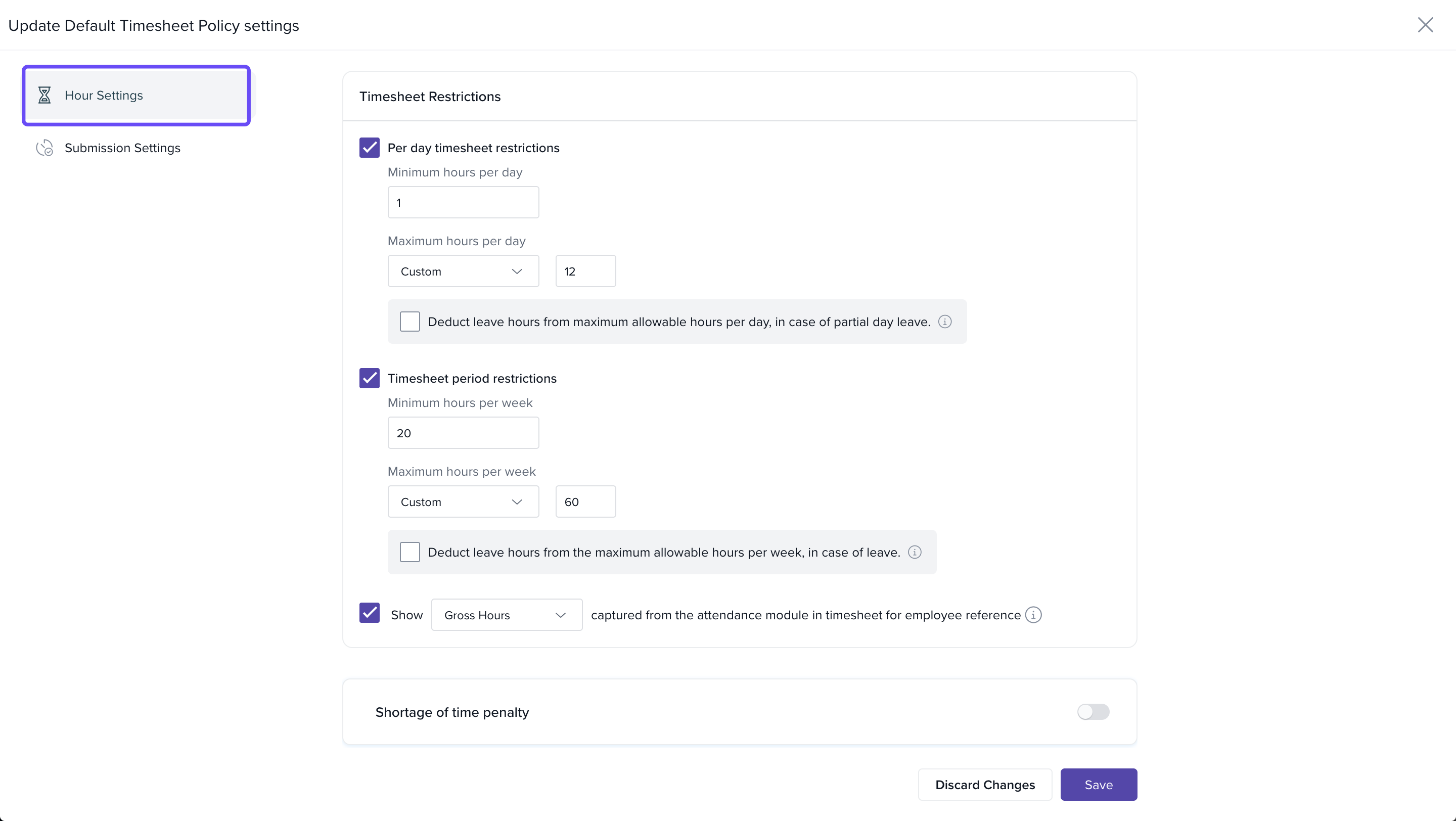
- Click on the Hour Settings section, then configure:
- Per Day: Restrict hours on a daily basis.
- Minimum Hours: Required minimum for the day.
- Maximum Hours: Cap for the day.
- Gross/Effective: Decide whether hours include breaks (gross) or only work time (effective).
-
Set Timesheet Period Restrictions:
- Per Week: Apply restrictions on a weekly evaluation basis.
-
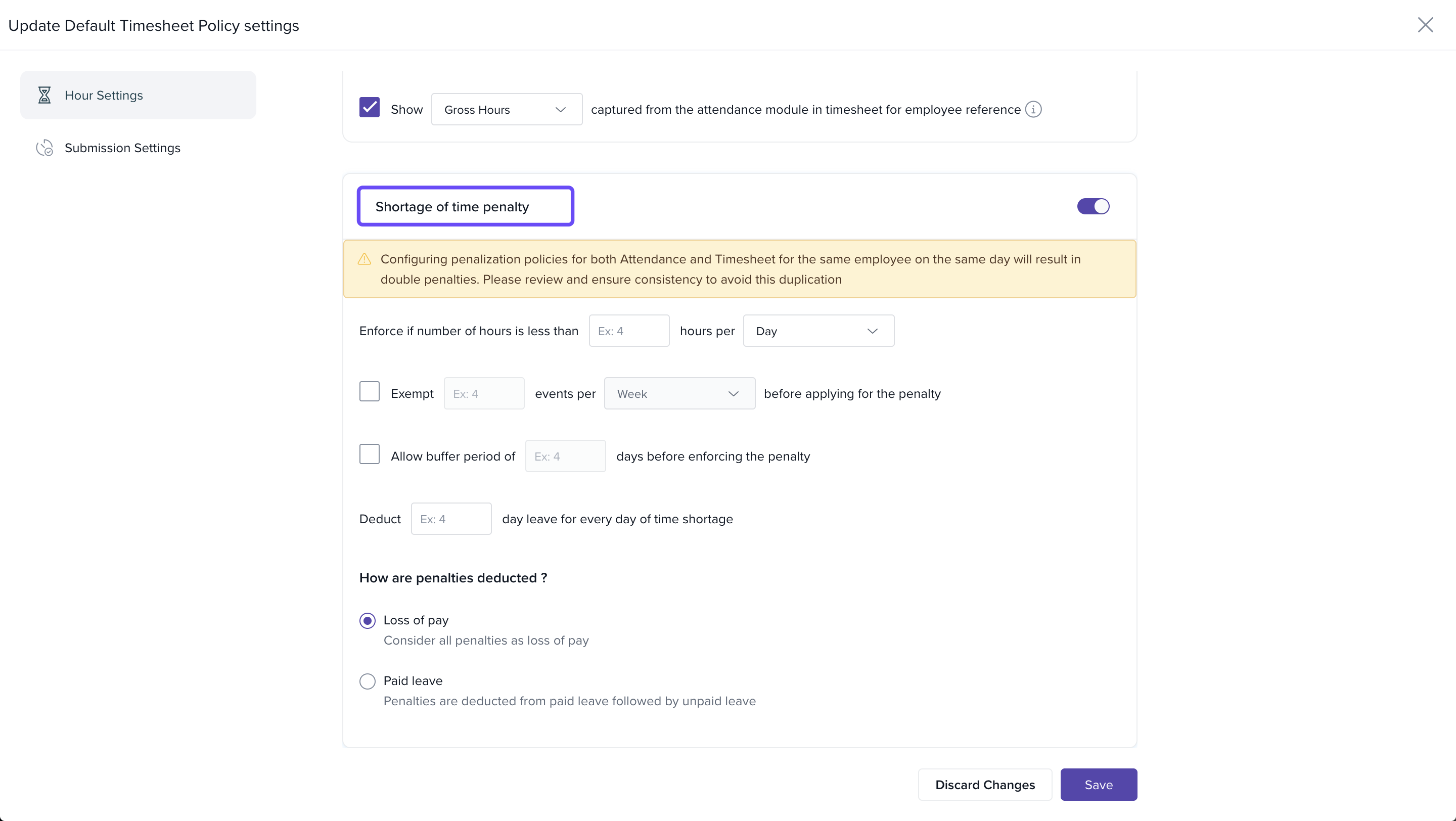
Configure Shortage of Time Penalty:
- Exempt: No penalty.
- Allow Buffer Period: Grace period before penalty.
- Deduct: Deduct pay per missing hour.
- Loss of Pay/Paid Leave: Adjust salary or leave balance for shortfall.
Timesheet Submission Settings and Compliance
-
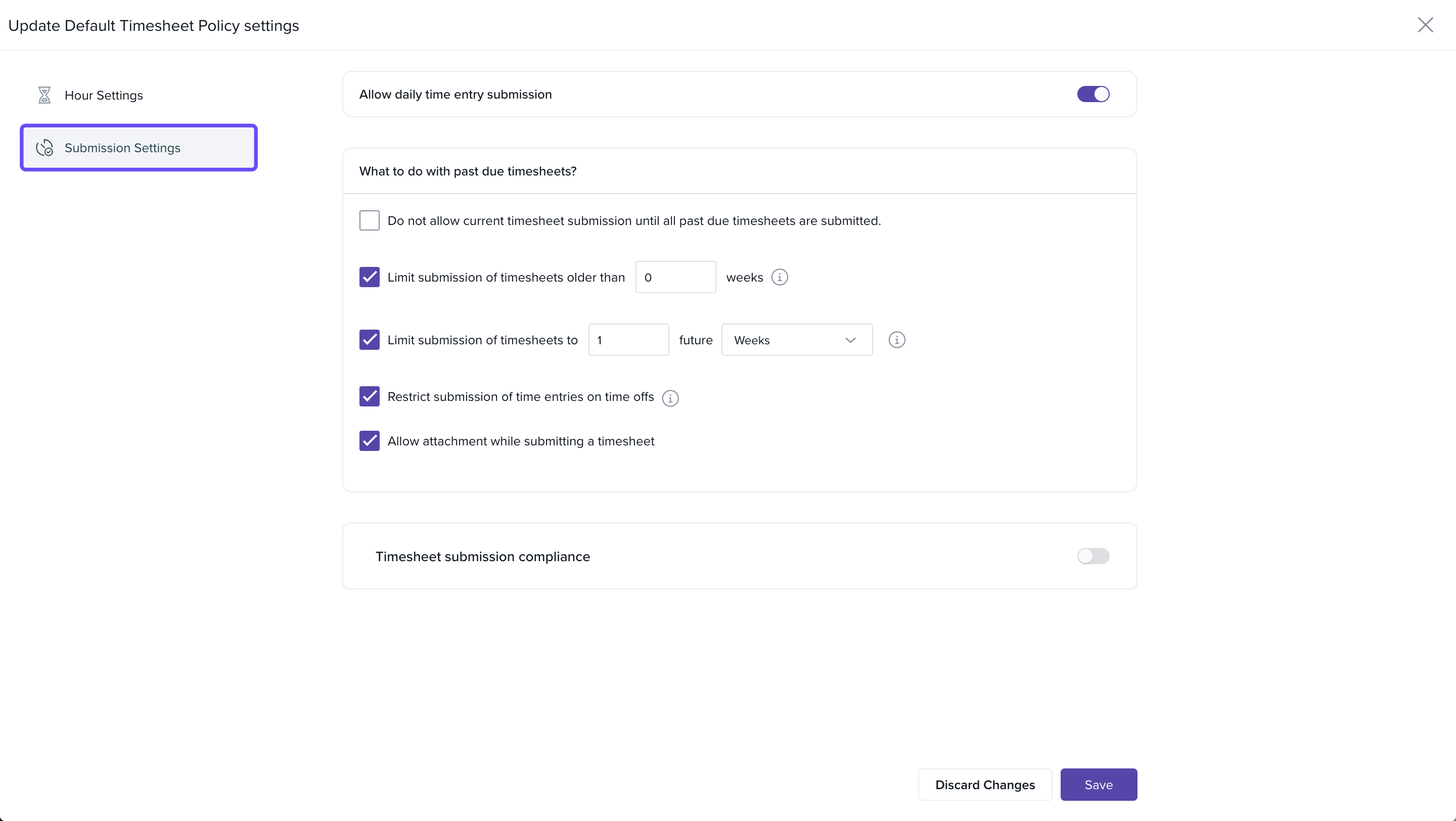
In Submission Settings, configure:
- Allow daily time submission.
- Allow submitting current timesheet even if past weeks are pending.
- Limit submission: Based on status or timeline.
- Time Offs: Auto or manual handling of time-offs.
- Allow attachments: Enable file uploads in timesheets.
-
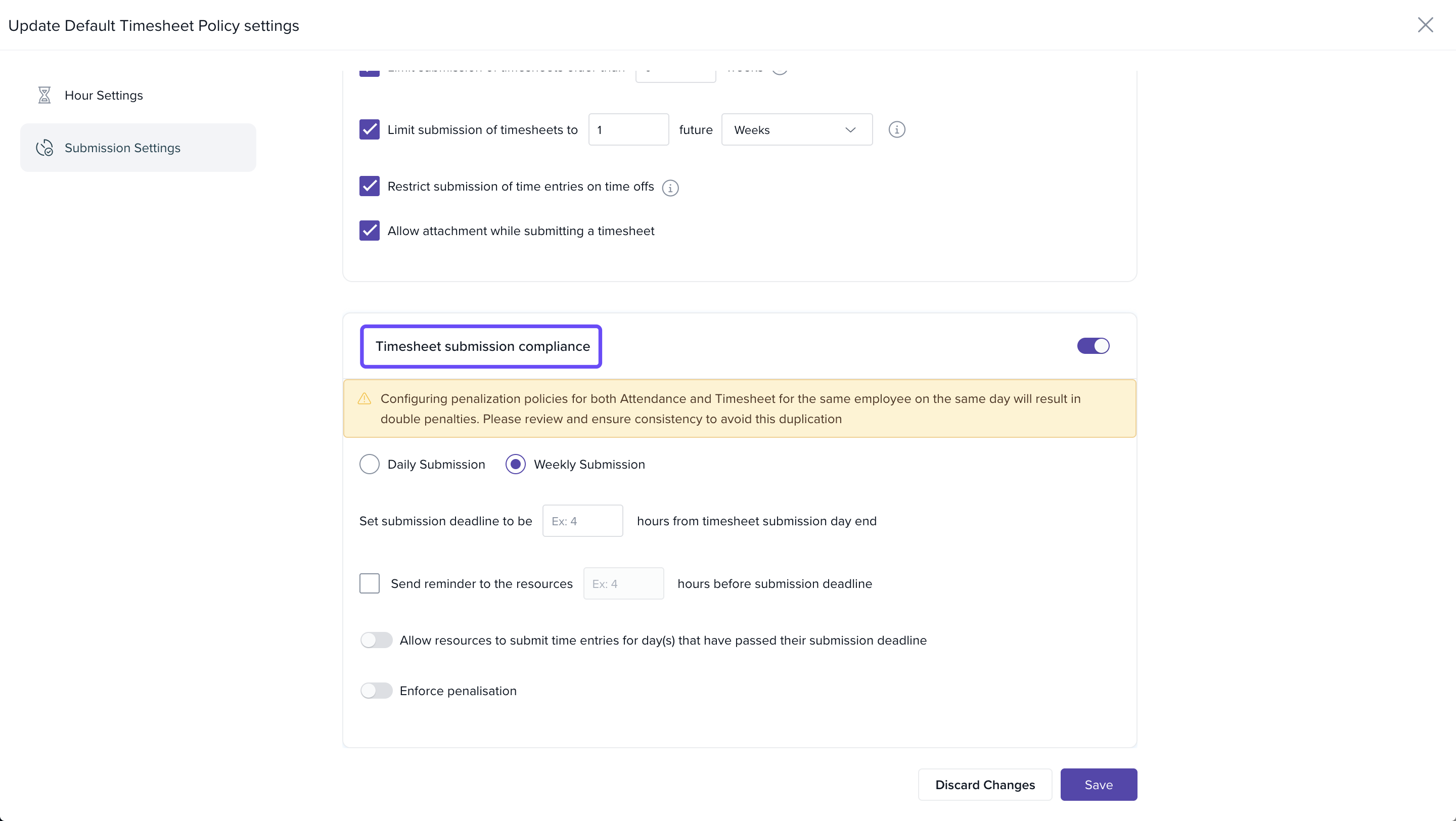
In Timesheet Submission Compliance, define:
- Daily/Weekly Submission requirement.
- Deadline for submission.
- Reminder nudges to employees.
- Resources: Available helpdesk links or internal support.
- Enforce Penalization: Choose from Exempt, Deduct, or Loss of Pay/Paid Leave.
How It Connects with Other Modules
-
Leave:
· Leave data is auto-fetched and integrated with the timesheet.
· If policy restricts logging on leave days, submission is blocked. -
Attendance:
· Attendance logs validate Gross/Effective hours. -
Payroll:
· Timesheet hours flow into payroll calculations.
· Penalties and deductions are auto-reflected.
FAQs
-
Q: How do I know if payroll is using timesheet data?
A: Check the toggle under Project > Settings > Timesheet. -
Q: What happens if an employee logs fewer hours than the policy minimum?
A: Penalties will be applied as per policy (e.g., deduction or LOP). -
Q: Can employees attach files in timesheets?
A: Yes, if allowed in submission settings. -
Q: Can I enable only leave-based payroll without timesheet integration?
A: No, leave deductions apply via timesheet validations.
Troubleshooting
-
Payroll doesn’t reflect penalties or LOP?
· Ensure timesheet hours are below the threshold.
· Check if penalization rules are configured and enabled. -
Can’t submit timesheets for a date?
· The date may be a week-off, leave, or restricted by policy.
· Hover over the cell or check Attendance logs for context.
Comments
0 comments
Please sign in to leave a comment.