Overview
In this guide, you will learn:
- How to bulk update project statuses in Keka PSA
- How to use the Excel template for updating project status
Who Can Do This?
- PSA Admins
- HR Admins
- Any user with access to Bulk Import project settings
Pre-requisites
- Access to the Bulk Import module.
- Downloaded and filled Excel sheet with valid project names and status values.
Step-by-Step Instructions
Navigate to Bulk Update Projects
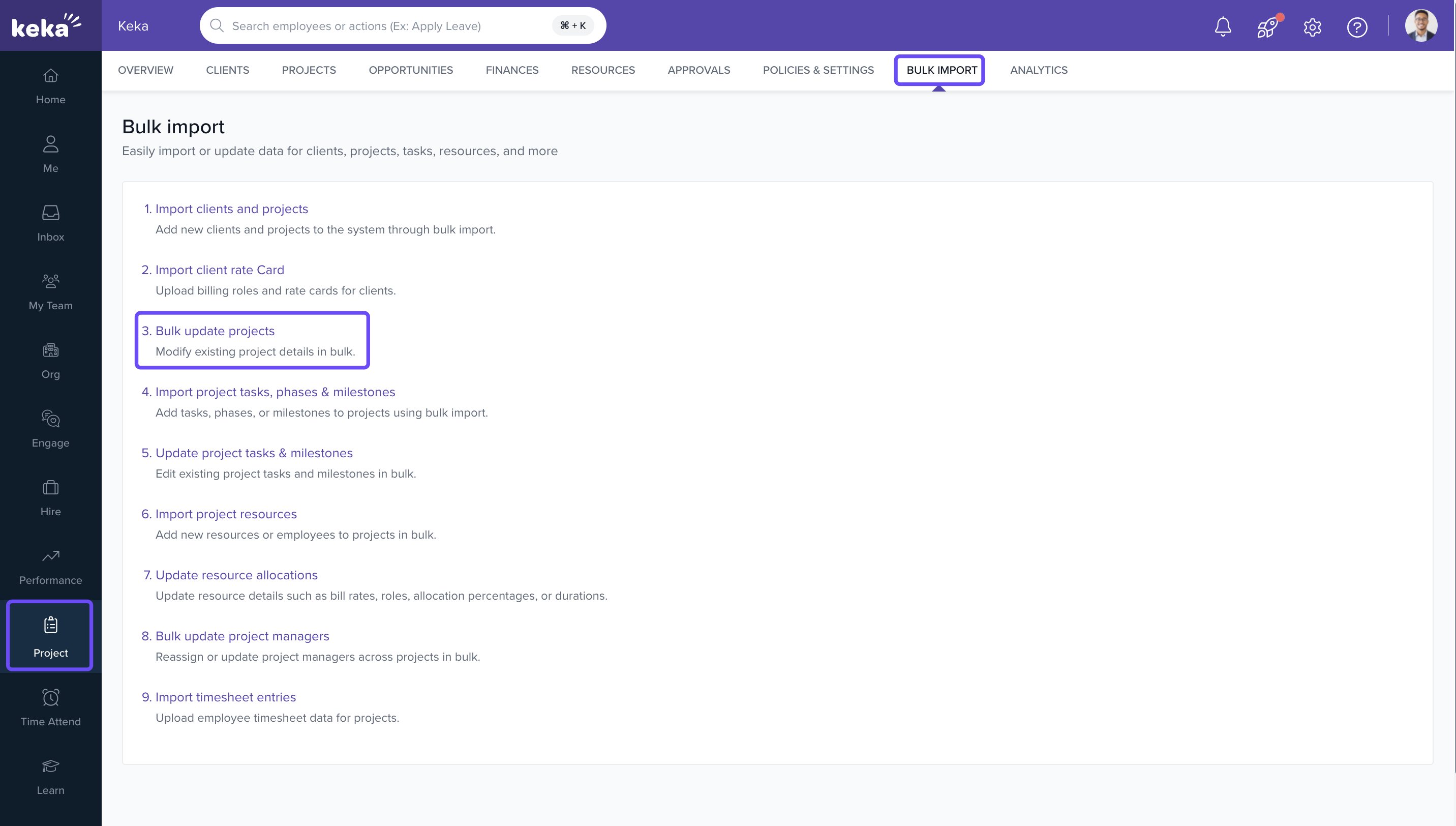
- Go to the Projects section from the left navigation pane.
- Select the Bulk Import tab.
- Under this section, choose Bulk Update Projects.
Download and Edit Excel Template
- On the Bulk Update Projects page, download the provided Excel template.
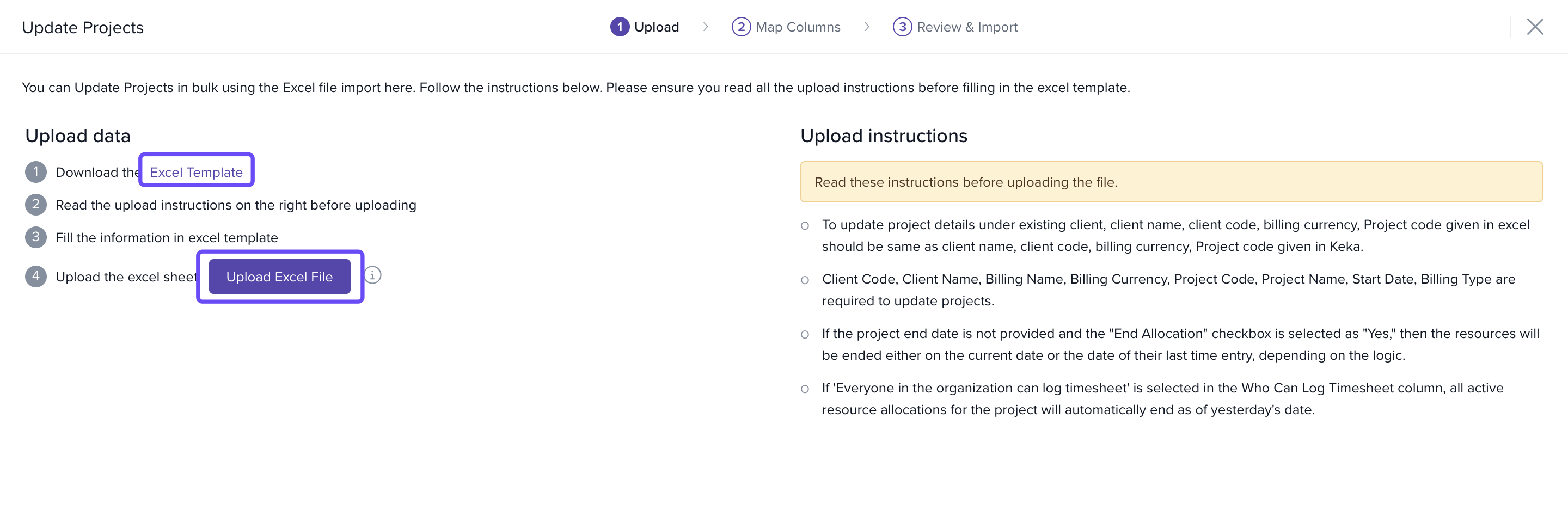
- In the Excel sheet, locate the Project Status column.
- Update this column with your desired statuses (e.g., In Progress, Completed, On Hold).
- Save the file once all required statuses have been updated.
Upload the Excel File
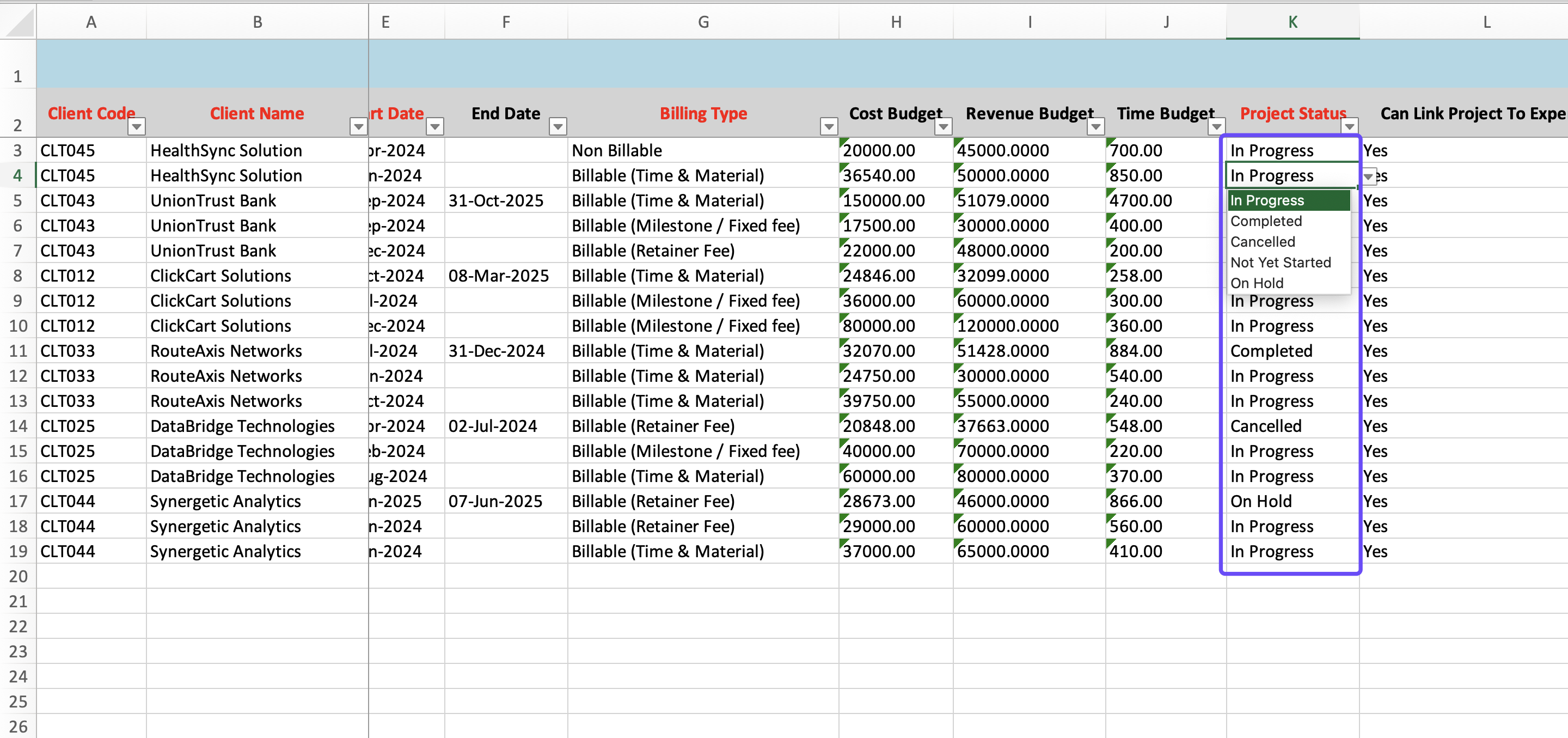
- Return to the Bulk Update Projects page.
- Click Upload Excel File and select your completed sheet.
- Review the data for accuracy and proceed.
- Click Complete to finish the bulk update process.
How It Connects with Other Modules
- Projects: Status updates reflect across Task Boards and Timesheets.
- Analytics: Updated project status feeds into project and billing reports.
FAQs
-
Q: Can I update multiple fields along with project status in the same upload?
A: Yes, you can edit other fields present in the template, but ensure all mandatory fields remain unchanged unless intentionally modified. -
Q: What happens if I enter an invalid status in the sheet?
A: The upload will fail or skip rows with incorrect status values. -
Q: Can I see “On Hold” projects in reports?
A: Yes, projects marked as On Hold will still appear in reports and analytics unless filtered out manually.
Troubleshooting
-
Upload fails or skips records?
· Ensure project names exactly match those in the system.
· Confirm that status values are valid and supported (In Progress, Completed, On Hold, etc.). -
Project does not update?
· Check if the project is archived or deleted.
· Verify if your role has permission to perform bulk updates.
Comments
0 comments
Please sign in to leave a comment.