The video will be updated shortly—meanwhile, explore the article for the latest updates.
Introduction
Effective skill management is essential for any organisation focused on continuous growth, capability building, and performance excellence. Keka’s Performance Module provides a powerful and structured framework to manage, track, and develop workforce skills at scale.
As a Performance Admin or HR Manager, you can configure skills, assign them to employees, manage updates, and analyse skills data across your organisation. This article explains every feature available within the Skills section.
Setting Up Skills: Navigating & Exploring the Settings Tab
To configure skills in Keka:
Navigate to Performance and click on Skills. Under Skills, select Settings
Enable / Disable Skills
-
This controls whether the Skills module is active for your organisation. Once enabled, additional configuration becomes available.
Skill Terminology
-
Click Edit to change the terminology, which then reflects across the entire portal.
-
Define the term you prefer for “Skills,” such as:
Capabilities
Competencies
Expertise
-
Once done, click on Save.
Skill Rating Requirement
When skills are enabled, you can decide whether rating each skill is mandatory.
-
If rating scales are not yet configured, click Edit to set them up.
Setting Up Rating Scales
You can define a 3-level rating scale (Good, Average, Bad) or rename levels as needed.
-
For each level:
Assign a name
Add a description
-
Click Save to finalise the rating scale. You can edit labels anytime using the Edit icon.
Additional Settings
Here you can configure Behaviours for Skills.
Enable this if you want each skill to have measurable behavioural indicators.
-
You can also click on the Edit option to edit the Additional Settings.
Approval Chain
-
Define who approves new skills or updates:
Reporting Manager
Department Head
Custom approvers
-
You can also enable auto-approval if approvers are unavailable.
Who Can Assign Skills
Employees can assign skills to themselves.
Employees can create new skills.
Managers can assign/create skills for their team.
-
Skills can be assigned based on courses completed in Keka Learn.
These settings ensure controlled and transparent skill management.
Adding Skills to Profile
Employees can add skills from their profile:
-
Go to Profile, click About, then +Add Skills.
-
Select your skills and click Save to confirm. Use the category option to filter skills for easier browsing.
-
Apply ratings and define the experience year for the skill and click Save.
-
Alternatively, you can also add skills from Me > Performance > Skills section.
- Select your skills and click Save to confirm. Use the category option to filter skills for easier browsing.
-
Apply ratings and define the experience year for the skill and click Save.
Skill Dashboard
-
The dashboard offers organisation-wide visibility into skills, including:
Top 10 most common skills
Number of employees with each skill
Employees without any skills assigned
Employees without ratings
- Go to Performance and click on Skills, then go to Dashboard.
-
This helps identify strengths and potential capability gaps.
Understanding the Skill Matrix Report
You’ll find this next to the dashboard under Skill Matrix.
Steps:
Select Department.
Select Skills to analyse.
Apply optional filters (Category, Skill Ratings)
-
Click Generate Report.
Download the report for:
Training planning.
Talent development.
Succession planning.
-
Hiring gap analysis.
The Skill Matrix report provides a detailed breakdown of each employee’s skill ratings, including:
- Employee: Name of the staff member.
- Reporting Manager: The supervisor responsible for the employee.
- Department/Sub Department: The division and sub-division where the employee works.
- Location: The geographical or departmental location of the employee.
- Average rating of the assigned skill: Displays average rating across the organisation for that skill.
-
Skill Ratings: Proficiency levels for selected skills, such as HTML, C++ , etc.
Bulk Skill Assignments
To assign or update skills for multiple employees at once:
-
Click Import Employee Skill Assignment.
-
Download the excel template.
-
Fill in:
Employee Number (mandatory)
Skill Group (mandatory)
-
Skill Name (mandatory)
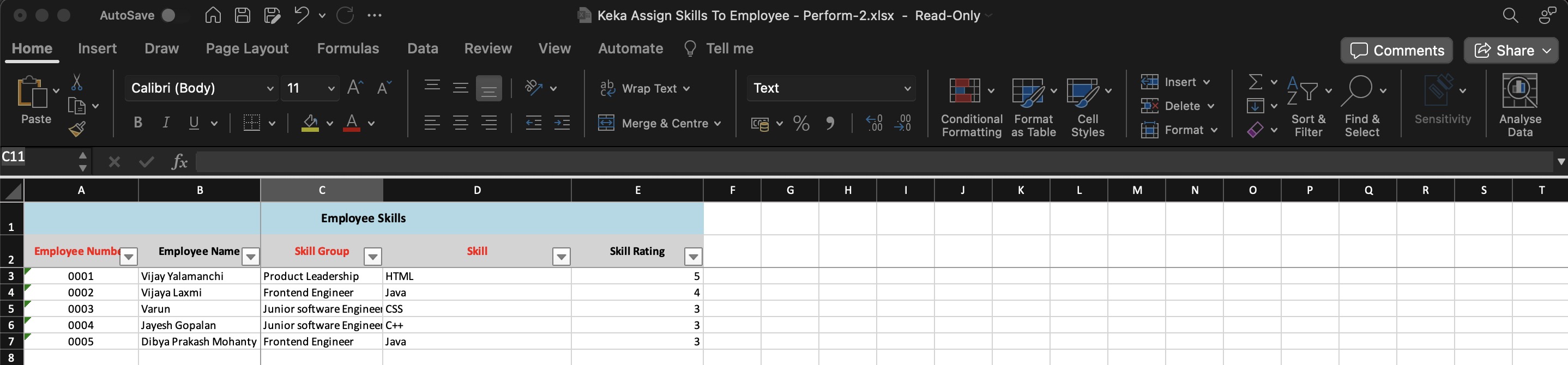
Bulk actions save significant time for large organisations.
-
Save your changes and Upload Excel file back into the system.
-
After uploading the Excel file, proceed to match the columns in the subsequent section. In the 'Preview Data' step, carefully review to ensure that all information is displayed correctly. Once satisfied with the accuracy, click on Complete to finalise the process.
Skill Update requests
- Navigate to Performance and click on Skills. Under Skills, select Manage Update Requests.
- The Skill Update Requests page is divided into two main sections, each designed to give you a comprehensive view of skill updates within your organisation:
Pending Skill Requests:
- This section lists all skill update requests that are currently awaiting your approval.
- As an HR manager or team leader, you have the authority to review these requests and decide whether to approve or reject them. You can approve or reject them from the Actions section.
-
You can filter requests by department and location, allowing you to manage requests more efficiently based on specific team needs or geographic considerations.
Past Requests
Here, you'll find a log of all the skill update requests that have been made in the past. This historical record is vital for tracking skill development trends and making strategic decisions regarding training and development.
Key aspects of the Skill Updates History section include:
- Comprehensive Records: Access a complete history of skill updates, providing insights into how skills have evolved over time within your organisation.
-
Filtering Capability: Similar to the Pending Skills Requests section, you can filter the history by department and location for a more targeted review.
Skills Repository
The Skills Repository is a centralised area designed for management of your organisation's skills. It allows HR professionals or Performance admins to view, add, and organise skills with precision, ensuring that the repository reflects the diverse competencies present across the company.
Adding Skills Individually
-
To do this click on the Performance tab on the left navigation menu, then click on Skills after which you will see Repository, please click on it.
-
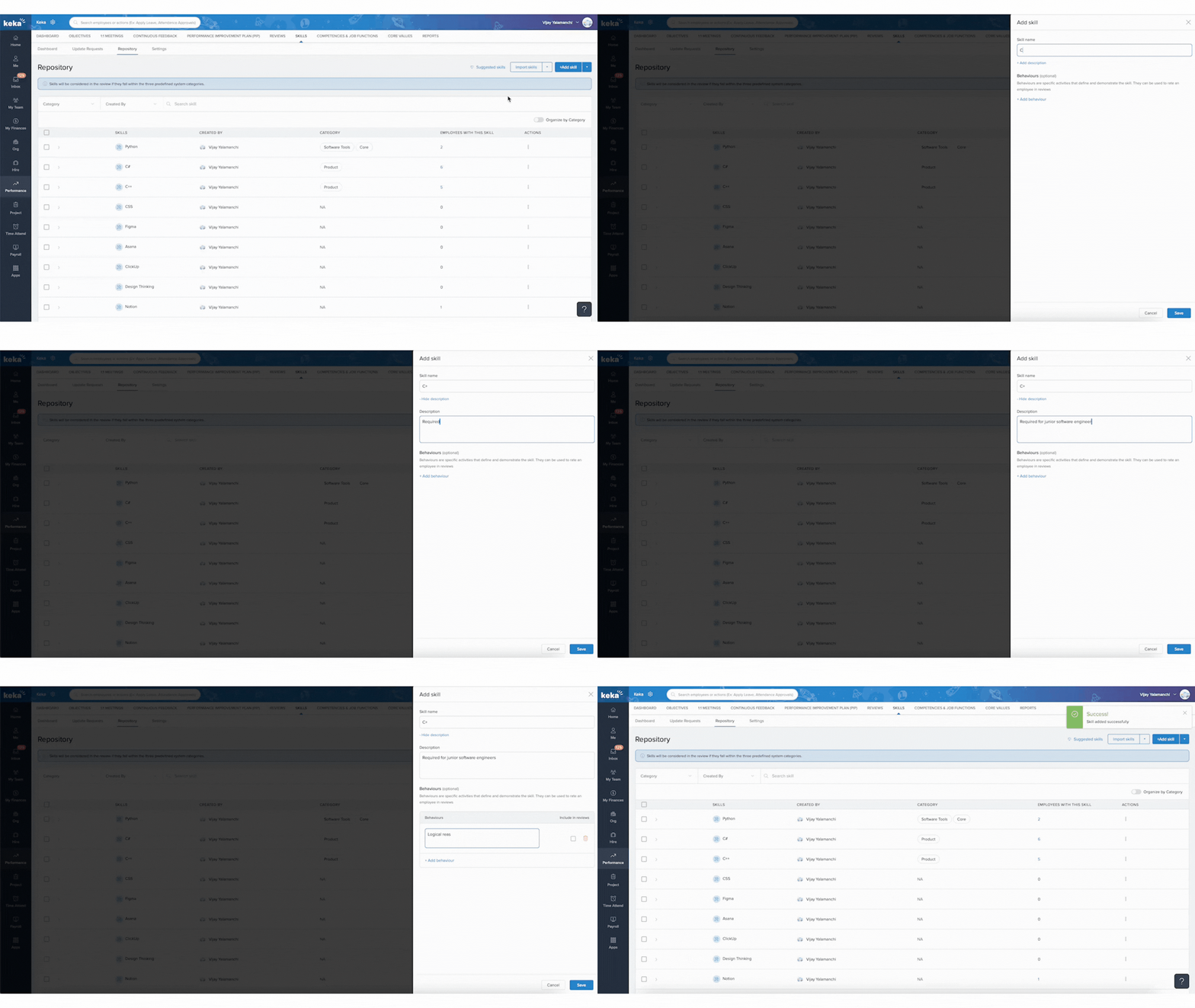
In the Skills Repository, you’ll find the Add Skill button.
- On the Add a New Skill to the Repository, you can enter the skill name and provide an optional description for the skill. You can also create and assign any behaviours required for this skill by clicking on +add behaviour. After filling in the details, Save the entry, and the skill will be added to your organisation’s skill repository.
Adding Skills in Bulk
-
You can also add skills in bulk. In the Skills Repository page, you’ll find an Import button.
-
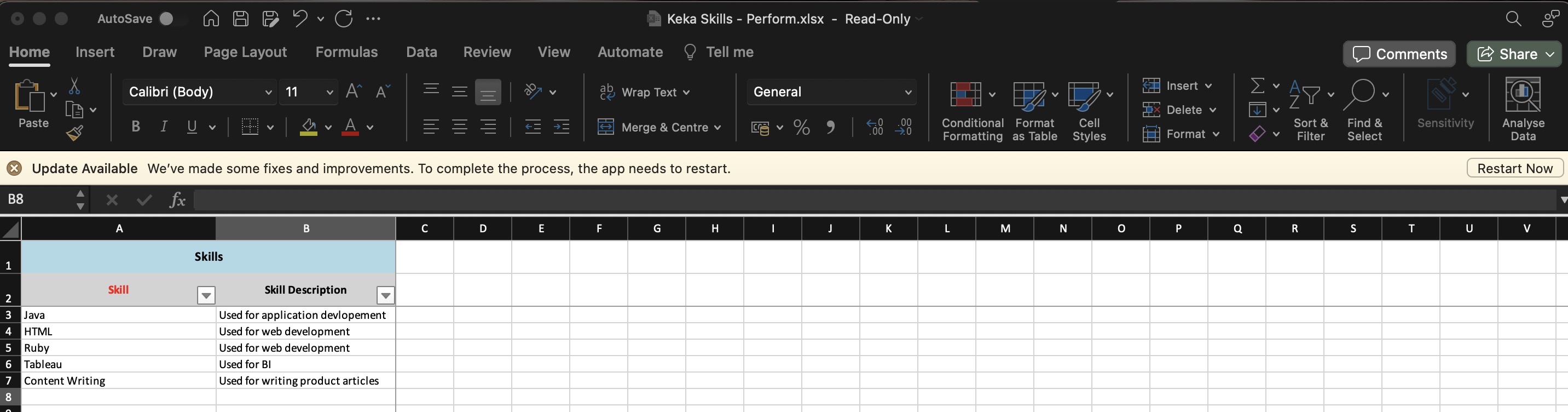
Download the Excel template.
-
In this template, fill in the skill name (mandatory) and description (optional). Save your changes and upload the file back into the system.
-
Save your changes and Upload the excel file back into the system.
- After uploading the Excel file, proceed to match the columns in the subsequent section. In the 'Preview Data' step, carefully review to ensure that all information is displayed correctly. Once satisfied with the accuracy, click on Complete to finalise the process.
Notes: Ensure each skill name is unique to avoid duplication errors. The skill name is required for each entry, while the description is optional.
Organising Skills in Categories
The Skills Repository offers the capability to organise skills in categories, making it easier to manage and assign them to relevant groups of employees:
-
To create a category, click on the ‘Add Category’ button and define the category's name and description.
-
After selecting 'Add Category,' proceed to create a new skill category by entering the Skill Category Name and Description, then click on the 'Add' button to finalise the addition of the category.
-
After creating a skill category, toggle the Organise by Category option to open the skill management window. Here, you can add or manage skills for that category. Click Update to add new skills.
-
Search for skills, add them, and save them.
-
Click the three-dot menu next to the category and select "Clone" to duplicate it with the same skills.
-
Enter the new category name and click Save.
-
Click the action menu and choose Assign to employee.
-
Filter by Department and Job Title and toggle the Show employee without skills option to find employee without skills. Select the employee and click on Assign option.
- By utilising the Skills Repository tab effectively, you can ensure that your organisation's skill database is comprehensive and up-to-date. Whether you are adding skills individually or in bulk, these processes are designed to be user-friendly and efficient, catering to the diverse needs of your organisation’s skill management strategy.
Understanding Administration Tab
With Advanced Skill Administration, organisations can now approach skill management with a proactive, data-driven mindset. HR teams and performance leaders no longer need to rely on disconnected spreadsheets or manual tracking.
-
Navigate to the Performance section and click on the Skills tab, then select Administration to access advanced skill management features.
Whether you’re refining internal career paths, evaluating readiness for new projects, or mapping future capabilities—this update is designed to support you every step of the way.
We have two sections under Administration:
Employee With Skills View
-
Admins now have a centralised view of employee skills, complete with ratings and certifications.
From this screen, you can:
-
View all skills assigned to employees.
Update ratings or assign new skills to multiple employees simultaneously.
-
Select the edit icon to modify ratings, experience, and certifications as needed. Once you have made the necessary updates, click the checkmark icon to save your changes.
-
You can also click on the "Assign Skills" button to assign skills to any of the selected employees.
-
Make quick edits or enhancements without navigating multiple menus.
-
In the confirmation popup, add a comment and click Save.
Powerful Bulk Import Functionalities
Speed and scale are at the core of this update. Admins can now execute mass updates with just a few clicks using the newly introduced bulk import options:
Bulk Skill Assignment
-
With the Bulk Skill Assignment feature, you can efficiently assign multiple skills to several employees at once.
-
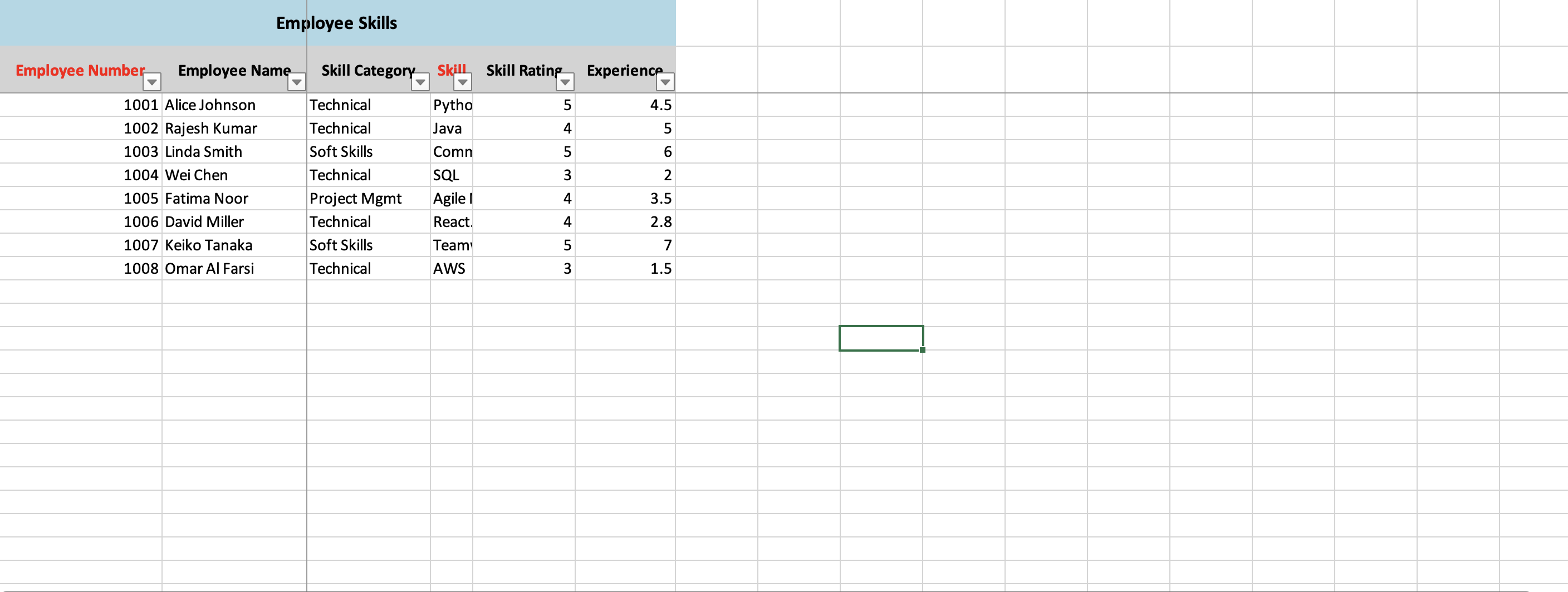
Upon selecting the Bulk Skill Assignment feature, you will be directed to the Import Employee Skill Assignment window. Here, you can click on the "Download the Excel template" option to obtain the necessary template for your skill assignments.
-
In this template, you are required to enter the employee number (mandatory), employee name, skill category, skill ratings, and experience (mandatory). After completing these entries, save your changes and upload the file back into the system.
-
Save your changes and Upload the excel file back into the system as shown in the below screen.
-
After uploading the Excel file, proceed to match the columns in the subsequent section. In the 'Preview Data' step, carefully review to ensure that all information is displayed correctly. Once satisfied with the accuracy, click on Continue the process.
Bulk Update Rating
-
With this feature, you can modify skill ratings for a large group of employees in one go.
-
Upon selecting the Bulk Update Ratings feature, you will be directed to the Import Skill Ratings window. Here, you can click on the "Download the Excel template" option to obtain the necessary template for your skill assignments.
-
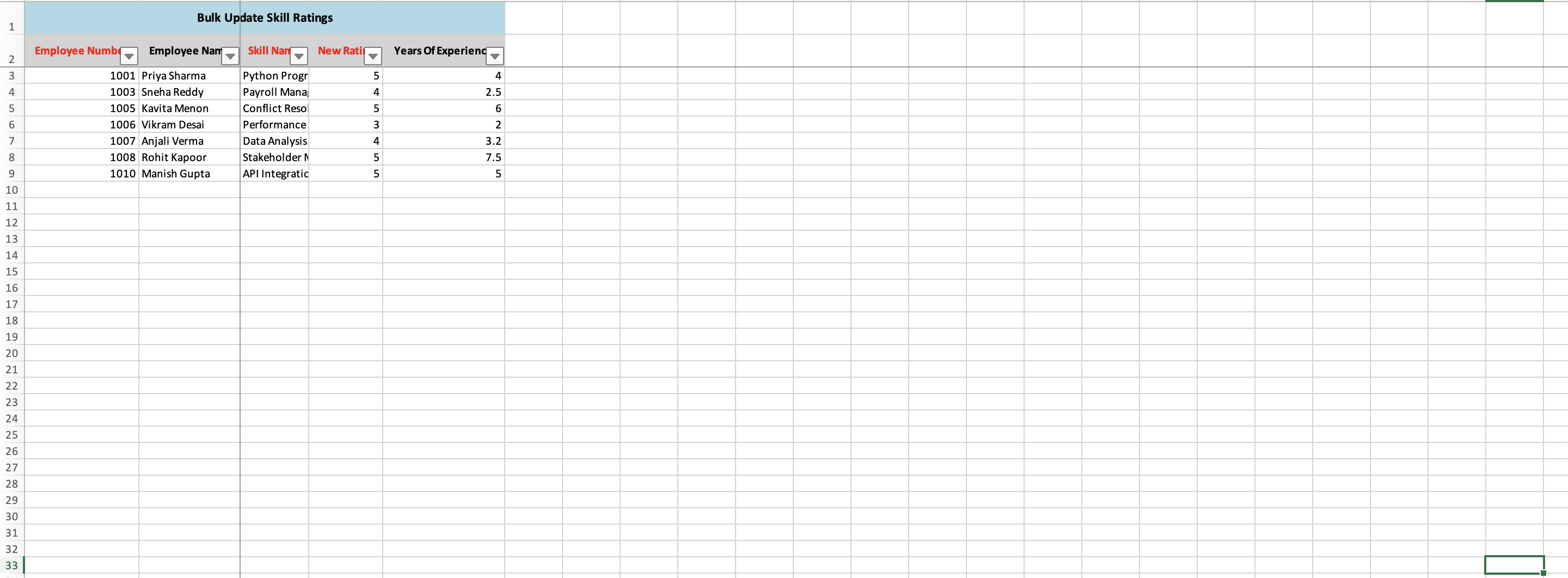
In this template, you are required to enter the employee number (mandatory) employee name, skill name, new ratings, and years of experience (mandatory). After completing these entries, save your changes and upload the file back into the system.
-
Save your changes and Upload the excel file back into the system as shown in the below screen.
-
After uploading the Excel file, proceed to match the columns in the subsequent section. In the 'Preview Data' step, carefully review to ensure that all information is displayed correctly. Once satisfied with the accuracy, click on Continue to finalise the process.
Bulk Upload Certifications
-
Add certification records in bulk. (Please note: Document uploads are not yet supported, but all relevant details can be added.)
-
Upon selecting the Bulk Upload Certificate feature, you will be directed to the bulk upload certificate window. Here, you can click on the "Download the Excel template" option to obtain the necessary template for your skill assignments.
-
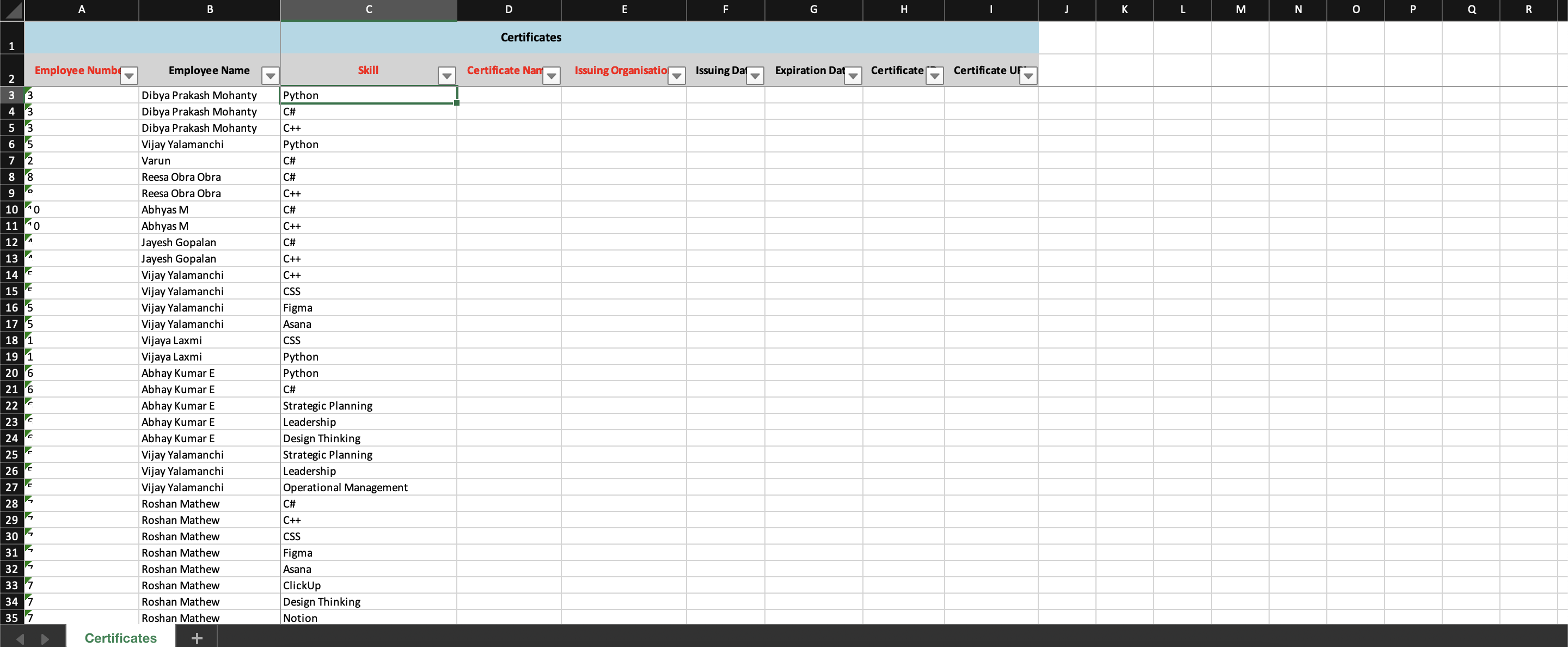
In this template, you must include the following mandatory information: employee number, employee name, skill name, certificate name, issuing organisation, issuing date, expiration date, and certificate URL. Once you have filled in all the required fields, save your changes and upload the file back into the system.
-
After uploading the Excel file, proceed to match the columns in the subsequent section. In the 'Preview Data' step, carefully review to ensure that all information is displayed correctly. Once satisfied with the accuracy, click on Continue to finalise the process.
Employee Without Skills View
This view empowers you to act proactively by identifying and addressing skill gaps:
-
Here you can instantly see all employees without any assigned skills.
-
You can also easily assign relevant skills optionally with ratings to bring them into the skill ecosystem. Choose a particular employee and under the Actions column click on Assign Skills option.
-
In the Add Skills window, select the skills, set the rating scales and experience years, then click Save.
-
Once you have selected the skill, provide the corresponding ratings for that specific skill and click the Save button to finalise your changes.
Use this data to drive onboarding, training, and development initiatives.
This is especially valuable for ensuring complete skill coverage across departments and teams.
Conclusion
Keka HR's Performance Module equips you with a robust and user-friendly platform for managing the ever-evolving skill sets within their organisation. The module's comprehensive tools, such as the Dashboard, Skill Matrix, Skill Update Requests, and the Skills Repository, provide an integrated approach to visualising, analysing, and updating employee skills. These features enable strategic workforce planning, creating a culture of continuous improvement, and centralise talent intelligence, thereby supporting key HR initiatives like succession planning, talent acquisition, and learning and development.
Comments
0 comments
Please sign in to leave a comment.