Introduction
Keka Hire now lets you create and manage reusable email templates—making it easier to send professional, consistent messages to candidates throughout the hiring process.
This feature is ideal for recruiters who frequently send similar emails such as interview invites, rejections, or offer letters. By using templates, you can maintain a personal tone while saving time and ensuring brand consistency.
Who can use this?
Only users with the "Send email" privilege can create or edit templates.
Access Email Templates
Go to Hire.
Click Settings.
Under Notifications, select Email Templates.
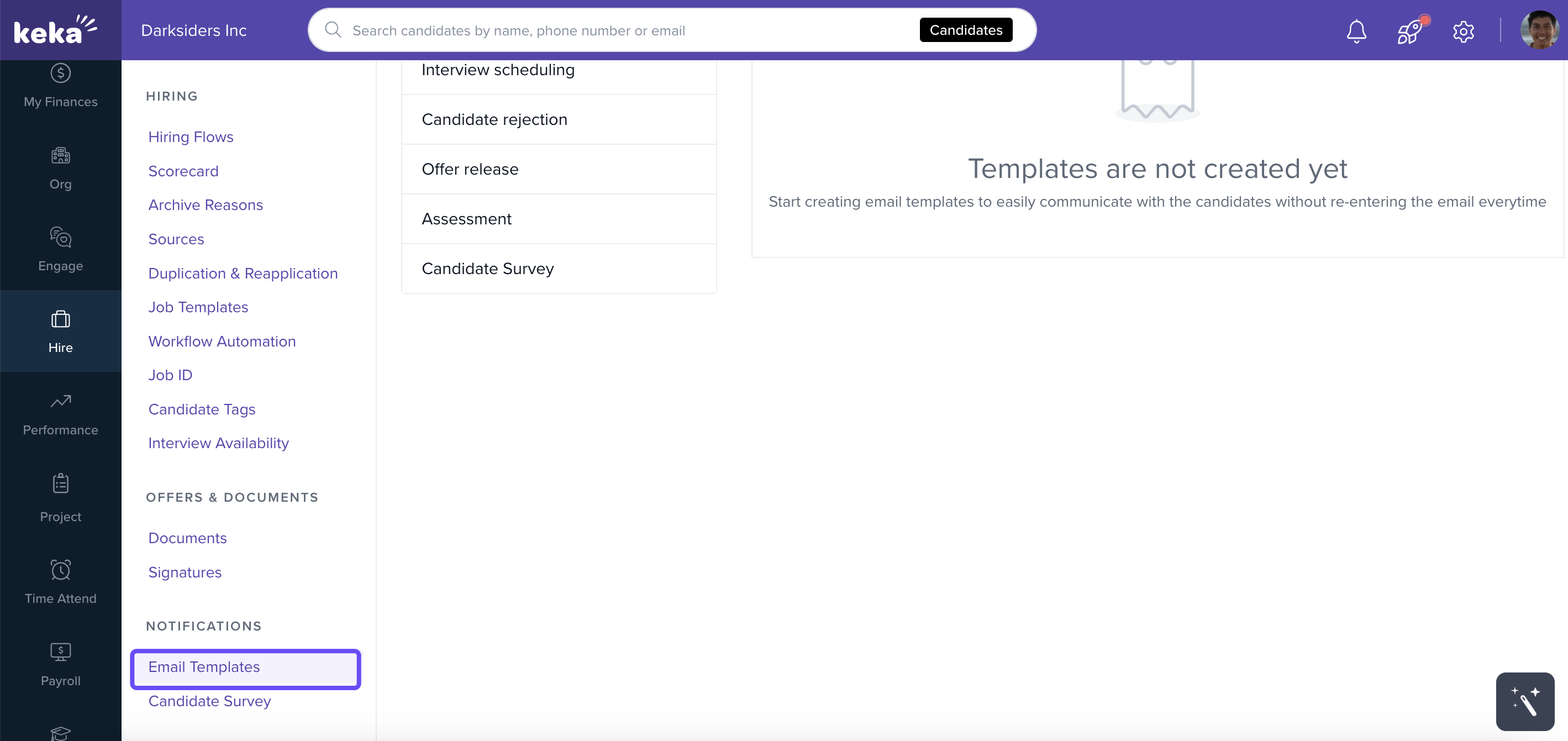
Here, you'll see all existing templates categorized by email type.
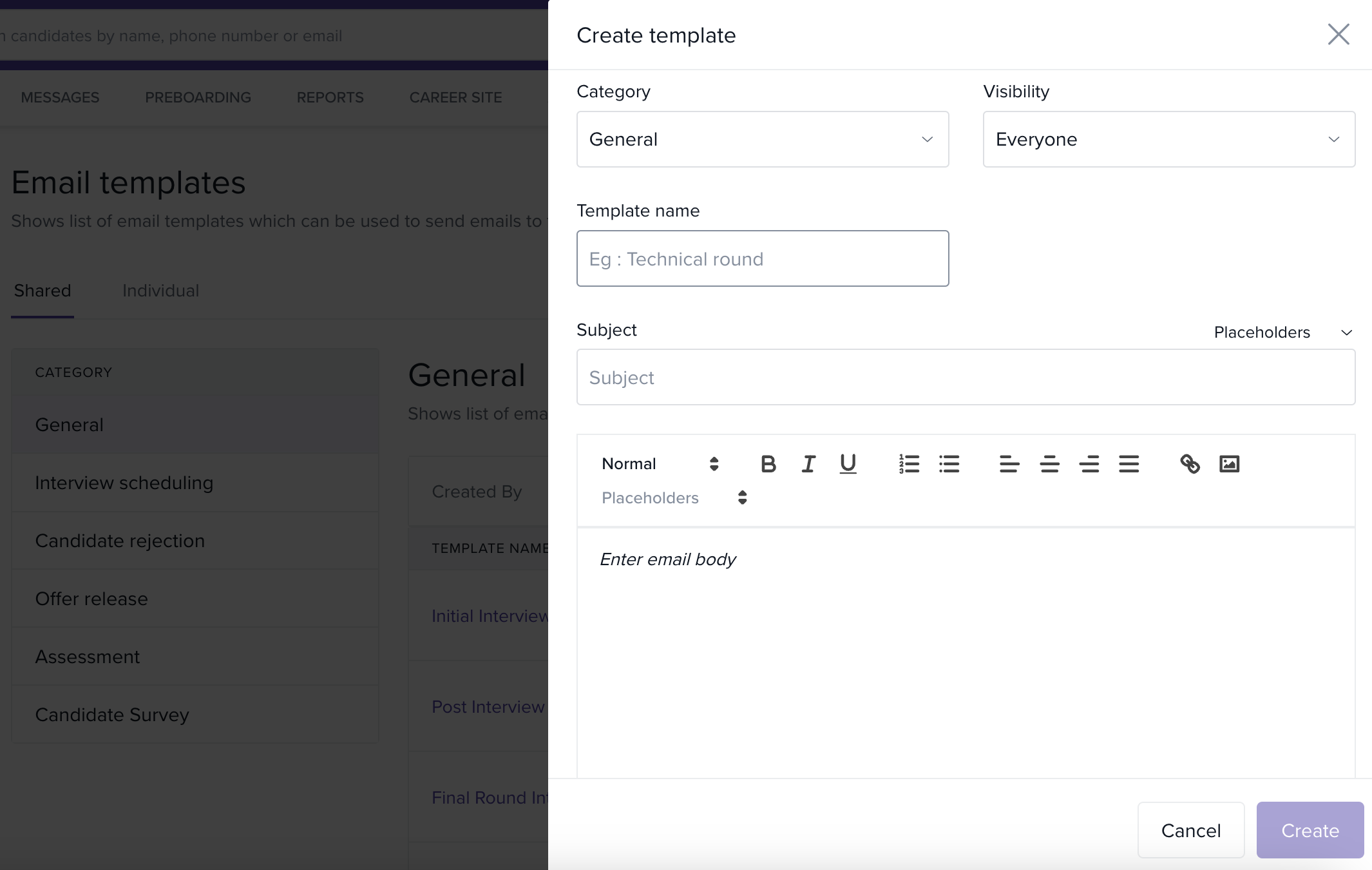
Create a New Template
Click Create template.
-
Choose a category for the email:
General
Interview Scheduling
Candidate Rejection
Offer Release
Assessment
-
Fill in the following fields:
Template Name
Subject
Email Content
Click Create to save the template.
Edit an Existing Template
Find the template you want to update.
Click the three-dot menu next to it.
Select Update.
Click Save to apply the updates.
Options & Variants
You can create templates under the following categories:
General: For non-specific or miscellaneous communication
Interview Scheduling: To coordinate interviews
Candidate Rejection: For polite, consistent rejection messages
Offer Release: To send out offer letters
Assessment: To notify candidates about assessments or tests
Choose the category based on the purpose of your email to stay organized.
Notes
Tip
Use variables or placeholders in your email content (like candidate name or job title) to keep the message personalized even when using templates.
Important
Only users with the Send email privilege can create or edit templates.
We trust this article provides the guidance you need.
Comments
0 comments
Please sign in to leave a comment.