Introduction
Running monthly payroll in Keka ensures your employees are paid accurately and on time, helps you meet legal compliance, and supports your financial and HR planning. This article walks you through how to run payroll in Keka across all key steps—from managing leave and attendance to finalizing statutory overrides.
Step 1- Leave, Attendance & Daily Wages
Go to Payroll on the left panel, then click Run Payroll.
At the top you’ll see the months of the current financial year: those already run show as Completed, the current month shows as Current, and future months as Upcoming.
Click the first tile: Leave, Attendance & Daily Wages.
Managing leave applied
On the Leave Applied page you’ll see all leave requests for the month (approved + unapproved).
For unapproved requests, click the Approve or Reject icon under Actions.
You’ll be asked to provide a reason, then click Confirm.
Once all leave requests are addressed, click Save & Continue.
Managing no‑attendance days
Locate employees with no attendance records on certain days. Click the three‑dots under Actions → Deduct Leave.
A popup appears; select the leave type, number of days to deduct, then click Confirm.
If you skip this step and click Save & Continue, you’ll see a warning that mismatches may occur. Recommend you complete this step.
Managing Loss of Pay (LOP)
On the LOP Summary page, you’ll see system‑calculated LOP days for each employee for the month.
If needed, switch to the LOP Adjustment tab and manually change the number of LOP days for employees, and optionally add comments.
Click Save & Continue once done.
LOP Reversal from previous months
This sub‑step allows reversing past LOP days. You can add employees manually + number of days, or import via Excel for bulk action.
Payable Units
Employees compensated on a daily, hourly, or per-unit basis are listed below along with their payable units for the current month.
Privileged users can override the payable units when necessary.
You may also import payable units in bulk by uploading an Excel file here.
After changes, click Save & Close to mark this step complete.
Step 2- New Joinees & Exits
Click the New Joinees & Exits tile.
New Joinees
You’ll see employees who joined during the past month. You can choose a Pay Action from several options:
Hold salary processing this month
Process as salary
Void salary processing
Hold salary payout this month
Void salary payout
Already paid (if payment made outside Keka)
Clicking the arrow next to an employee will show more details: regular salary, working days for the month, salary to be paid.
Optionally add comments per employee.
Click Save & Continue to move on.
Employees in Exit Process
Shows employees in exit process; click arrow to view details and set Pay Action + comment.
Click Save & Continue to proceed.
Full & Final Settlements
Lists employees whose exit has been completed but F&F settlement is pending.
Under Actions, click Click here to go to the Full & Final settlement page.
After completing F&F, status changes from Approved to Finalized and you can view the settled amount.
Once done for all, click Save & Close.
Step 3- Bonus, Salary Revisions & Overtime
Click the tile titled Bonus, Salary Revisions & Overtime.
Bonus
You’ll see employees for whom bonus payout is due. In the Pay Action dropdown select: Pay / On Hold / Void / Pay Outside Keka Payroll / Partially Pay.
Add comments per employee if needed.
Click Save & Continue to move to next sub‑step.
Salary Revisions
Lists employees whose salary changes are effective this pay cycle (old salary, new salary, % change shown).
Options: Continue to Hold or Release. If it was already on hold from earlier, you can Continue to Hold or Release the salary.
Add comments as needed.
Click Save & Continue.
Overtime Payment
Shows employees with overtime payments due. You can adjust the amount if you wish to pay differently.
Pay Action options: Pay / Void / Mark as Paid Outside Keka Payroll.
After actioning all, click Save & Continue.
Shift Allowance
Shows employees with shift allowance due. You may adjust the amount.
Pay Action options: Pay / Hold / Void / Paid Outside Keka Payroll.
After all are handled, click Save & Close.
Step 4- Reimbursements, Adhoc payments, Deductions
Click Reimbursements, Ad‑hoc payments, Deductions.
Salary Component Claims
See claims made by employees for salary‑components eligible for payout this cycle. Click Review Claim under Actions.
In the popup you can edit payable amount, set payout month, add comment. View attachments of claims on the left side.
Approve or Reject the claim. Then click Save & Continue.
Expenses
First, see employees with cash advance requests: approve or reject.
Then view advance settlements & expense claims to be paid: options to approve/edit/reject.
After handling, proceed to Ad‑hoc payments.
Ad‑hoc payments
From this screen: you can Add Employee to create a new adhoc payment. Search/select employee; add payment type, amount, comments.
Or import adhoc payments via Excel using Import Adhoc Payments.
Once all are added, click Save & Continue.
Ad‑hoc Deductions
Add adhoc deductions from this screen: click Add Employee, select employee, select deduction type, enter amount + comments.
Bulk import also possible via Import Adhoc Deductions with Excel template.
Once done, click Save & Close to finish Step 4.
Step 5 – Salary on Hold & Arrears
Select the Salary on Hold & Arrears tile.
Salary Processing on Hold
This tab lists employees whose salary processing is on hold (e.g., absconding, uninformed leave). When salary processing is on hold, the employee will not appear in pay register; no components get values; no statutory contributions/deductions apply.
You may add new employees to hold list via + Add Employee or import via Import Processing on Holds.
For each employee you can select: Continue Hold / Process as Usual / Void Processing. Also add comments or remove from hold via Trash icon.
Salary payout on hold
The employee’s salary will still be processed (included in statutory contributions and deductions).
The payout will be held — no payment will be made yet.
You can release the payout later whenever required (e.g., after notice period or leave clarification).
Arrears
Employee arrears are shown here.
These may arise from:
Past-dated salary revisions
Salary holds
LOP (Loss of Pay) reversals
Arrear LOP recoveries
Step 6- Overrides (PT, ESI, TDS, LWF) & Finalizing Payroll
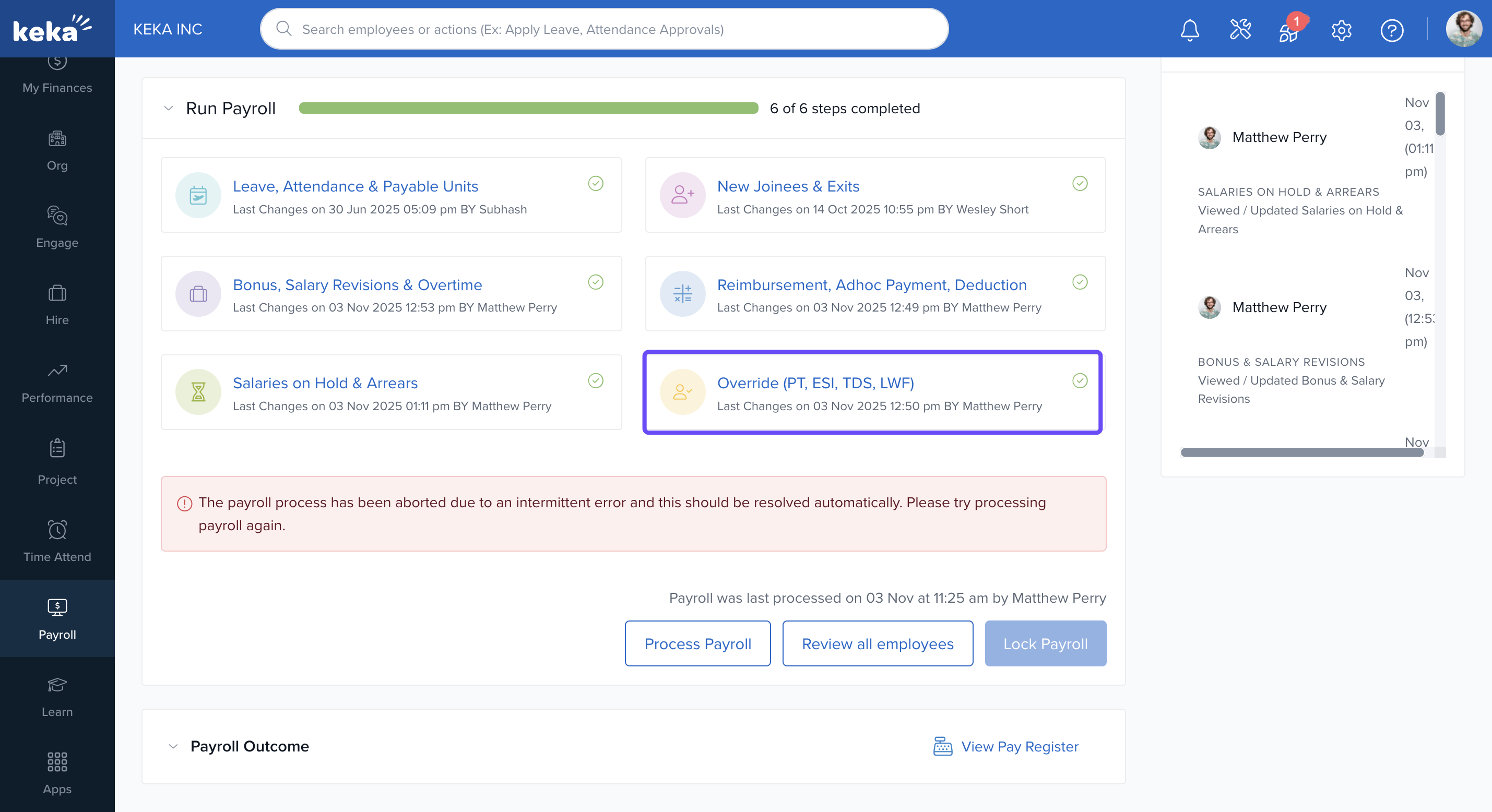
After Step 5 you’ll arrive at the final step where you can override statutory component values (Professional Tax, ESI, TDS, Labour Welfare Fund) if required.
Review the payroll summary for all employees, ensure no outstanding holds/unhandled items remain.
Click Save & Close to complete the payroll run and mark the month as Completed.
Once payroll is locked, the Payroll Outcome section can display a banner and an enhanced Manage payslips card if payslips have not been fully released for the pay group. The card shows the total number of employees in the pay group, the number of payslips released, and the number that are still unreleased or on hold. Click Release Payslips to open the existing payslip release workflow directly.
The Release Payslips CTA remains available even when the Payroll Outcome section is collapsed. The banner and Manage payslips card are removed automatically after all payslips for that pay group are released.
Options & Variants
You can Hold salary processing or payout for individual employees, or Void entirely depending on circumstances.
You may process payments outside Keka payroll and record them accordingly.
Bulk uploads via Excel are supported for LOP reversals, adhoc payments/deductions, holds.
Overrides for statutory contributions allow manual intervention where necessary (e.g., one‑off TDS override).
Notes, Tips, Important, Warnings
Tip: Ensure leave and attendance records are fully updated before you begin Step 1 so LOP/absences reflect correctly.
Important: If you skip the “No attendance days” sub‑step and proceed, the system will warn you of mismatches handle those to ensure accurate payroll.
Warning: Holding salary processing means that employee will not appear in pay register and no statutory deductions will apply use hold status only when necessary.
Note: Bulk import features can save time (for adhoc payments/deductions, LOP reversals, holds) but ensure your templates are correctly filled to avoid errors.
Comments
0 comments
Please sign in to leave a comment.