Employees may occasionally face issues with clock-in or continuous punch functionalities on the Keka mobile app due to device-specific restrictions, incorrect settings, or network and GPS dependencies. This article outlines the recommended configurations and common troubleshooting steps to resolve such issues efficiently.
Remote clock-in issues
To ensure remote clock-in works smoothly, follow the settings below based on your device type.
Android:
1. App Info
Long-press the Keka app icon and tap App Info to access the app's settings.
2. Battery Settings
Go to Battery usage > set Battery Saver or Battery optimization to No restrictions to let the app run without limits.
3. App Activity
Turn off Pause app activity if unused so the app doesn't stop working when idle.
4. Location Permission
Under Permissions, set Location access to Allow all the time so the app always knows your location when needed.
5. Notifications
Enable all notification types so you don’t miss any updates or alerts from the app.
IOS:
1. App Settings
Go to Settings → Apps → Keka to manage the app settings.
2. Location Permission
Tap Location and set it to Always so the app can access your location anytime.
3. Precise Location:
Enable Precise location to let the app get accurate location data.
4. Notifications:
Tap Notifications and set to Allow so you receive all app alerts.
Continuous Punches & Clock-Out
Keka records continuous punches during shifts, however to collect punches after the shift ends, Keka's support staff must enable grace period monitoring.
1. Null Coordinates:
Null coordinates may appear if GPS is off, the app is logged out right after clock-in, or there's no network access.
To prevent Null coordinates, keep GPS and network services enabled, avoid logging out immediately after clock-in, and ensure Google services are accessible.
Location Accuracy
Make sure location services and internet (Wi-Fi or mobile data) are turned ON.
1. Verify Location in Google Maps
Tap the blue dot, select Calibrate compass, and move your phone in a figure-eight motion.
If it is still inaccurate, try restarting your device to refresh location services.
Stay away from areas like indoors, underground spots, or near tall buildings that may block GPS signals.
2. Enable precise location for Keka
Go to Settings >> Search 'Keka' >> Permissions >> Location >> Enable 'Use Precise Location.
Geo-location configuration
To avoid location-related issues, ensure the following settings are properly configured:
1. Employee-Level Geo Fencing:
If a geo location is assigned to an employee, enable Employee Level Geo Fencing in the Remote Clock-In Time Tracking Policy settings.
2. Correct Geo Location Setup:
If you get a message saying you're far from the assigned location during remote clock-in, check that the correct geo location is set in the Keka portal.
Verifying these settings helps prevent clock-in/out errors caused by incorrect geo-location configurations.
Device-specific restrictions (Vivo, Oppo, Redmi, OnePlus)
Some Android devices limit background activities. This affects continuous punch tracking. To ensure uninterrupted tracking, follow these recommended steps.
To check the device details, go to Org >> Dashboard >> Employee reports >> Logins >> Mobile App installation details.
Recommended Actions for Keka App-
Make sure you're using the latest version of the Keka app by heading to the Play Store or App Store and checking for updates.
1. On Android: Open the Play Store and search for Keka, then tap Update if available.
2. On iOS: Open the App Store, search for Keka, and tap Update if needed.
Configure Battery Settings-
To ensure Keka runs smoothly in the background, update your battery settings as below:
For Android Devices
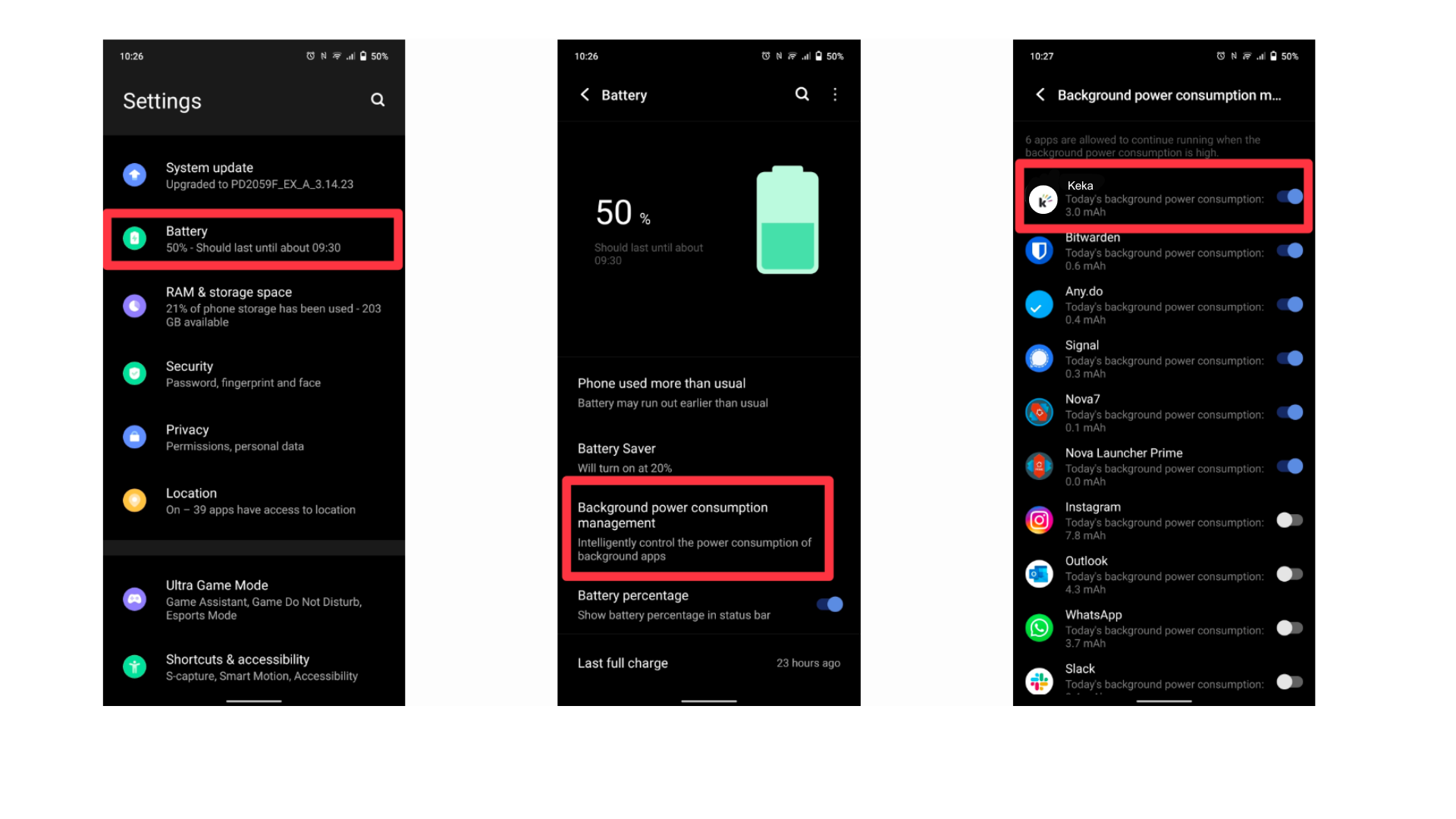
Go to Settings → Battery → Background power consumption management.
Search for Keka in the list, tap on it, and select Don’t restrict background power usage.
or
Go to Settings → Apps→ Keka→ Battery → Unrestricted
For Vivo Devices
Go to Settings → Battery → Background power consumption management.
Find and select Keka, then enable the option Don’t restrict background power usage.
 Common Reasons Auto Clock-Out Fails
Auto clock-out won’t work if:
1. GPS or internet is OFF.
2. The app is logged out or the device is turned off.
3. Notifications are disabled.
Recommended Actions:
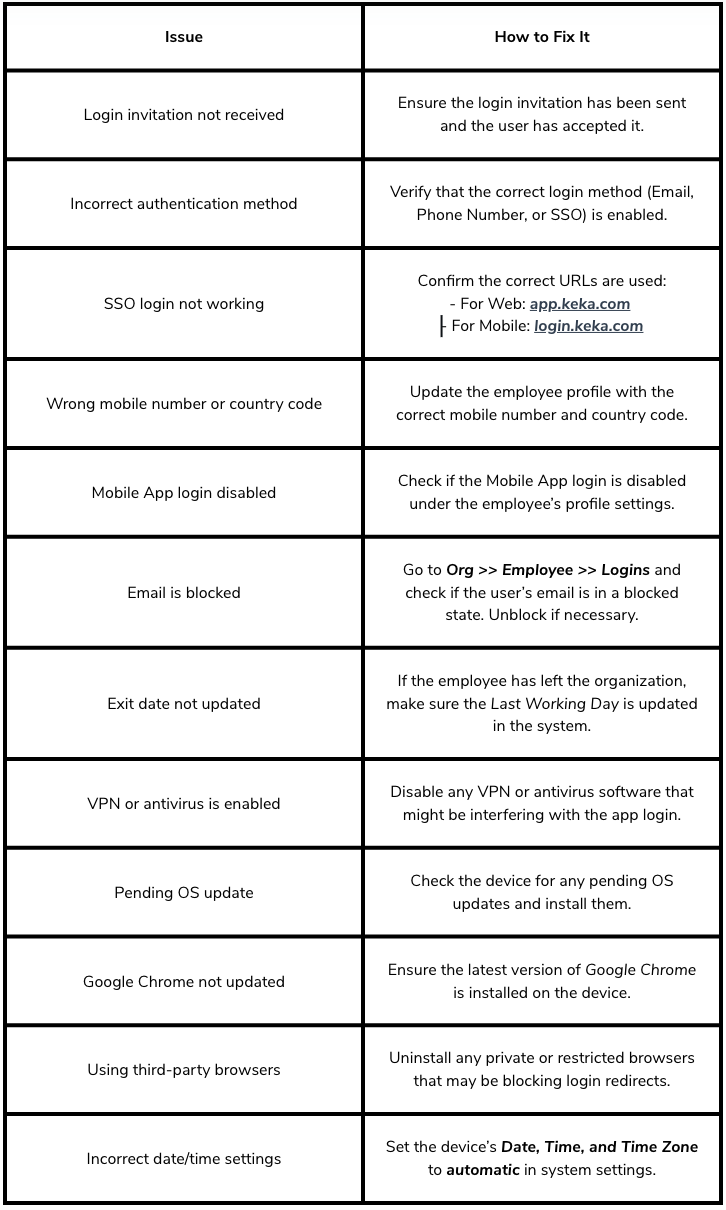
Troubleshooting Login Issues on the Mobile App
If an employee is unable to log in to the Keka Mobile App, use the checklist below to identify and resolve common login blockers:
Device Limitations for the Keka App
1. Huawei Devices (Without Google Play Services)
Keka relies on Google Play Services for core functionalities. Unfortunately, Huawei devices that do not come with Google Play Services do not support the Keka app. While third-party solutions like GBox exist, we do not recommend using them due to reliability and security concerns.
For more details: Huawei Community Topic
2. Vivo, Oppo, Redmi, and OnePlus Devices
Some devices from these brands come with aggressive battery optimization and background process restrictions, which can lead to issues with continuous punch capturing in the Keka app.
Vivo
Oppo
Redmi
OnePlus
These limitations are due to device-level restrictions that interfere with real-time background tracking and location services.
3. Recommendation
To ensure optimal app performance, users should:
a. Disable any battery optimization settings for the Keka app.
b. Allow the app to run in the background.
c. Enable necessary permissions, including location and notifications.
Please let us know if you find this article helpful.
Comments
0 comments
Please sign in to leave a comment.