Learn how to navigate the Keka Kiosk employee view, including clocking in and out, using the PIN fallback option, and managing attendance seamlessly.
For employees, the Keka Kiosk app provides limited options, mainly for viewing attendance and marking check-ins/check-outs. If any discrepancies arise, employees can request attendance regularization through the app, subject to manager approval.
TABLE OF CONTENTS
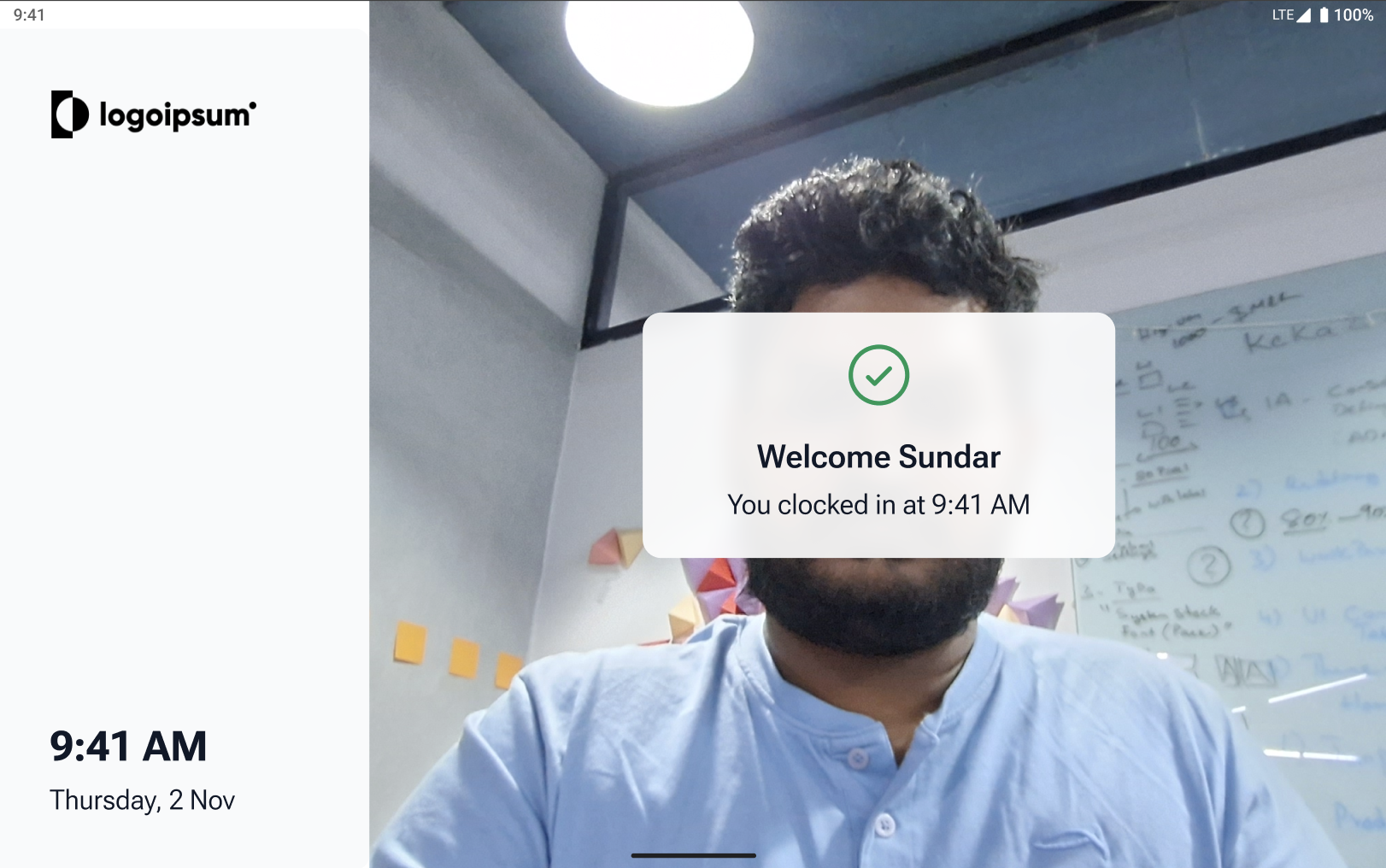
The day's first login will be greeted with a welcome message.
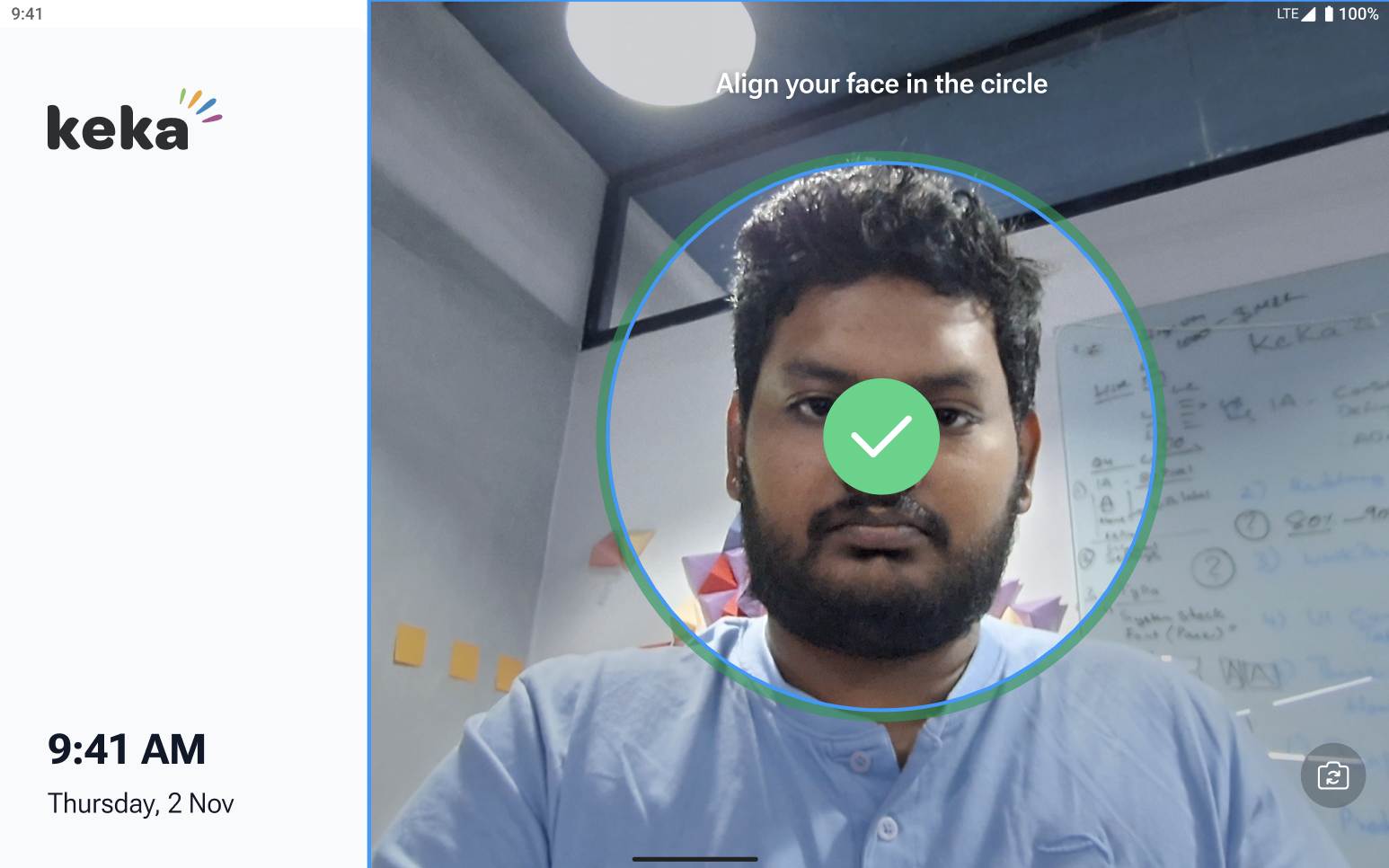
The second clock-in you will see a Green tick.
To end your workday, simply tap the Clock-Out button.
-jpg.jpeg)
PIN FALLBACK
If you're unable to clock in using facial recognition, you can request a PIN fallback code from your manager and use it to clock in.
Attendance tab
This page will show you the last 30 days' attendance logs along with the Date, Status, clock in/out timings and effective hours.
Using the three-dot menu, you can view details, Mark present, and regularise logs.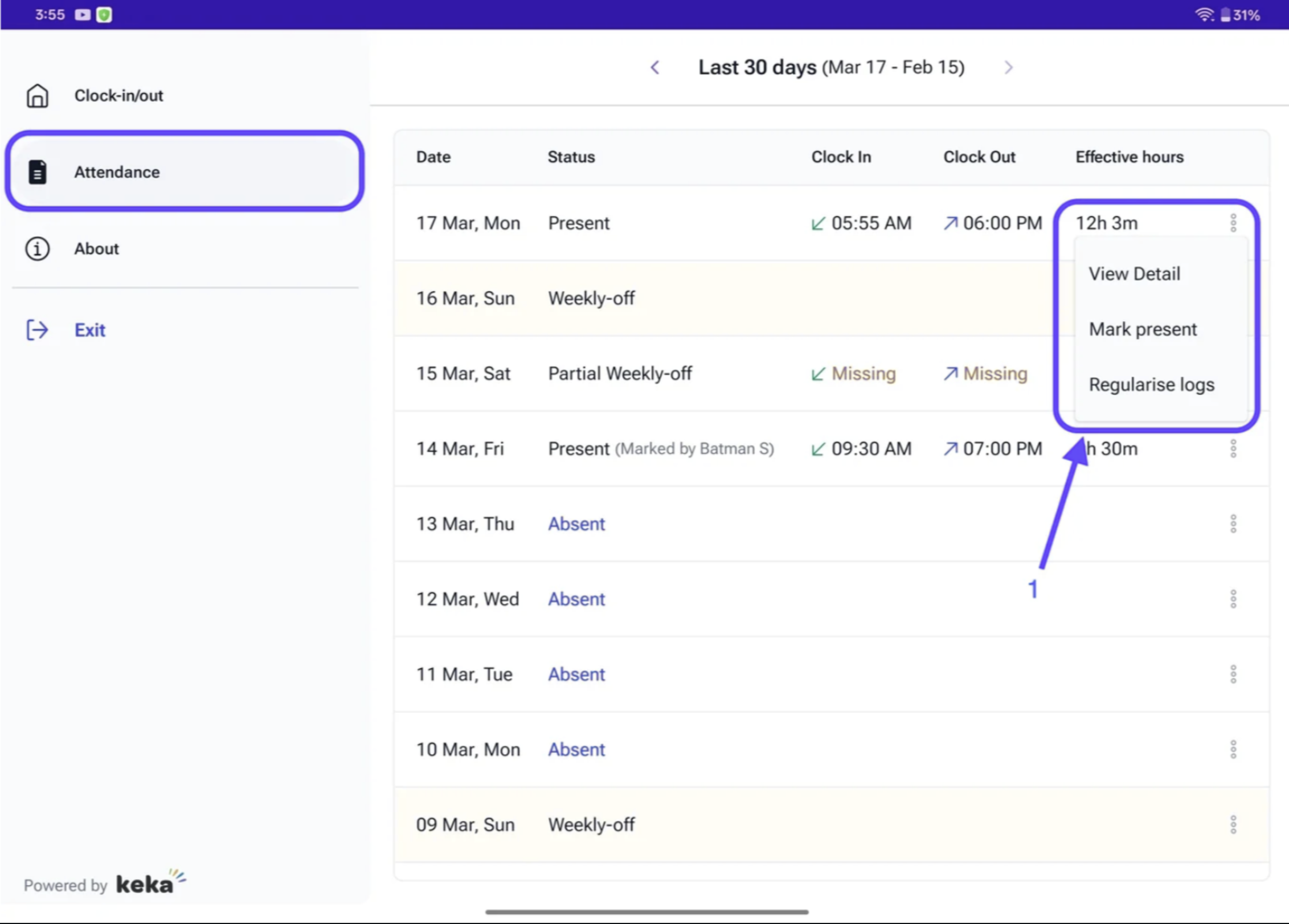
View details
On this page you can find the Gross, Effective hours, clock In/out and Location.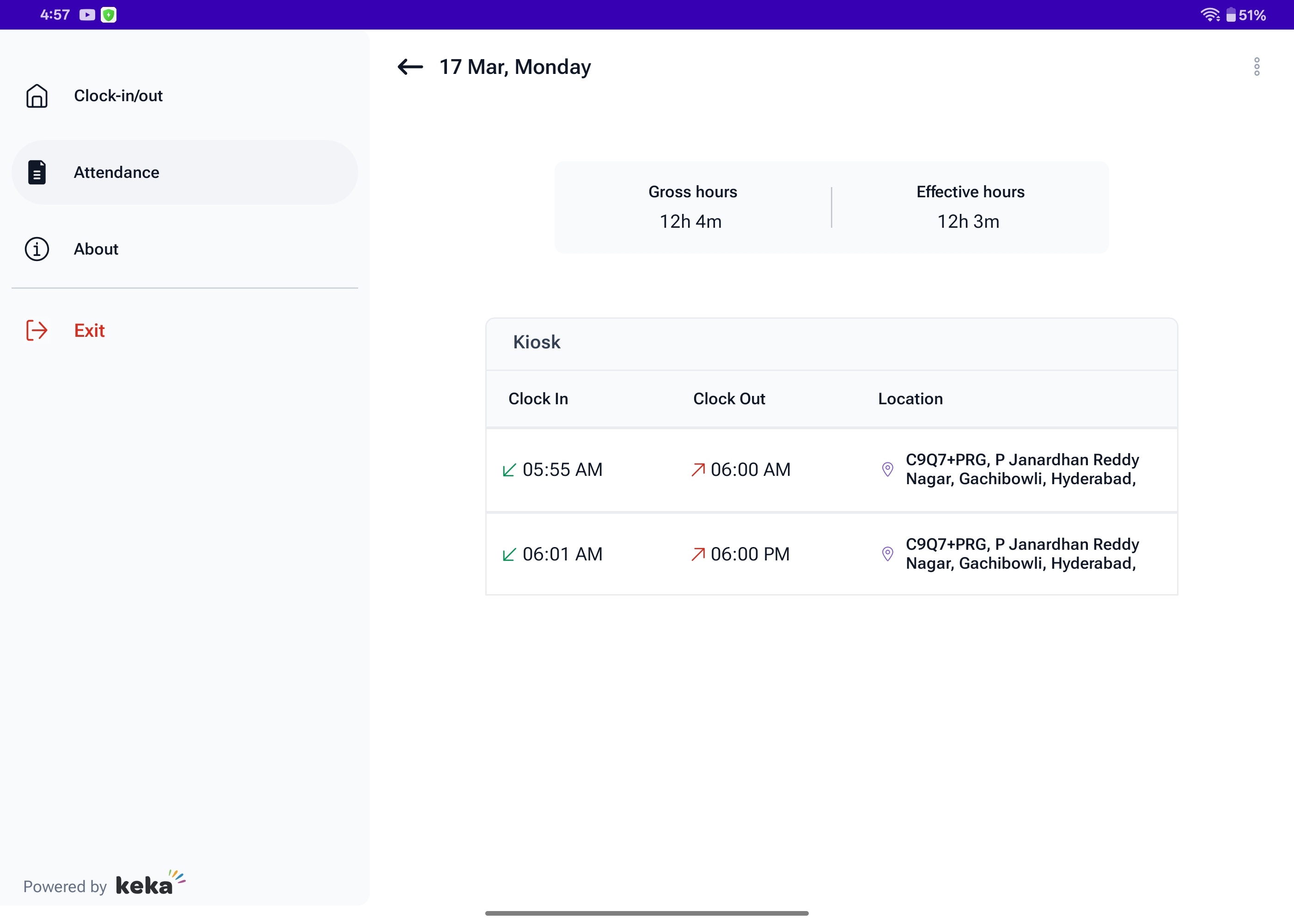
Mark Present
You can use this option to mark yourself as present.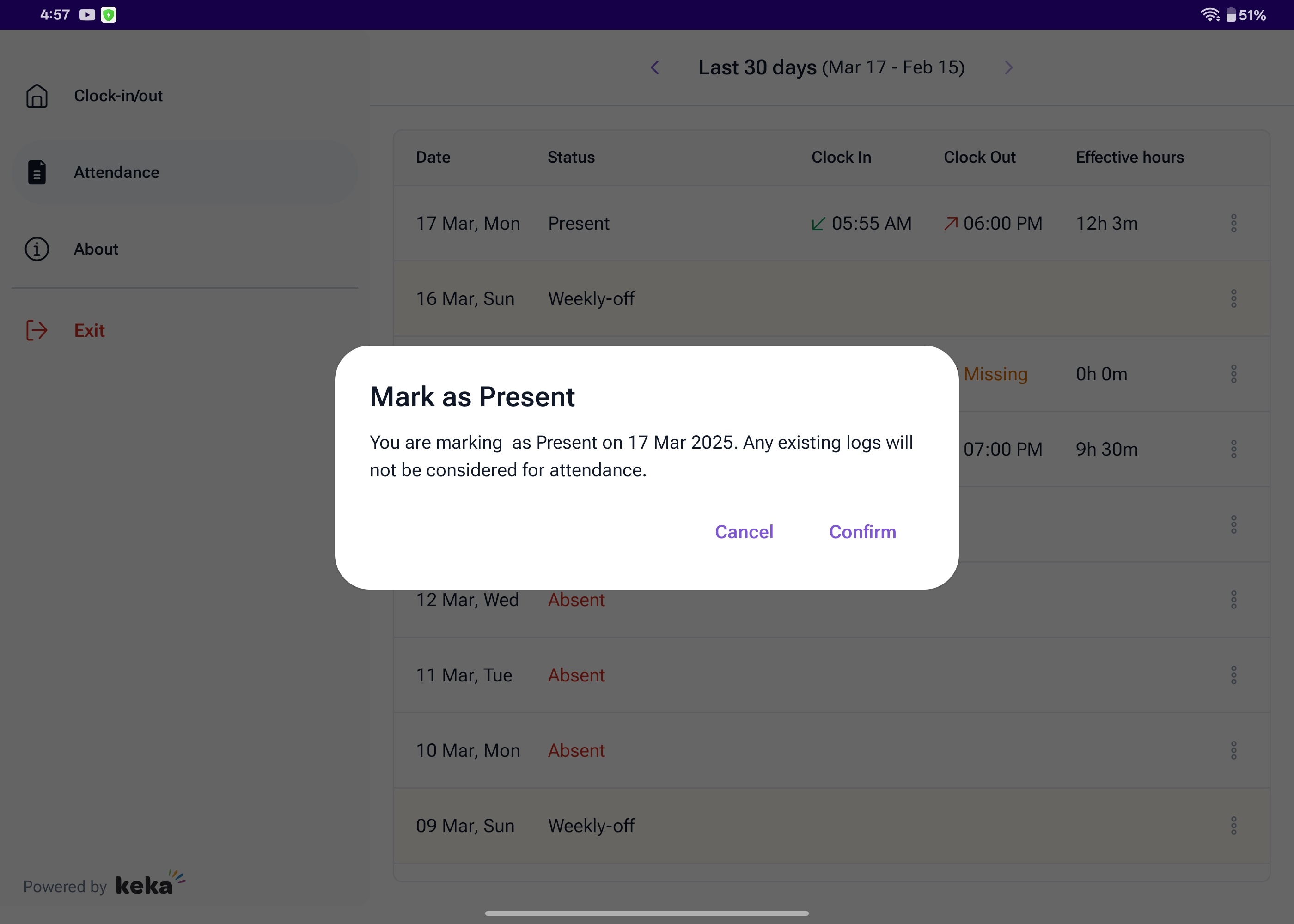
Regularising your attendance
Choose the Regularise logs option then In the Attendance Adjustment window, click + Add to enter the time logs.
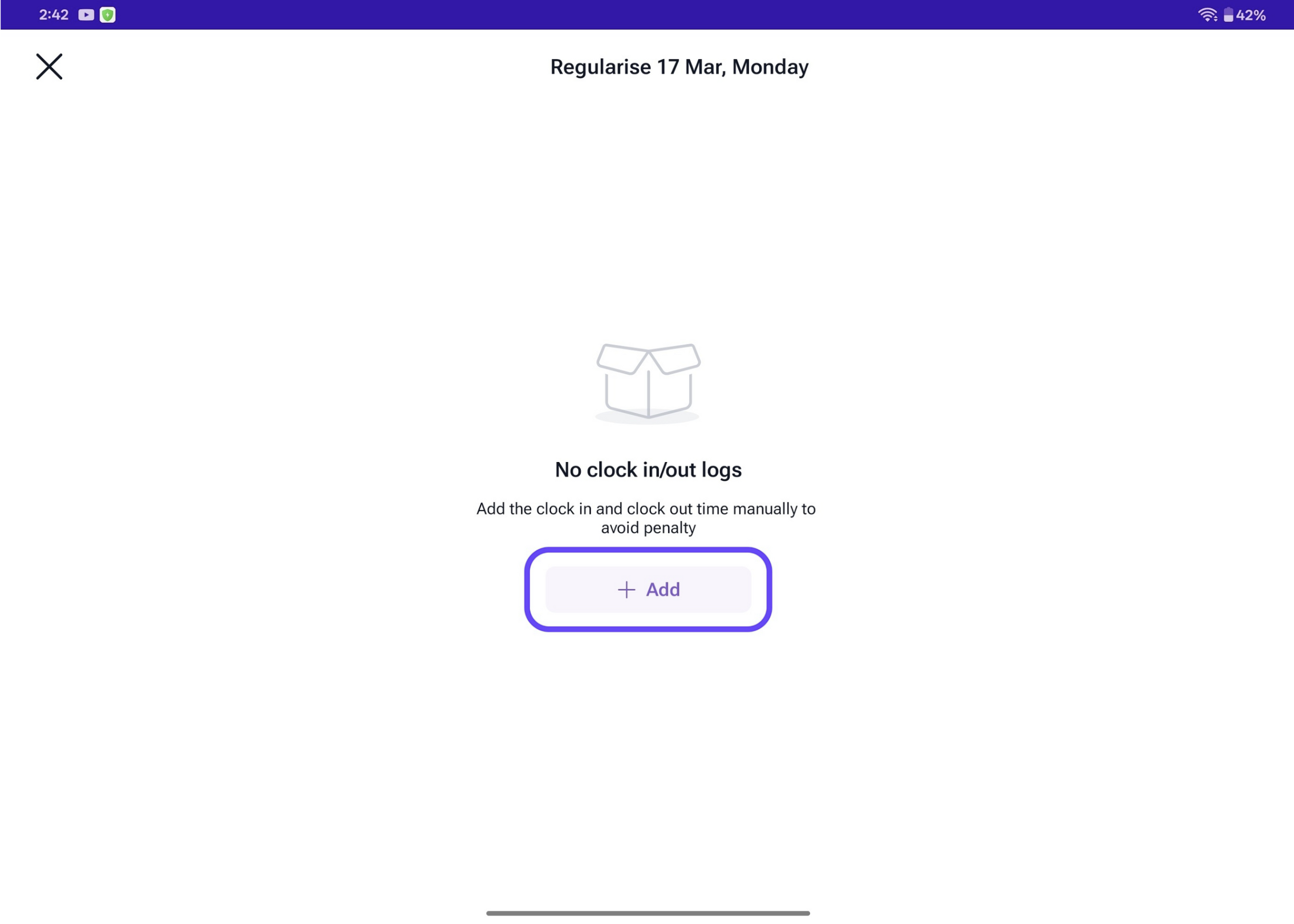
Next, click on the time entry(1) to make your updates. If you wish to include additional time logs, you can do so by selecting the +Add button(2).
-jpg.jpeg)
A window with a Clock will show up where you can select the time. Click OK after selecting the time. -jpg-1.jpeg)
Finally, click Update Logs to save the changes.
-jpg.jpeg)
This is the process for regularizing your reports attendance logs. Additionally, you can also regularize your own attendance logs using the same steps.
Please let us know if you find this article helpful.
Comments
0 comments
Please sign in to leave a comment.