Introduction
Keka Learn helps drive learning within your organization. Courses may be assigned to you by your learning team or other stakeholders. Once a course is assigned, you can go through it at your own pace—completing each section in the order that works best for you.
This guide explains how to access, complete, and rate your courses on Keka Learn.
Navigation
Go to the Keka Learn module from your sidebar.
Open the My Courses section.
Under In Progress Courses, you'll see the courses you're currently enrolled in.
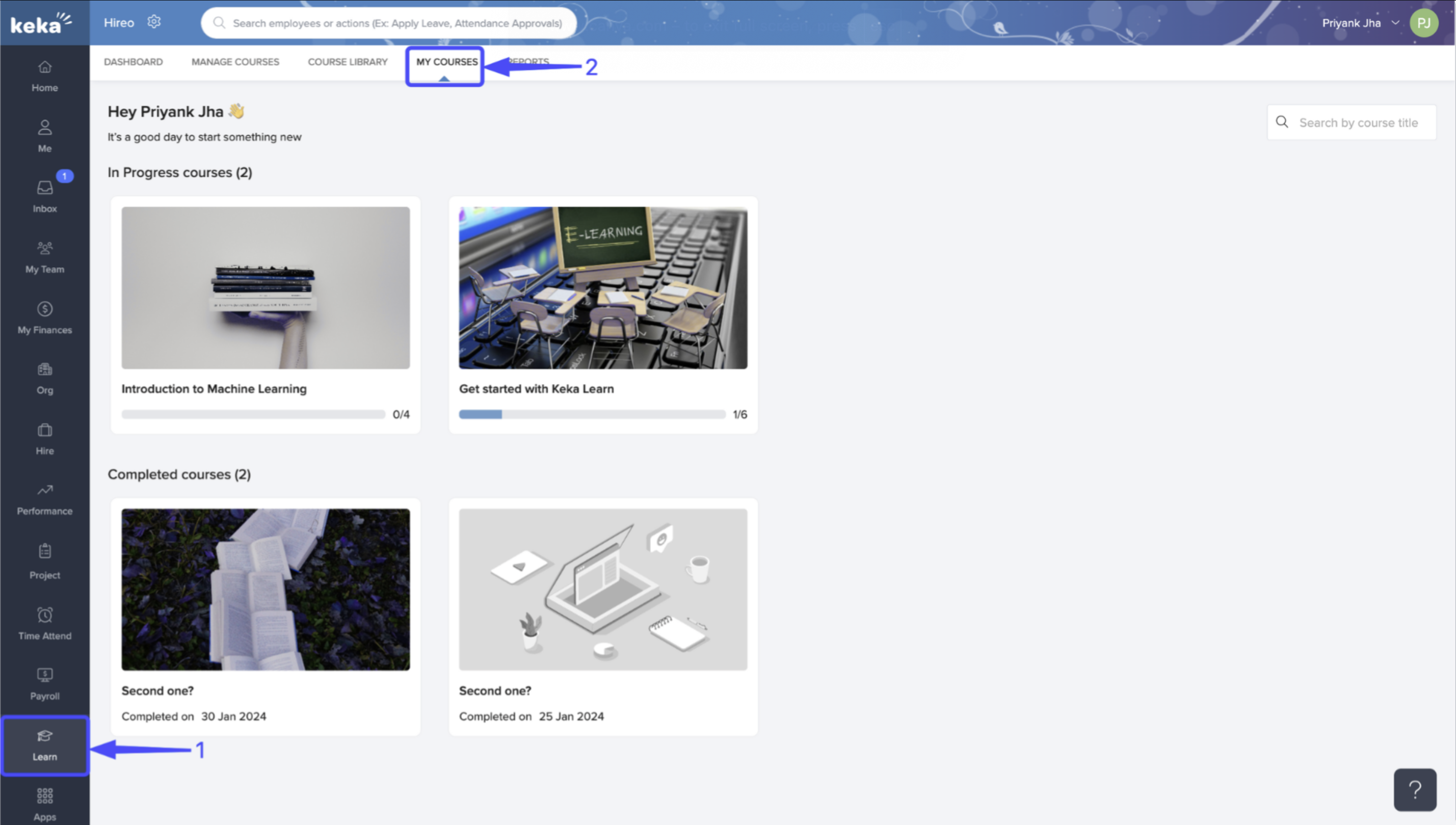
Under Completed Courses, you'll find the ones you've already finished.
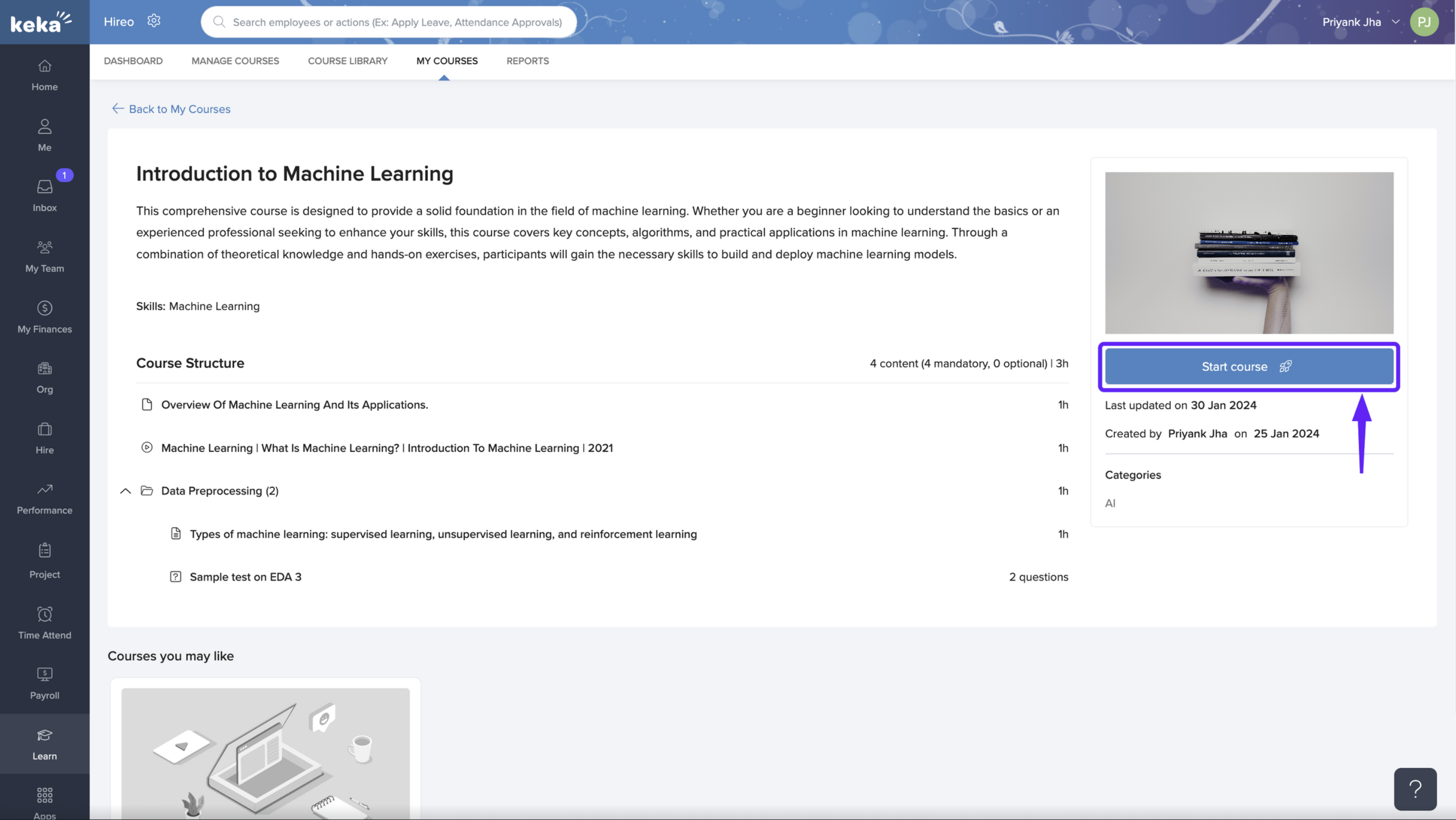
Click on the course you want to start.
On the course page, click Start Course to begin.
Completing the Course
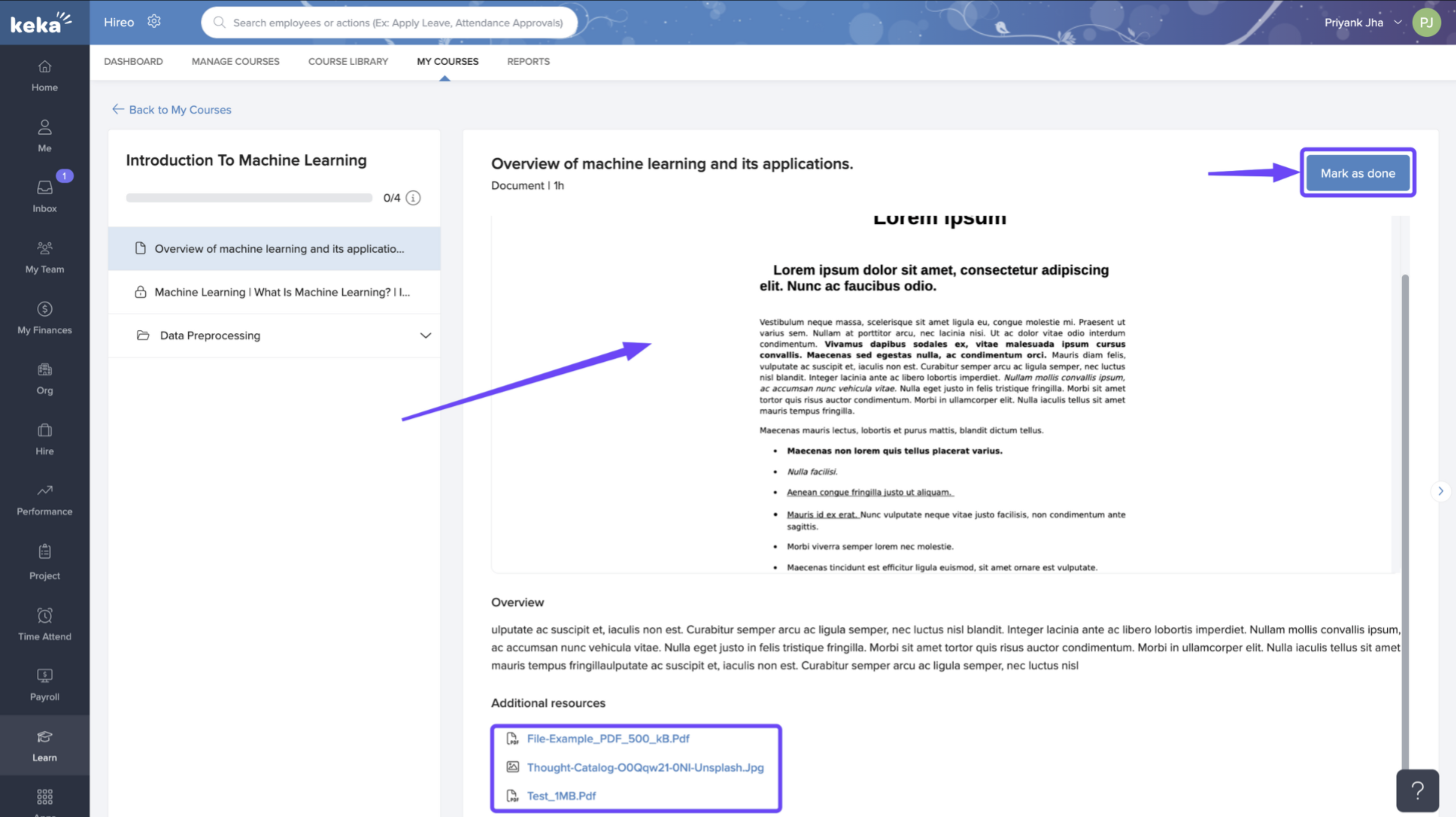
Once you open a course, you'll see different lessons or sections to complete.
Go through the content at your own pace.
Look out for any additional resources attached to each section.
When you finish a section, click Mark as Done to move forward.
Time Restrictions for Videos
If a course includes videos, your admin might require you to watch them for a minimum time before moving on.
If you try to skip ahead, the Mark as Done button may be disabled.
You might see an error if you haven't completed the required watch time.
Taking Quizzes
Some courses include quizzes or assessments.
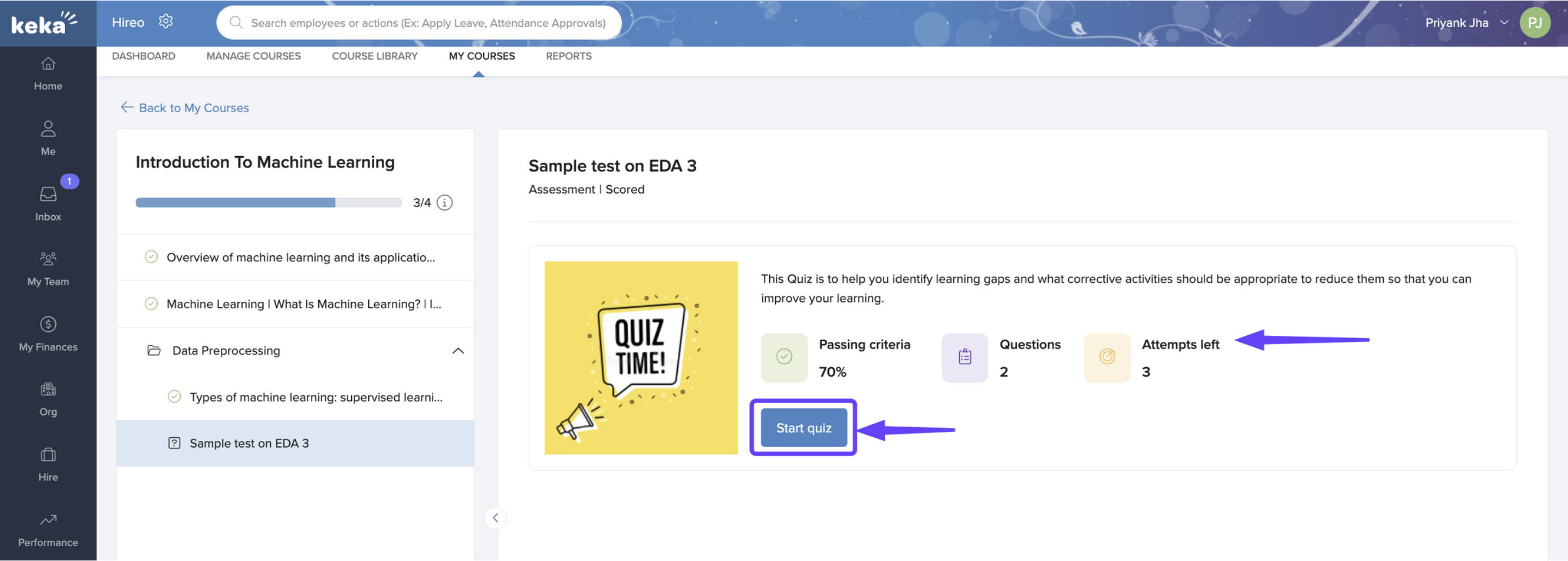
You'll see quiz details like the number of questions, attempt limits, and passing criteria.
When ready, click Start Quiz.
For each question: Select your answer
Click Save and Next to move on
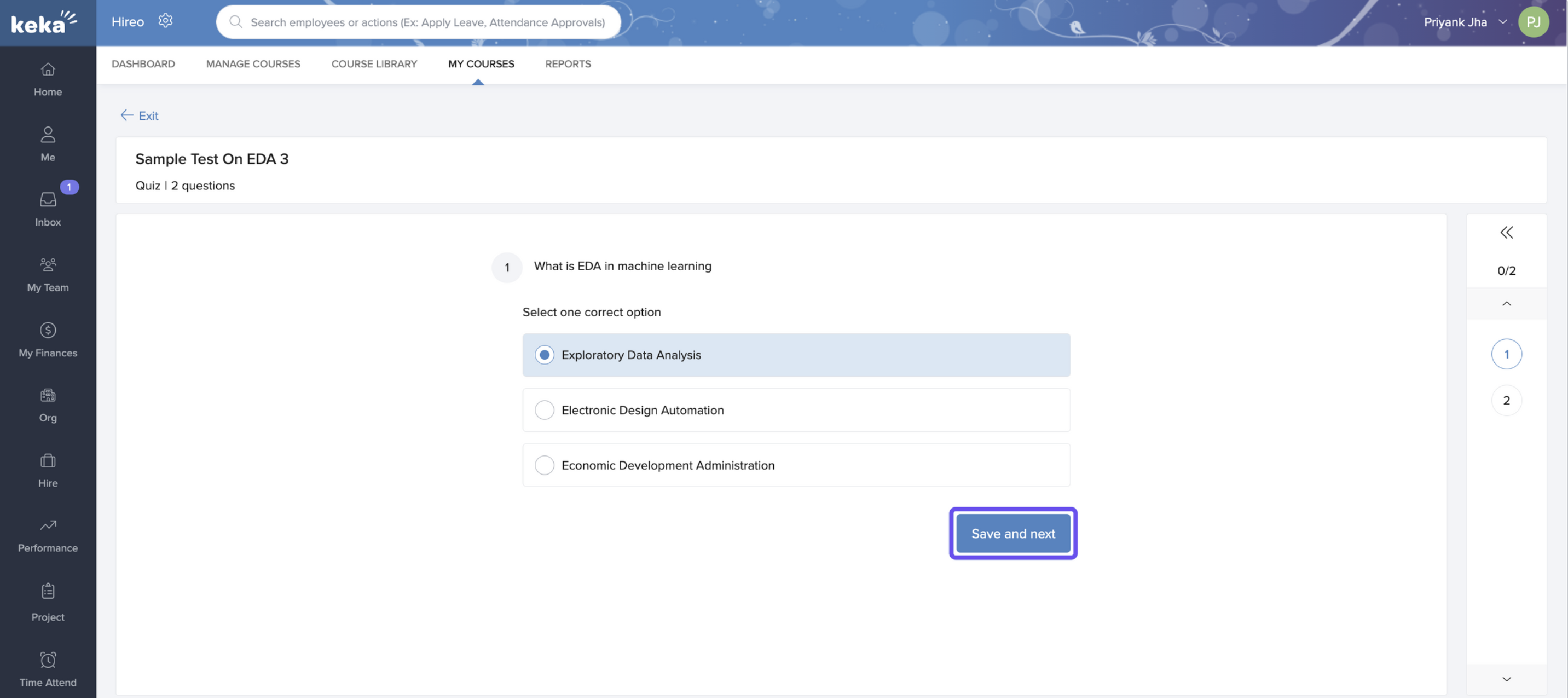 After completing the quiz, your results will be shown on screen. You can review your answers or click Proceed to continue.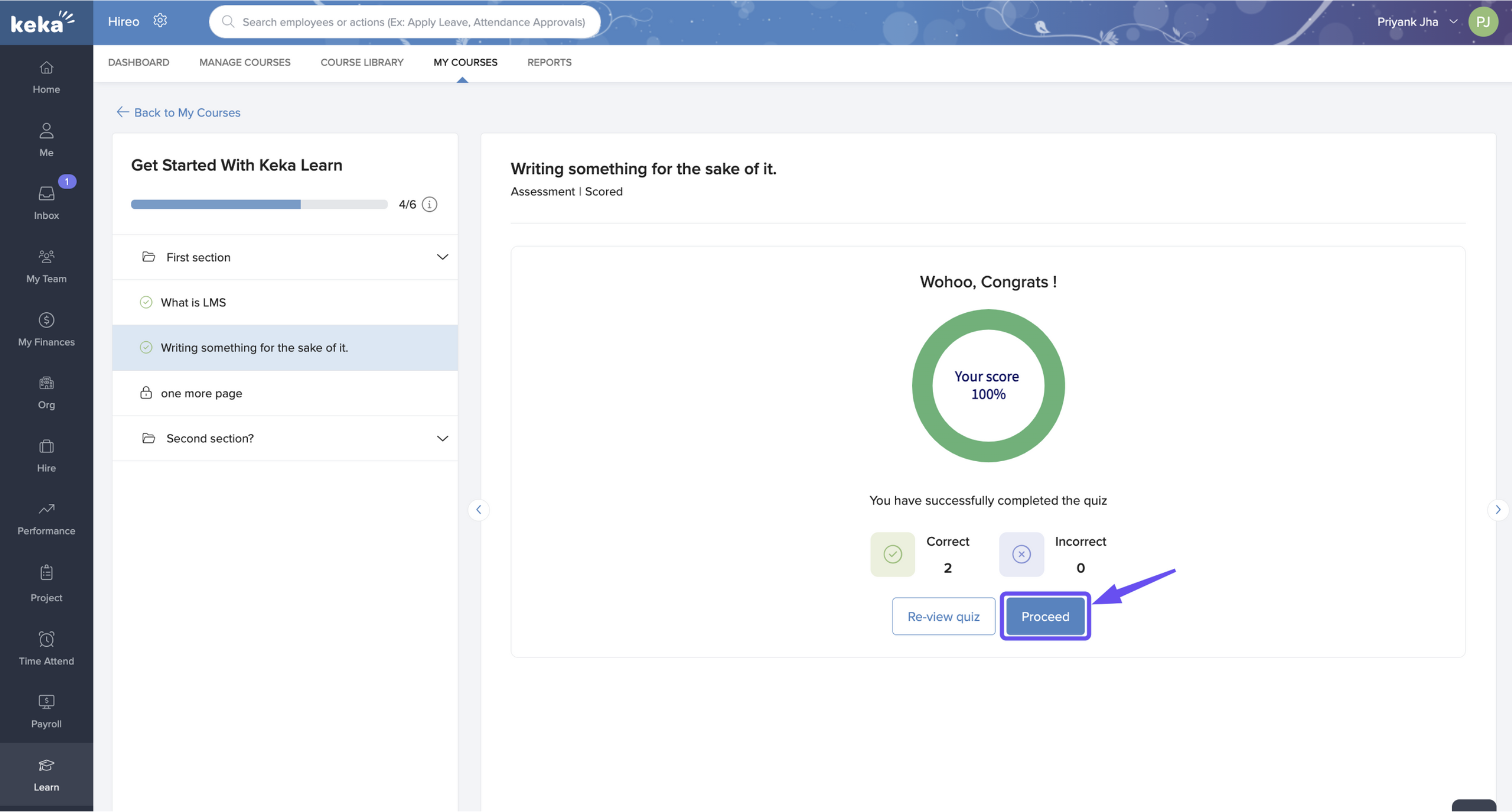
Once all sections and quizzes are done:
Click Complete Course.
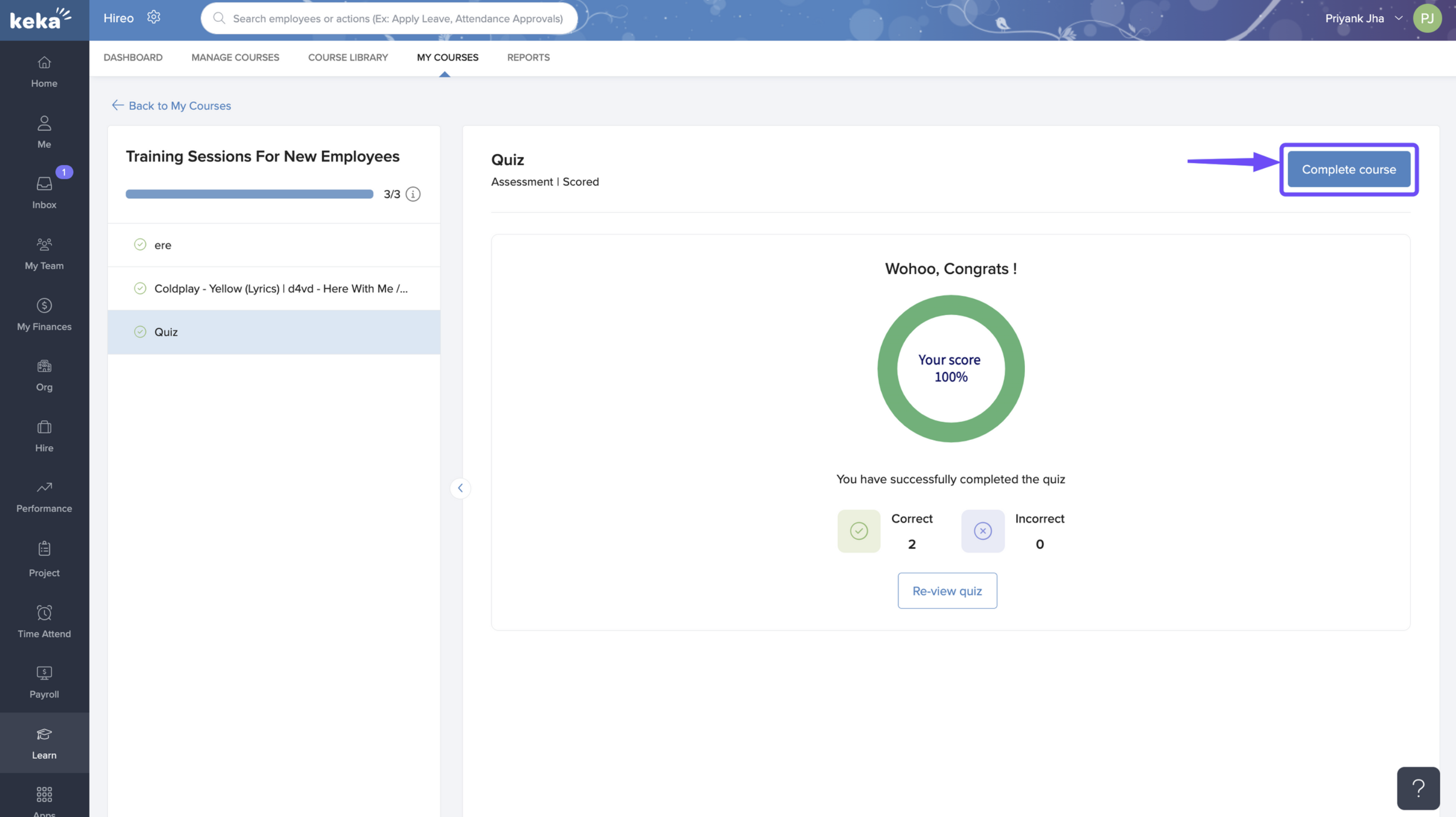
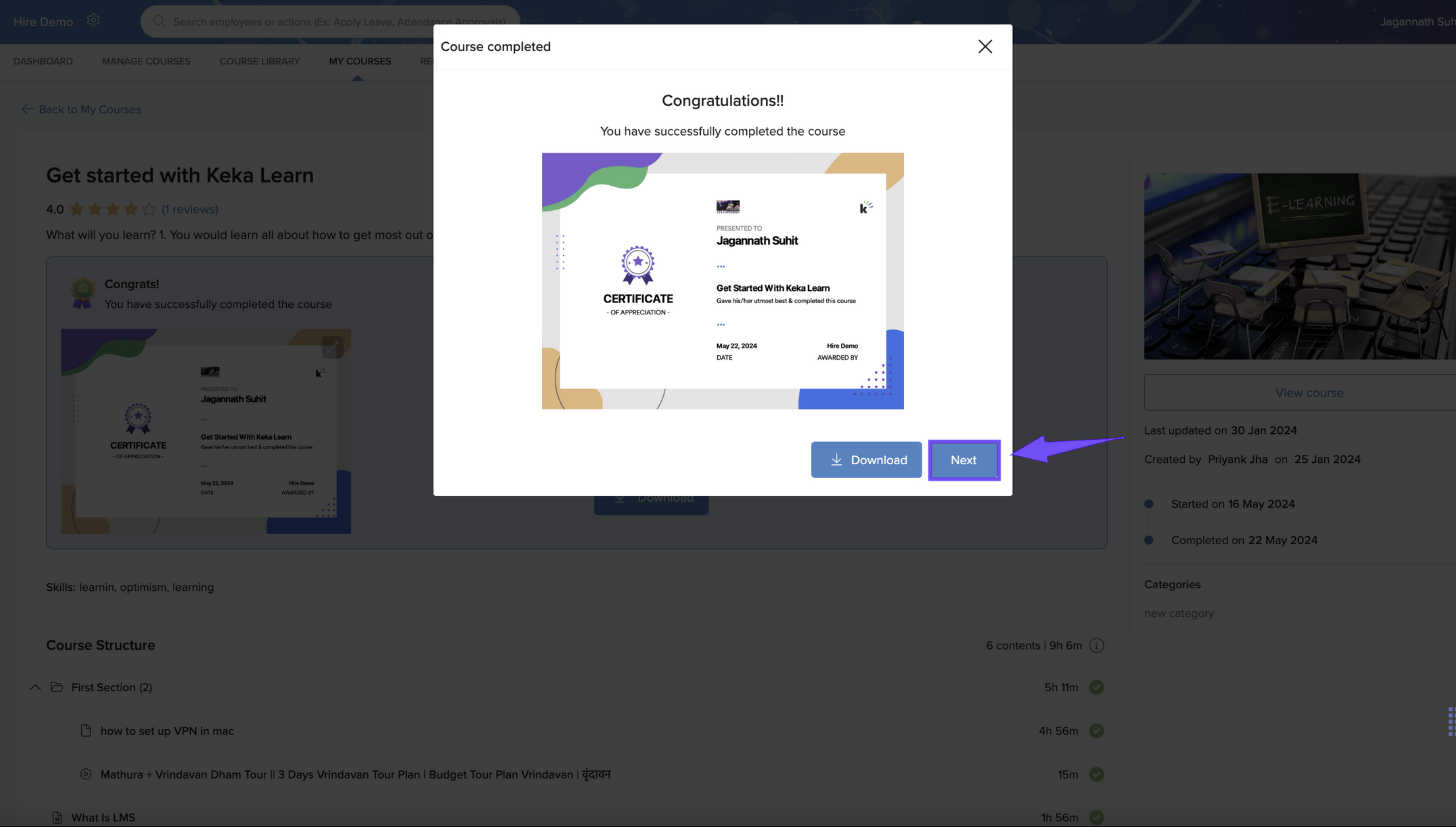
A course completion certificate will be shown.
Click Download to save a copy.

Rate and Give Feedback
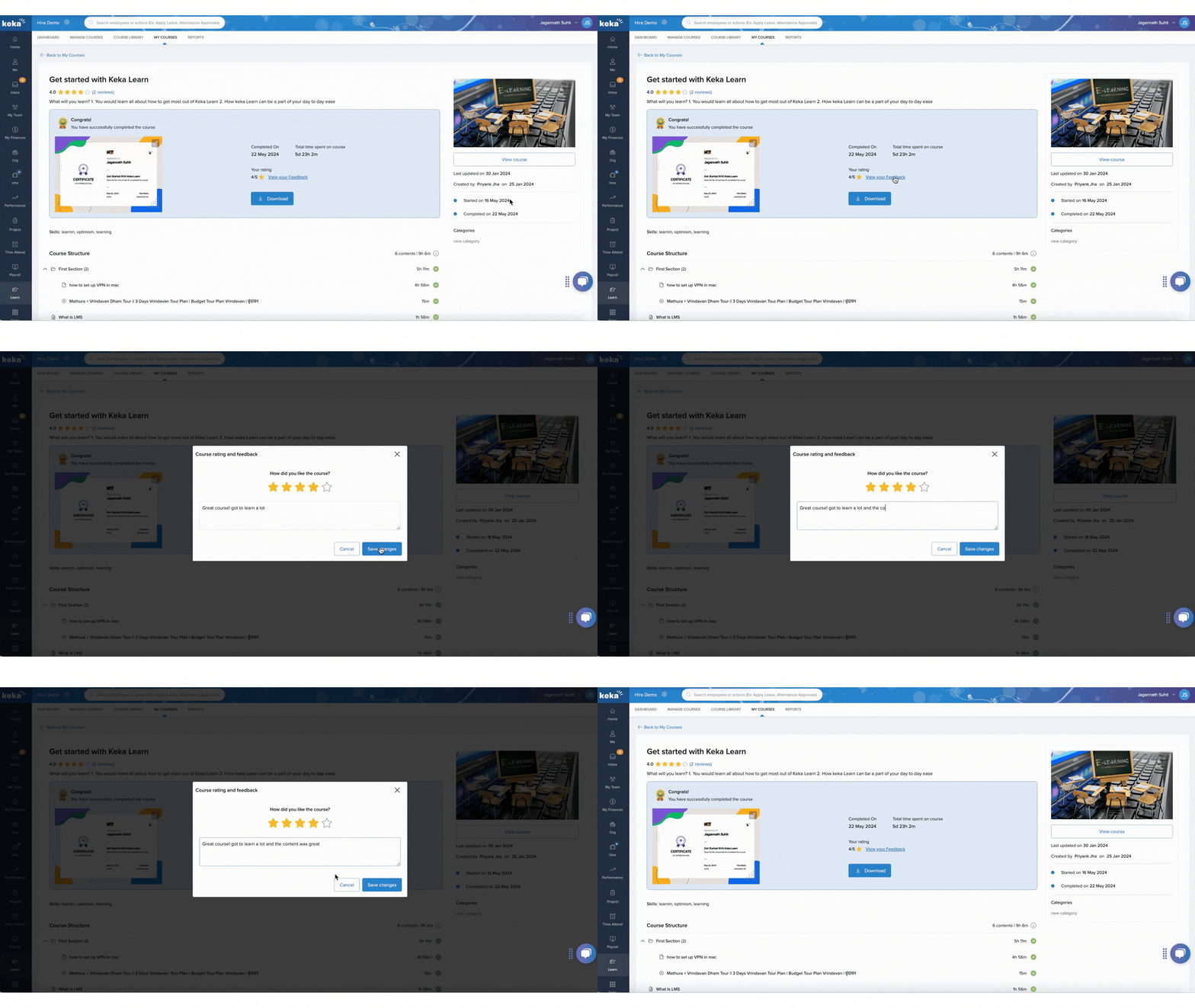
After completing a course, you'll be prompted to give a rating:
Click Next to rate the course.
In the pop-up window:
Use the 5-star rating system.
Add your comments in the feedback box.
You can view or edit your feedback anytime by clicking View your feedback.
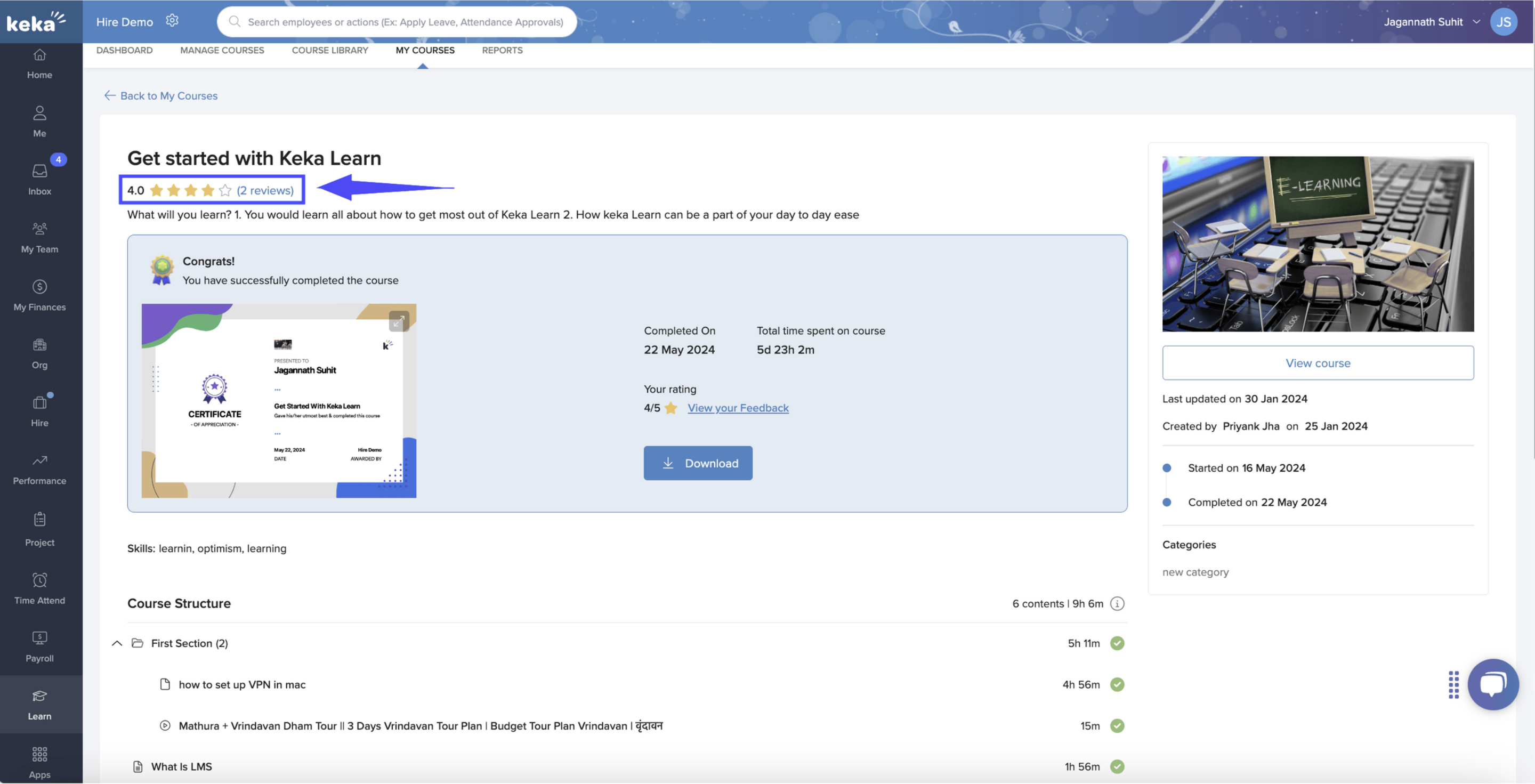
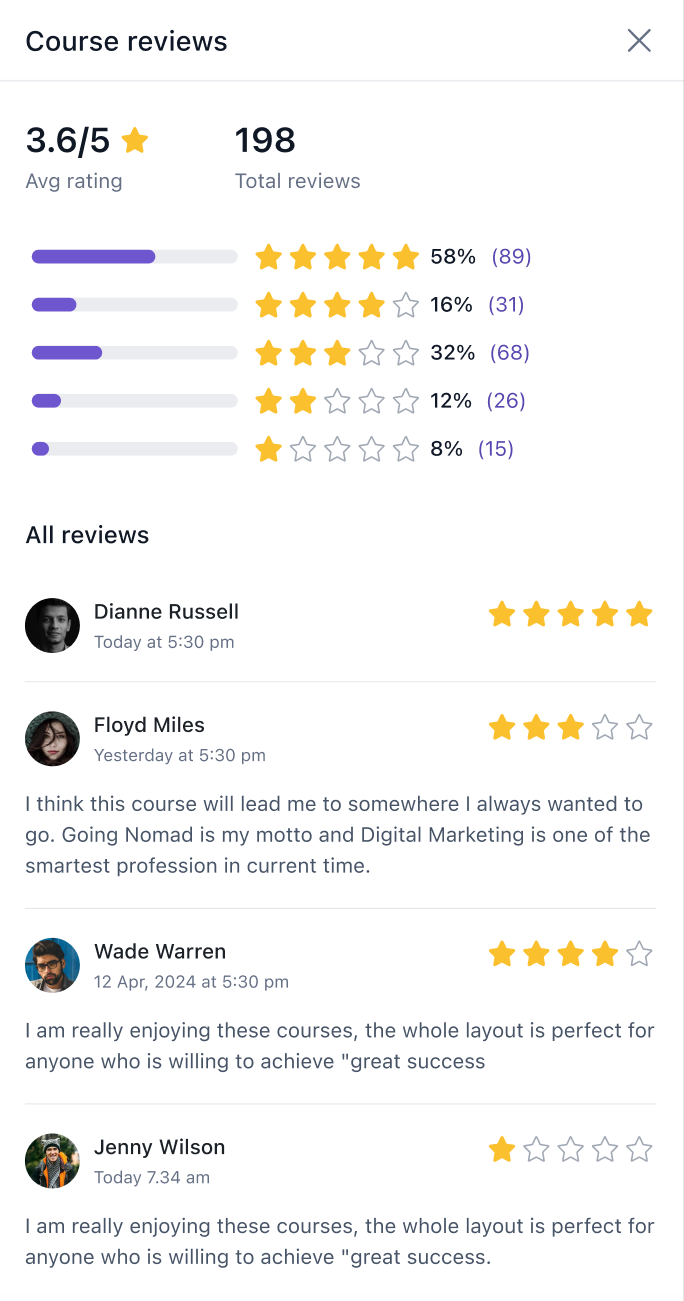
To see feedback from other learners, click on the star rating on the course.
Notes:
You can only mark a video lesson as complete after watching for the minimum required time (if set by the admin).
You can revisit and update your course feedback anytime.
Comments
0 comments
Please sign in to leave a comment.