Introduction
As an HR Manager, having control over your dashboard and interview availability is key to running an efficient recruitment process. In Keka Hire, the dashboard serves as your central hub for tracking hiring activity, monitoring insights, and managing interviews.
This guide will show you how to navigate the dashboard, view reports, and set up your interview availability so your team and candidates stay organized.
Access the Dashboard
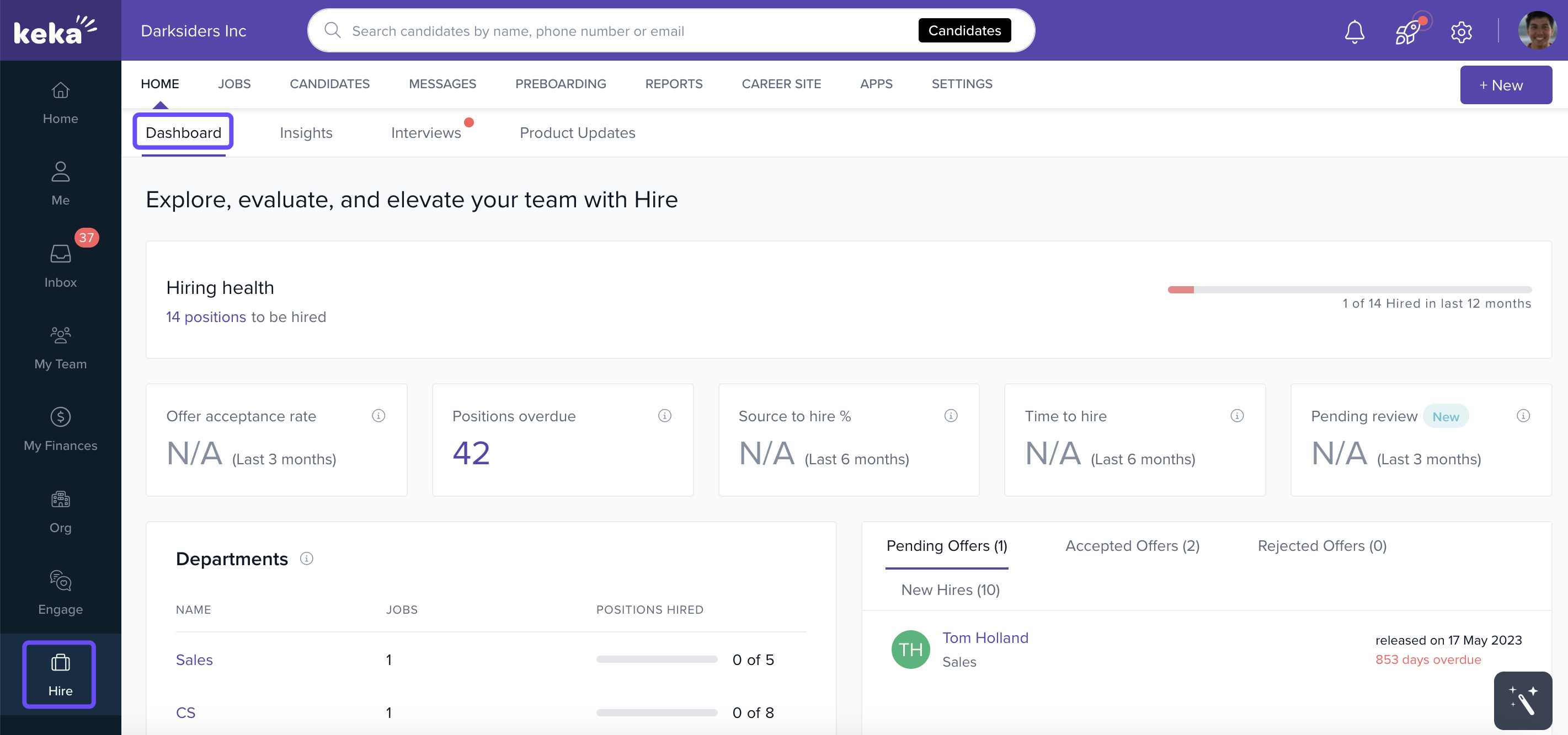
Go to Hire.
Click Home.
Under Dashboard, you’ll see hiring-related options.
Explore Dashboard Tabs
Within the Hire dashboard, you’ll find these sections:
Pending Offers – Offers awaiting candidate response.
Accepted Offers – Offers accepted by candidates.
Rejected Offers – Offers declined.
New Hires – Candidates who accepted offers and are marked as new hires.
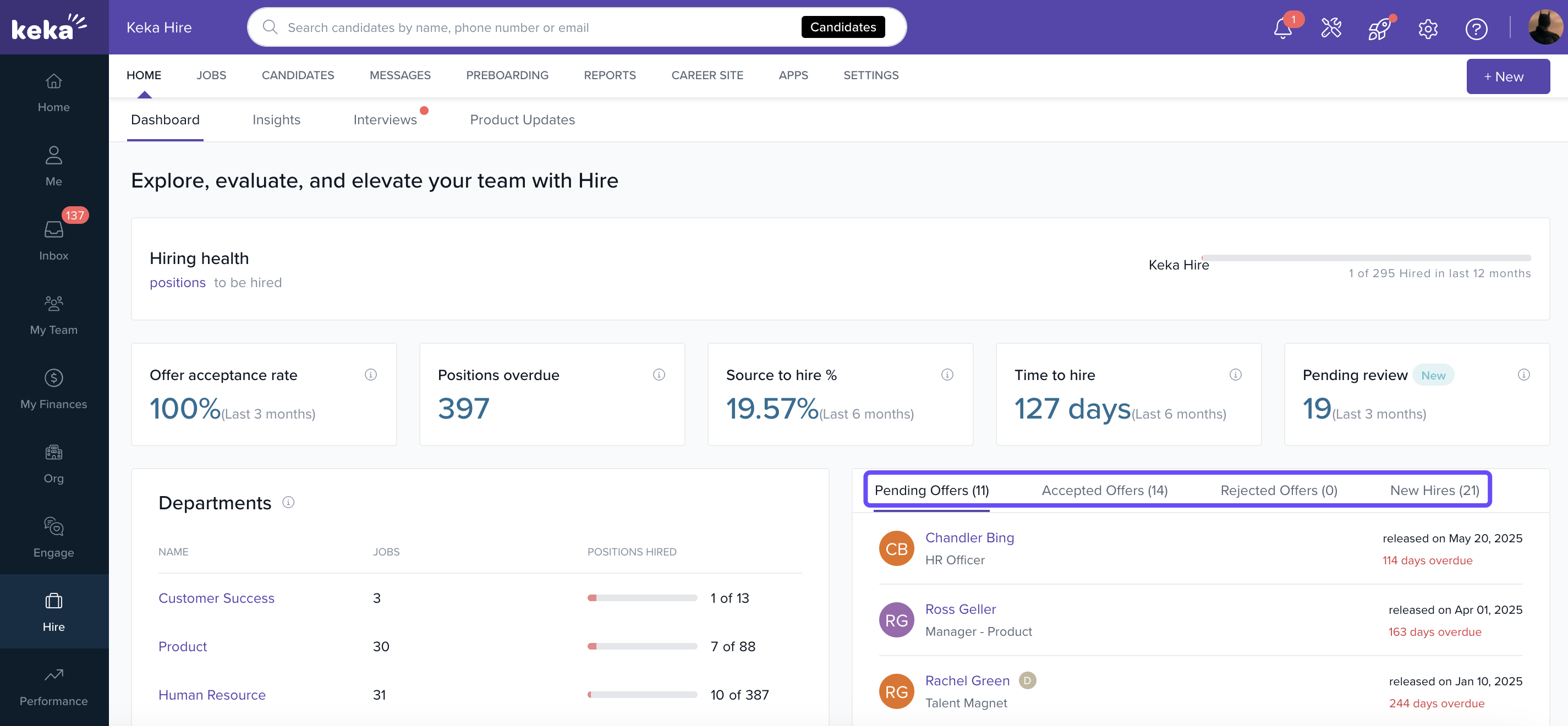
You’ll also see key insights, including:
Recruitment funnel progress
Offer acceptance rate
Effectiveness of recruitment sources
Download Reports
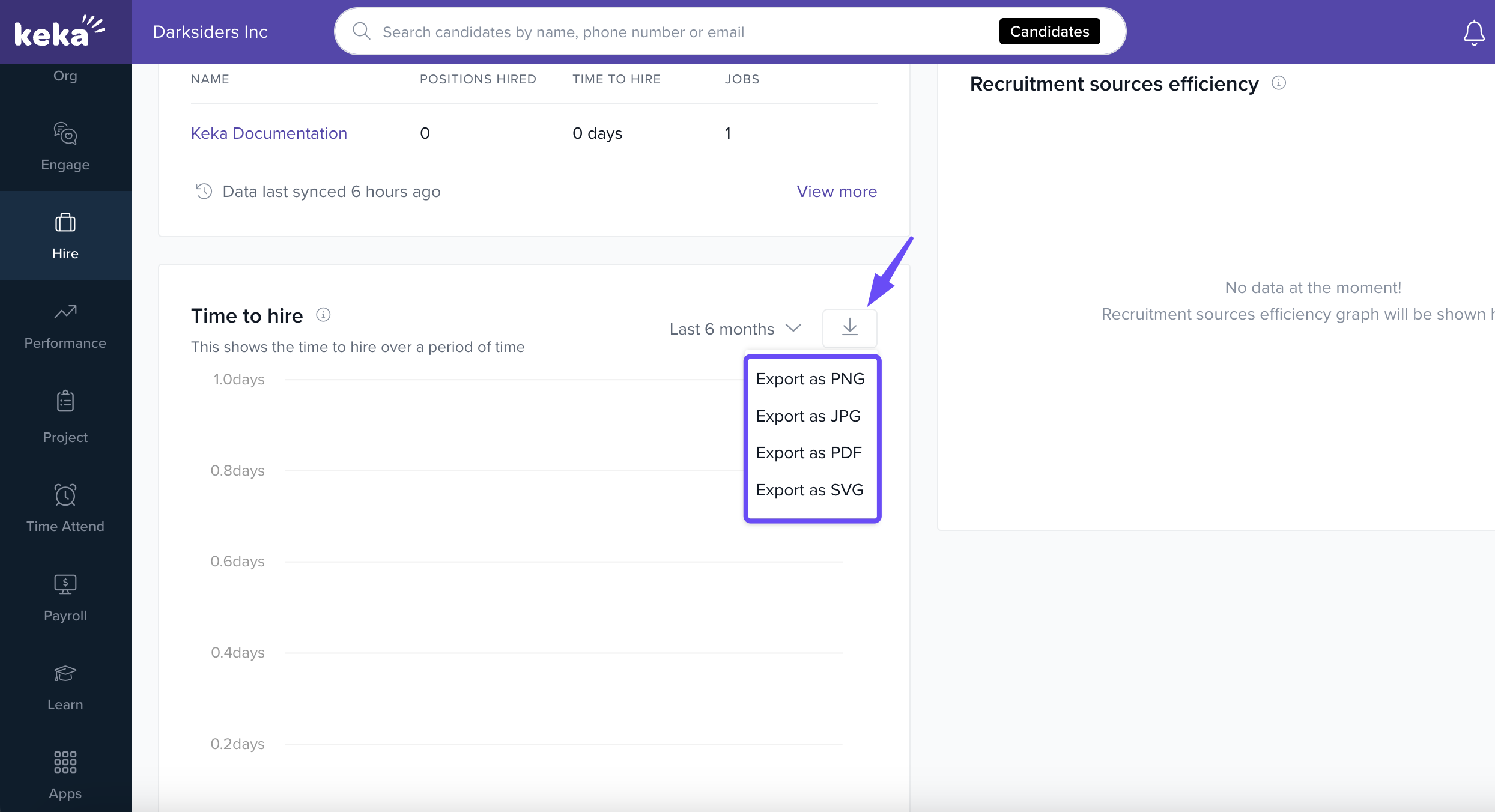
In any dashboard section, click the Download icon.
Select your preferred file format from the export options.
Repeat the same process for additional reports as needed.
View Insight Reports
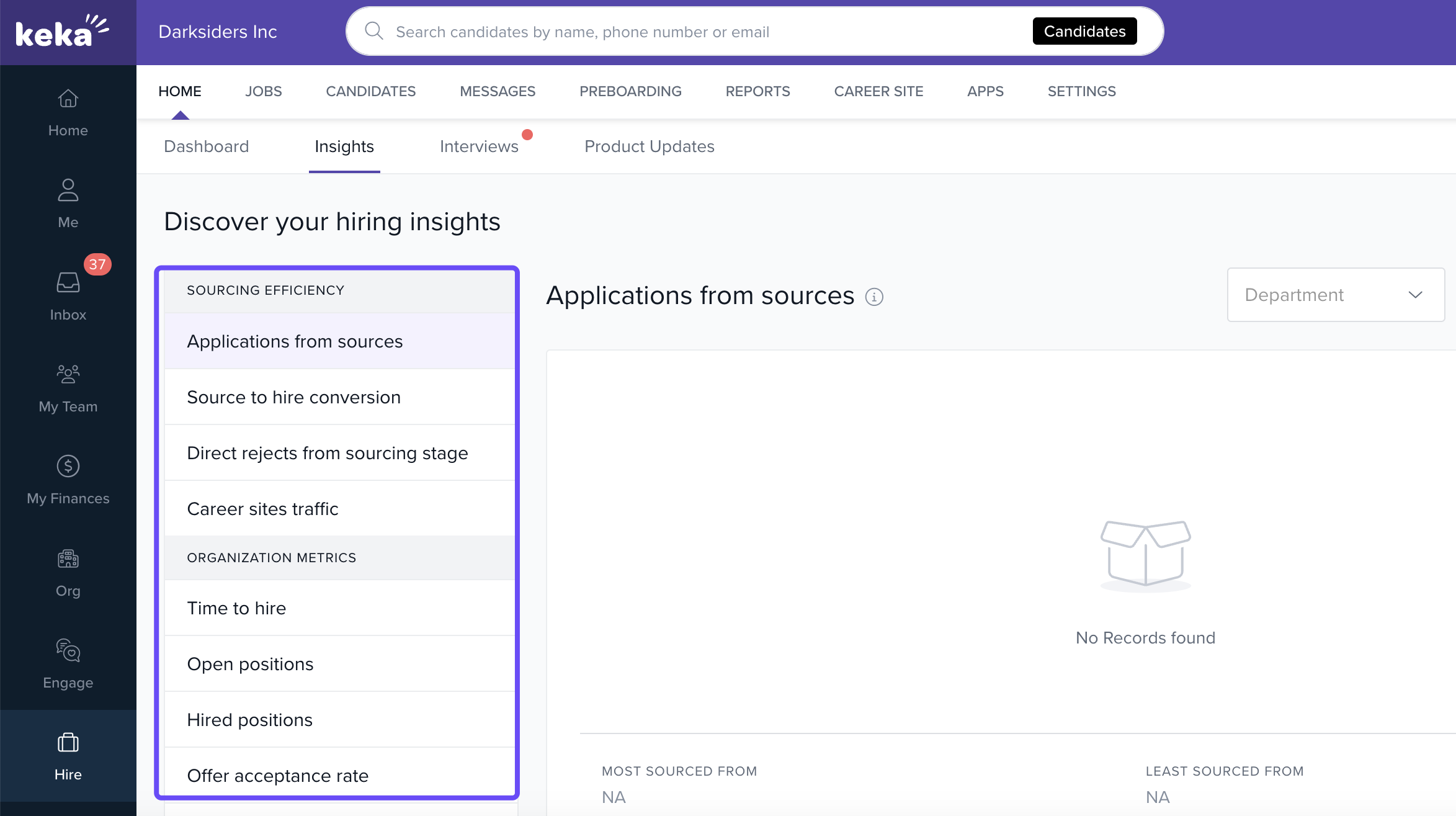
In the top navigation bar, go to Insights (within the Home section).
Choose a category to explore detailed analytics and reports.
Manage Interviews
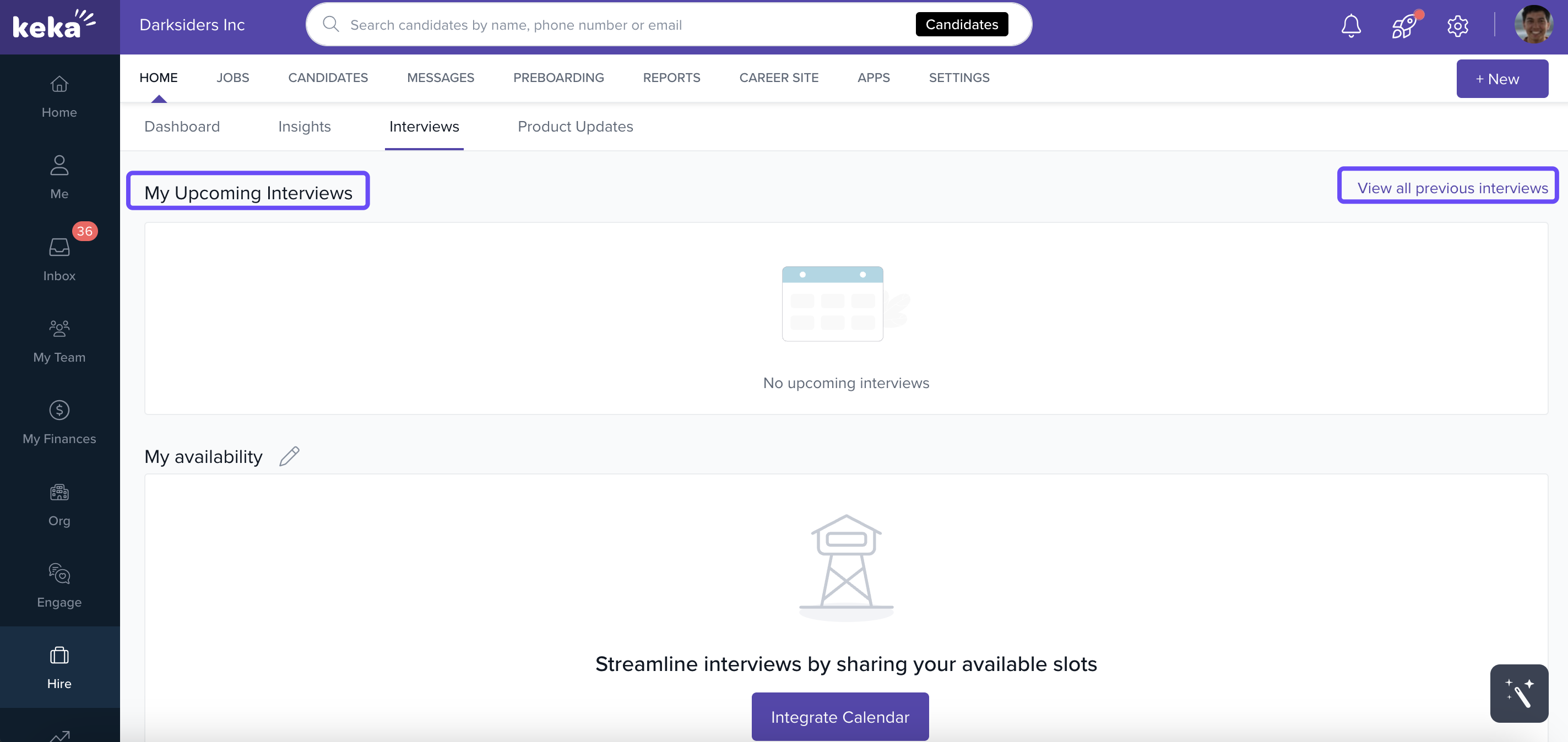
In the navigation bar, click Interviews.
Select View All Previous Interviews to review past sessions.
Connect Your Calendar
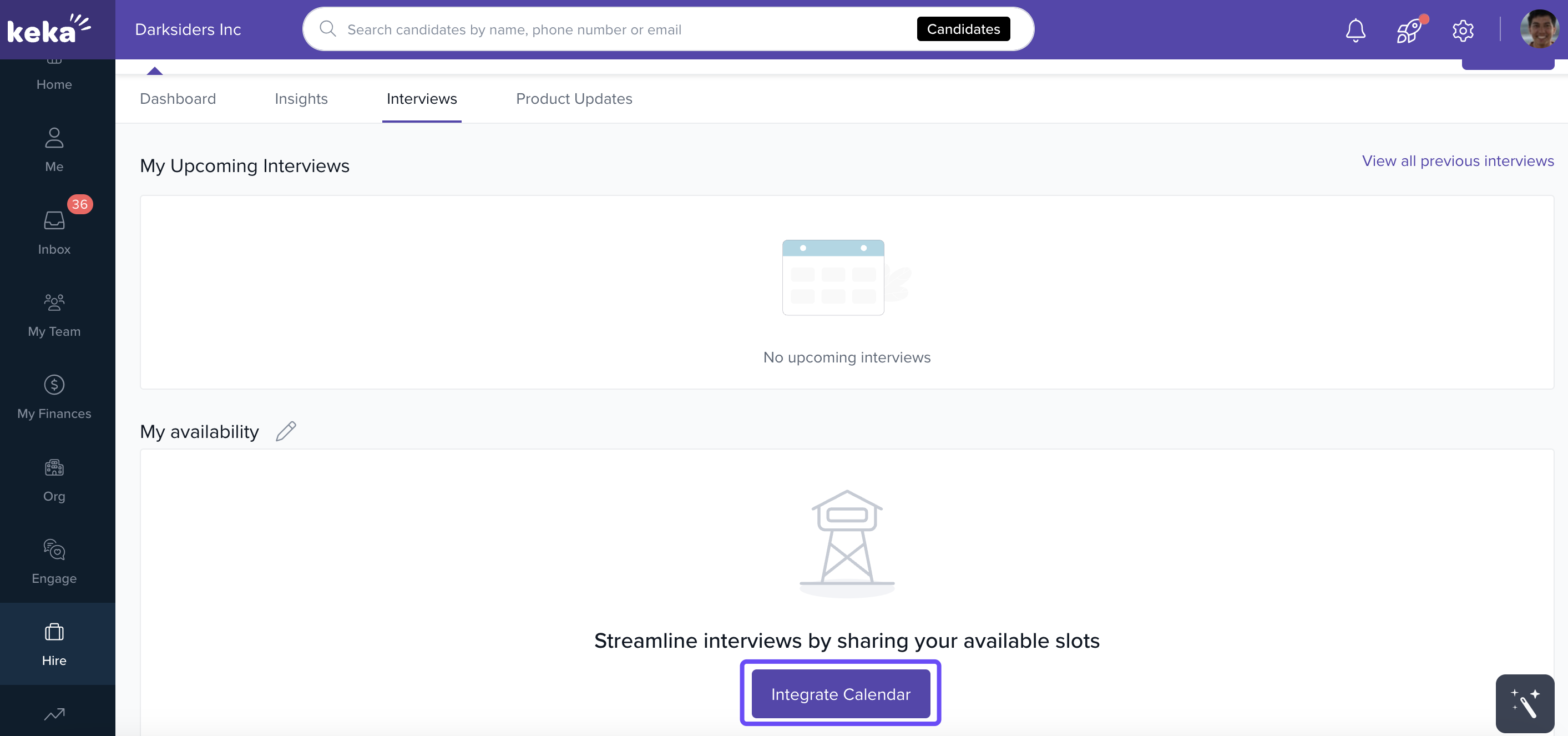
Go to the Availability section.
Click Integrate Calendar.
Enable the toggle next to your preferred meeting platform to sync it.
Set Your Interview Availability
There are two ways to update your availability:
Option A: Simplified Availability
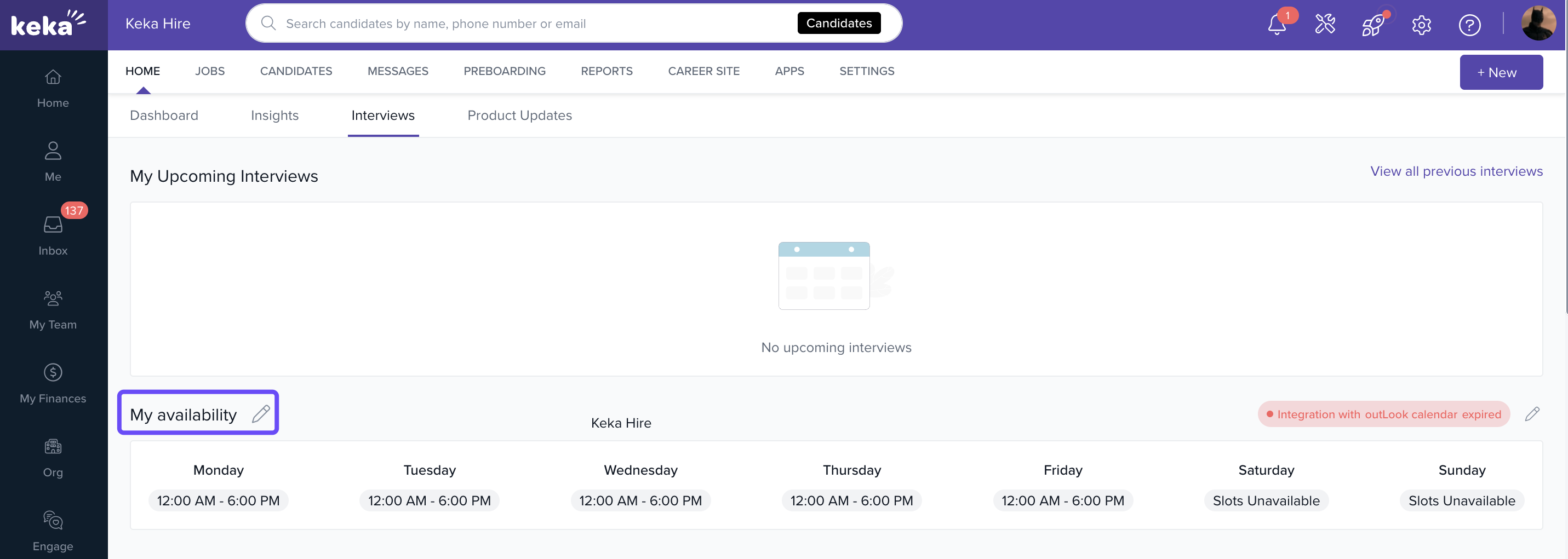
In the navigation bar, click the pencil icon under My Availability or click Edit in the Interview Availability section.
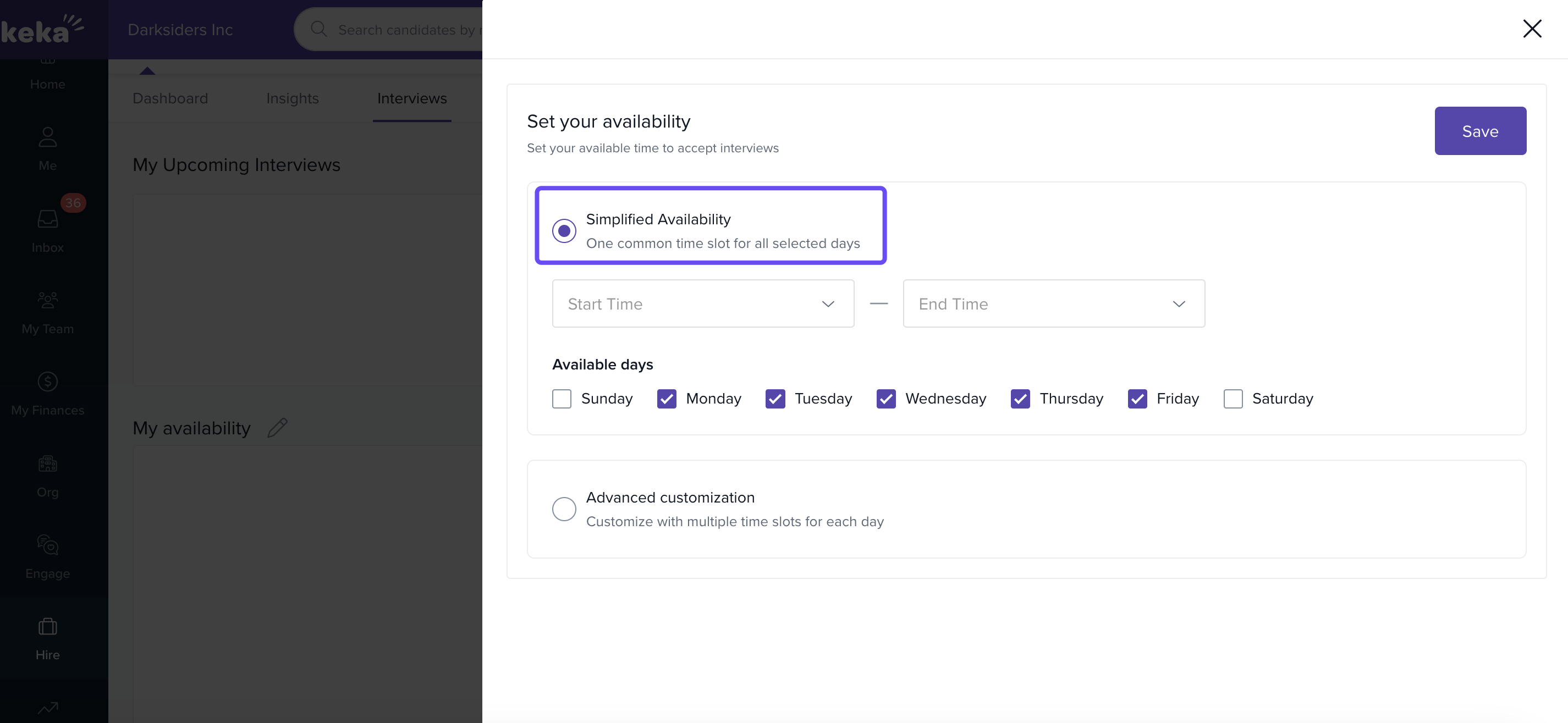
Select Simplified Availability.
Choose your start time and end time from the dropdown menus.
Click Update to save changes.
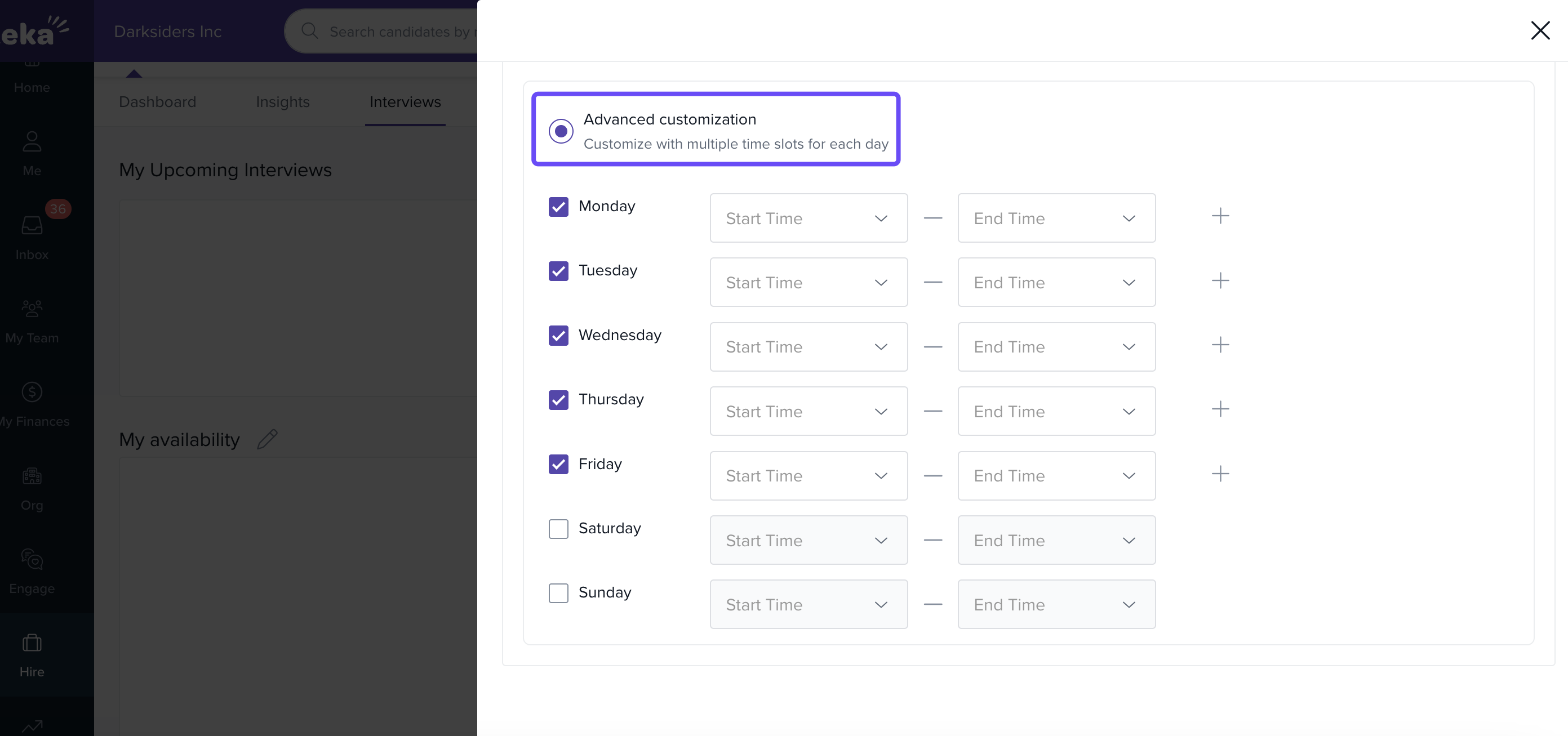
Option B: Advanced Customization
Select the Advanced Customization option.
Use the dropdown menus to add multiple time slots for each day.
Set start and end times for every slot you want to allow.
Click Update to save your customized schedule.
Notes
Tip
Use advanced customization if you want to offer candidates multiple interview slots in a single day.
Important
Make sure your calendar is integrated before adjusting availability, so interview scheduling syncs smoothly.
We trust this article provides the guidance you need.
Comments
0 comments
Please sign in to leave a comment.