Looking to share knowledge, celebrate wins, or spark conversations? Keka's Articles feature under Engage makes it easy to create, publish, and manage content that your employees can read right from the HR portal. Whether it's a key learning, company update, or a message from leadership—anyone with permission can contribute.
Here’s how to get started.
Navigating the Articles Section
From the left menu, click Engage.
-
Then select the Articles tab.
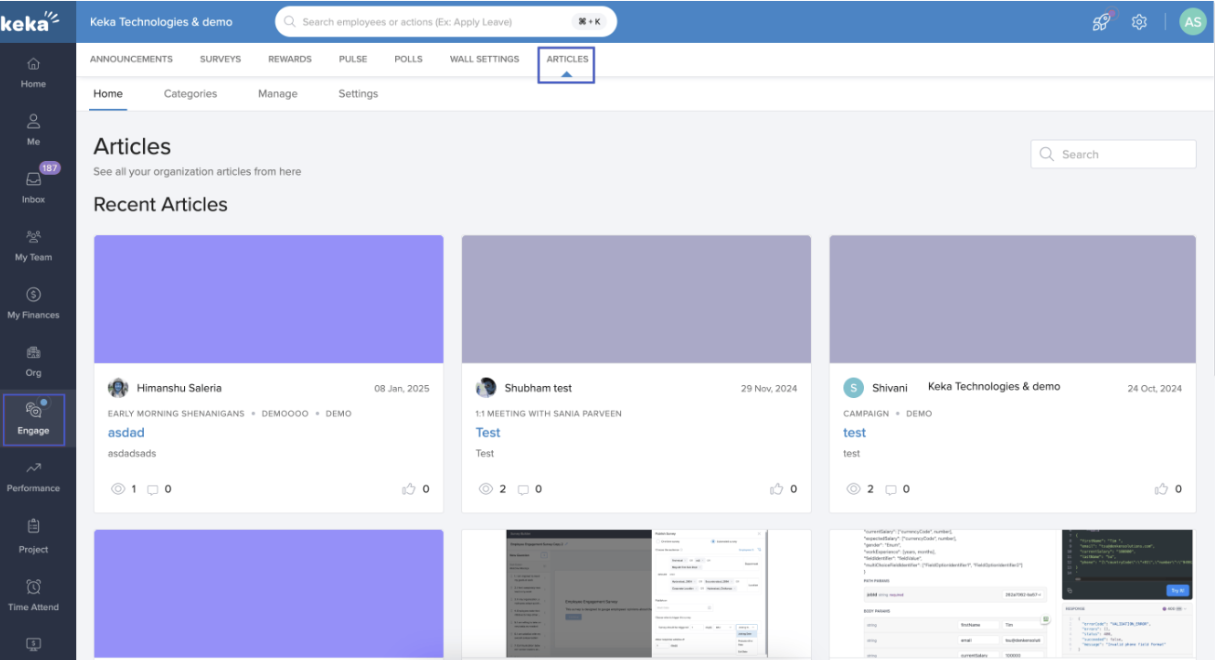
Here, you’ll see:
A list of published articles.
Categories to organise them.
A Manage section to create and control content.
A Settings tab to manage publishing permissions.
Set Publishing Permissions
Decide who in your company can publish content.
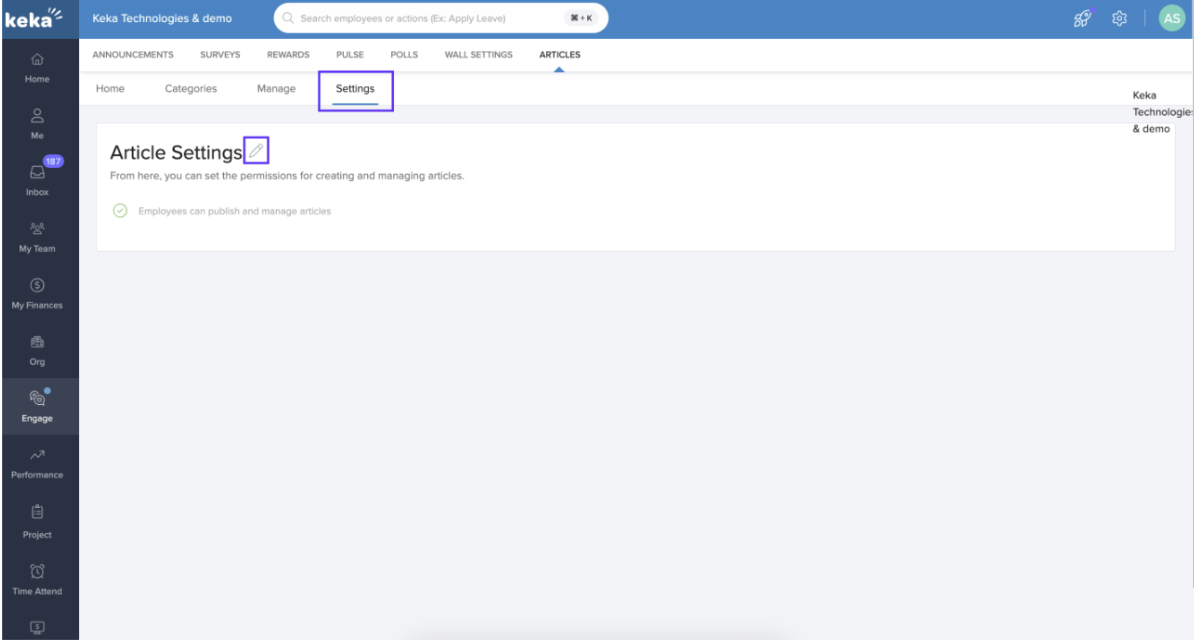
Click the Settings tab.
-
Next to Article Settings, click the Edit icon.
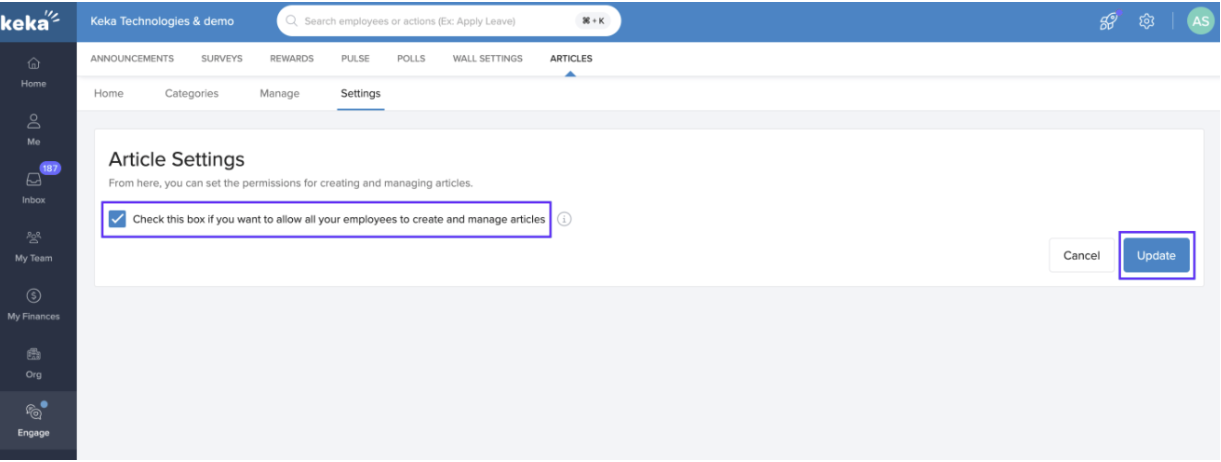
Check or uncheck the box to allow employees to create and publish articles.
If unchecked, only users with Global Admin, HR Manager, or HR Executive roles can publish.
-
Click Update to save your changes.
Create an Article
To write and publish a new article:
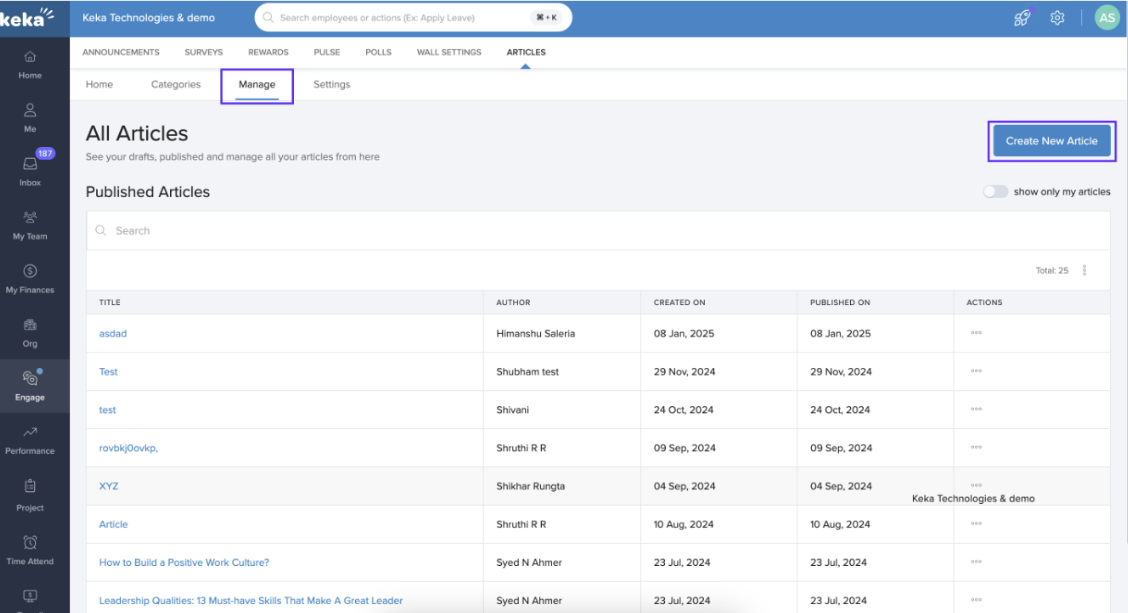
Go to the Manage tab.
-
Click Create Article.
-
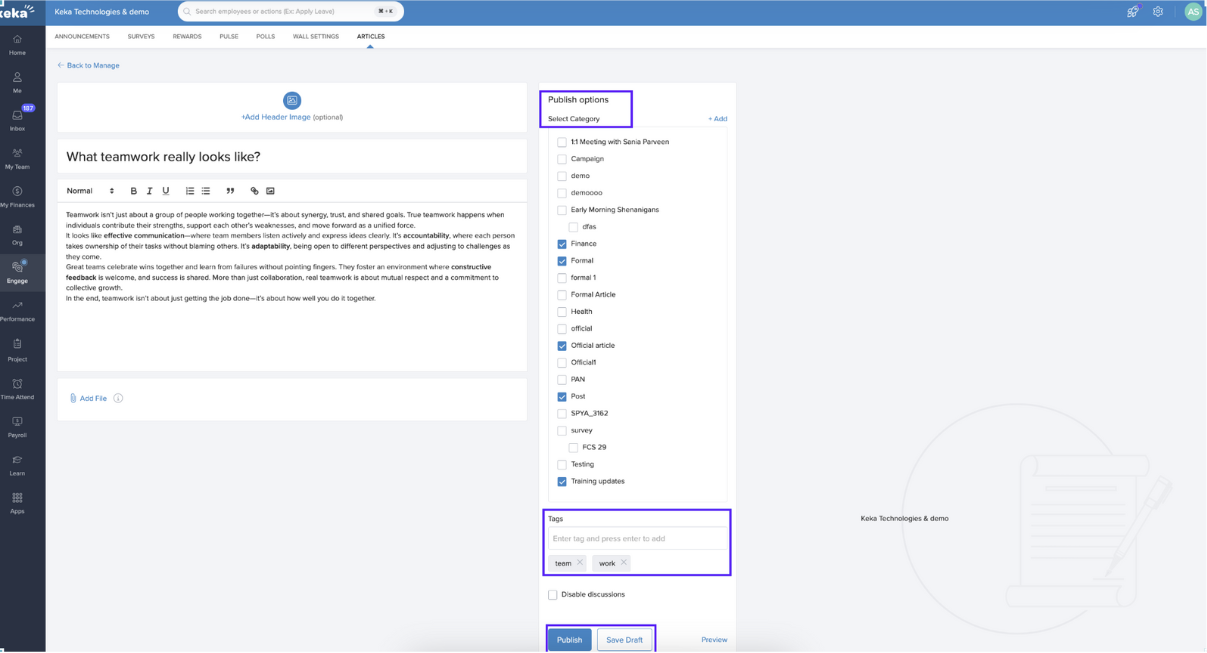
In the article editor:
Upload a header image
Enter a title
Write your content
Set Publish Options
Choose a Category (or create a new one with +Add).
Add Tags if needed.
To turn off comments, check Disable Discussions.
You can:
Publish immediately.
-
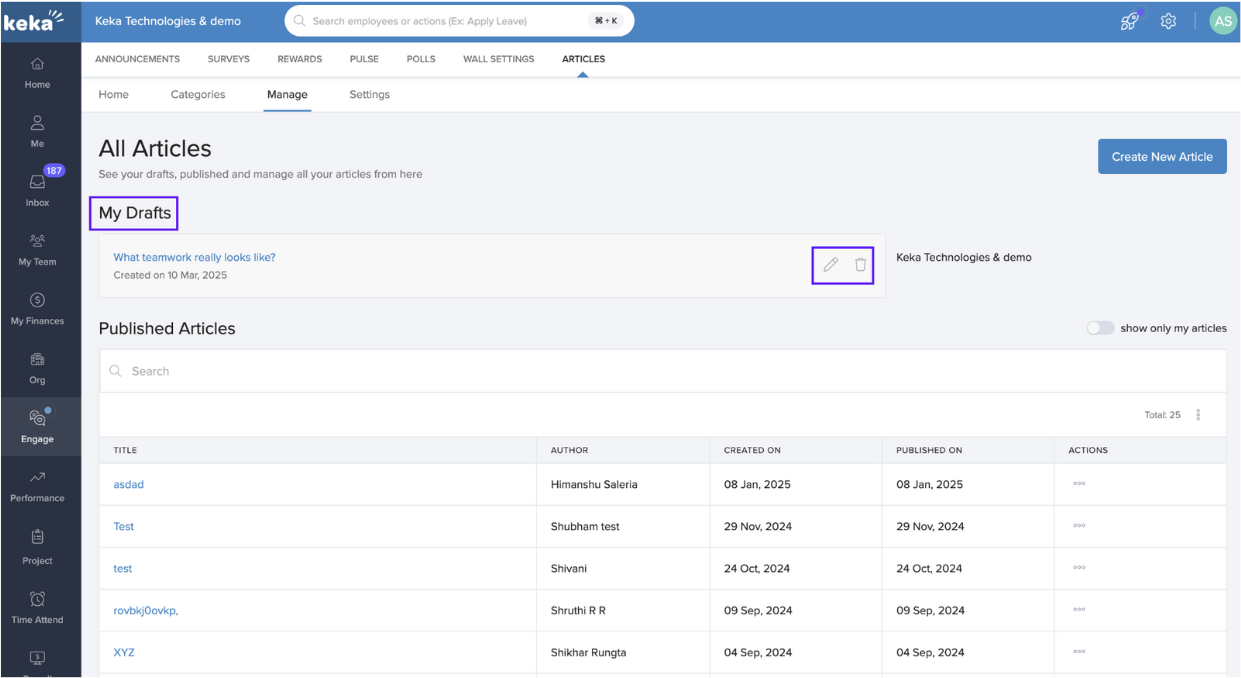
Or Save as Draft to edit later.
- Drafts can be updated and published anytime or deleted if no longer needed.
Manage Existing Articles
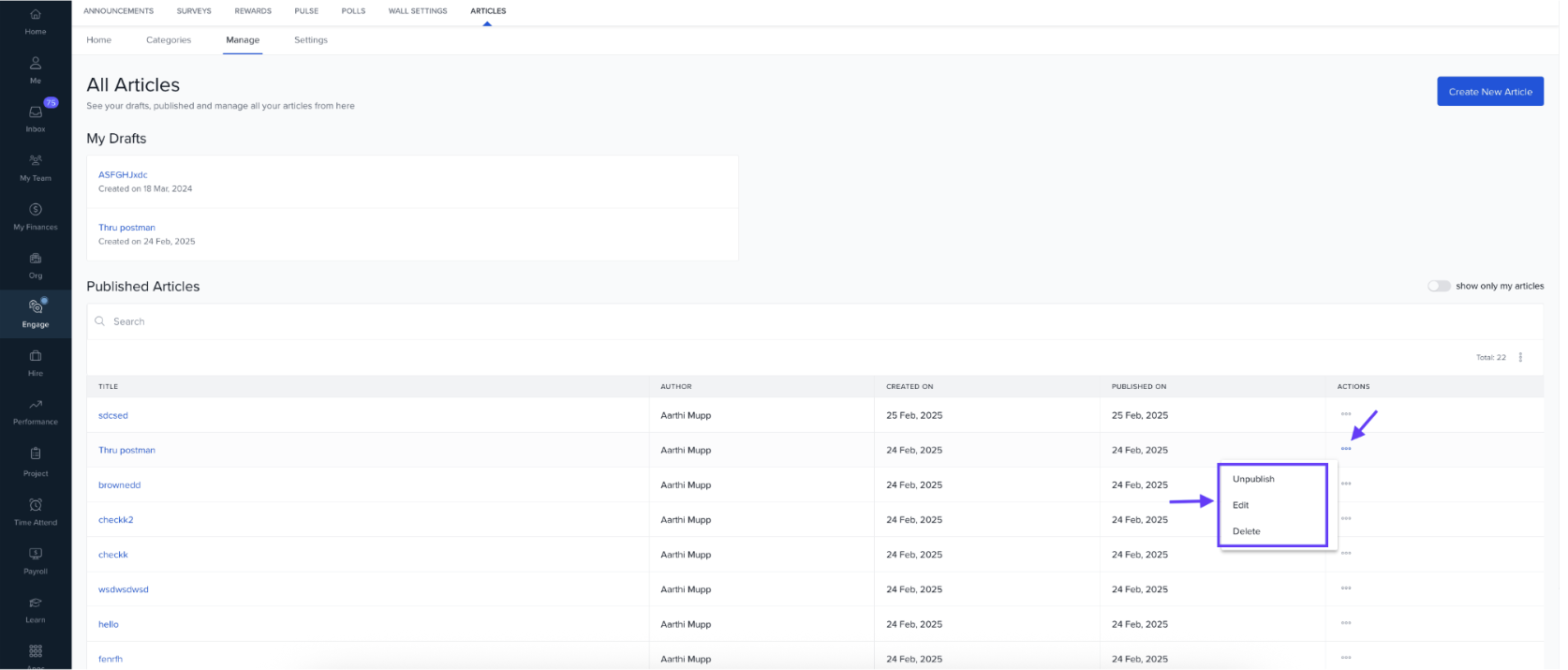
All your published content appears in a list on the Manage page.
To take action on an article:
Click the three dots in the Actions column.
-
You can:
Edit the article
Unpublish it
Delete it permanently
Manage Article Categories
Keep your articles organised with categories.
You can easily categorise the articles being published using the categories feature.
-
Go to the Categories tab on the Articles page.
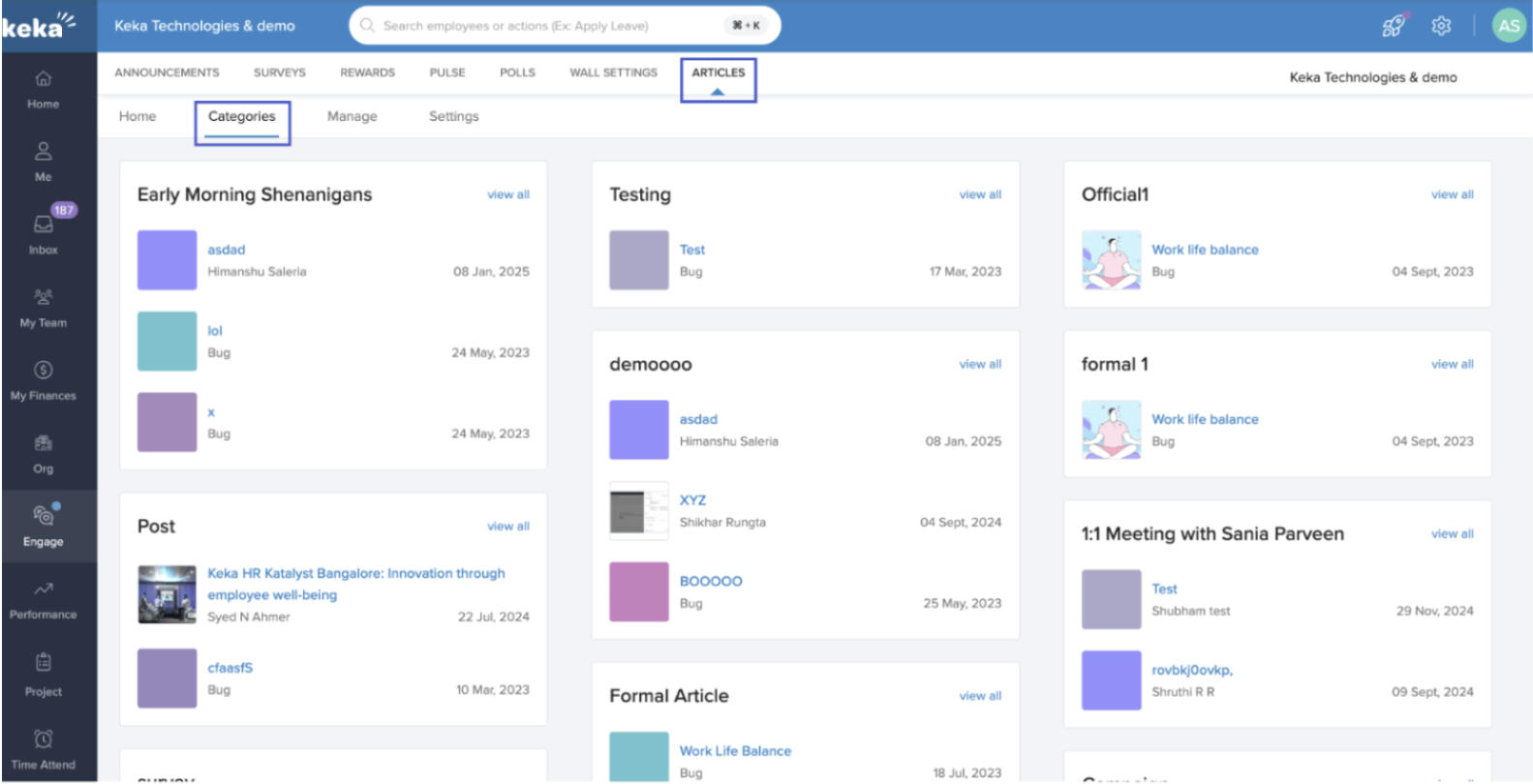
- All the categories added will be shown here along with the articles in each category. New categories can be added when you are publishing a new article as shown in the previous section of this article.
Notes & Tips
- Tip: Encourage team members to share stories or updates—it boosts engagement and gives employees a voice.
- Note: Only those with the right permissions can publish. Check your settings before assigning article tasks.
Comments
0 comments
Please sign in to leave a comment.