Overview
Managers often have the best insights into their team’s performance and contributions. With Keka’s new Manager Recommendations feature, managers can suggest salary increments during review cycles, supported by multi-level approval chains for oversight and fairness.
This ensures compensation changes are transparent, performance-driven, and aligned with company goals.
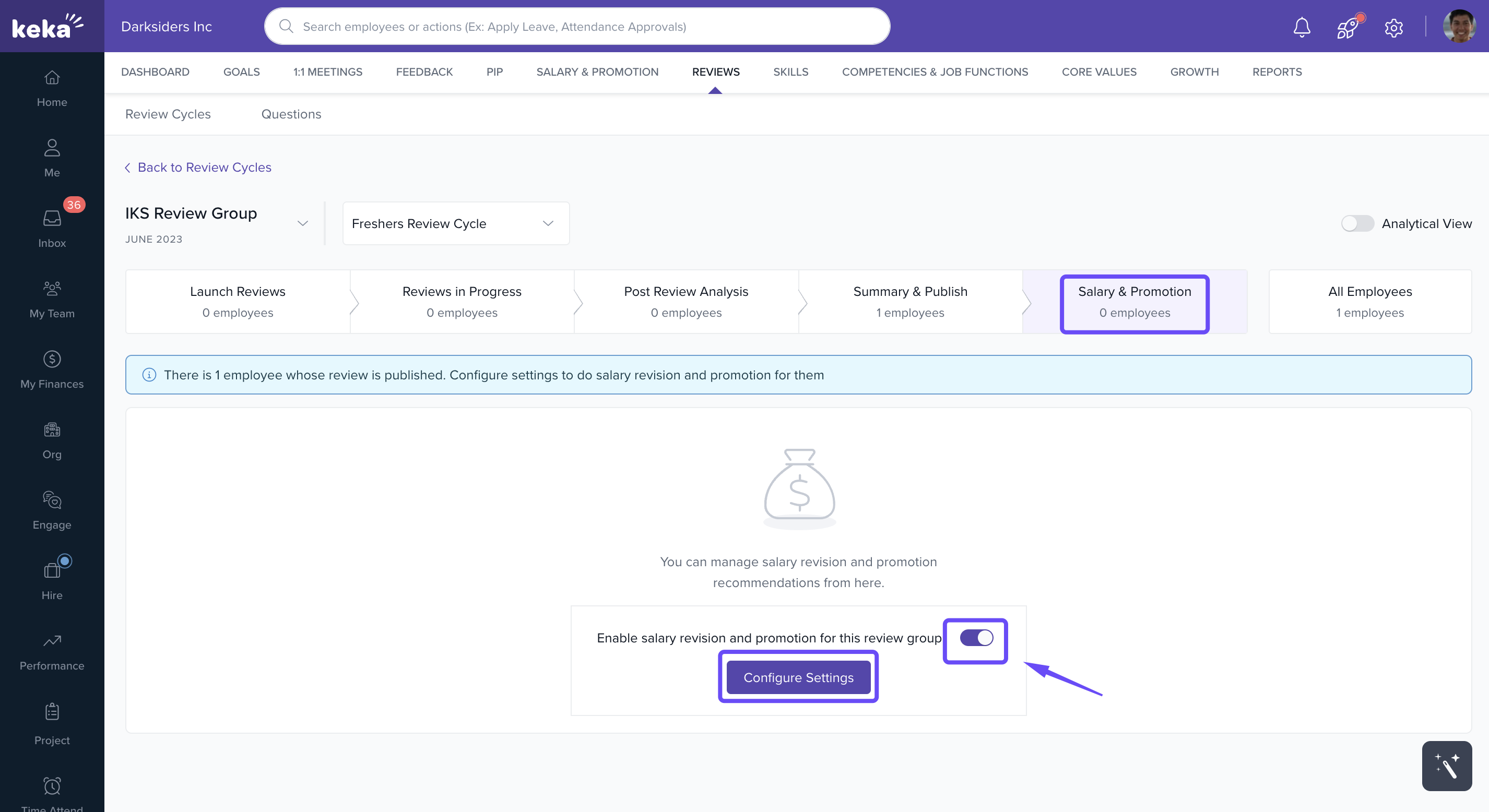
Once you’ve published the employee’s review, navigate to the relevant review cycle and open the Salary and Promotion tab to complete the next steps.
Enabling Manager Recommendations
-
Go to Performance > Salary and Promotion > Configure Settings.
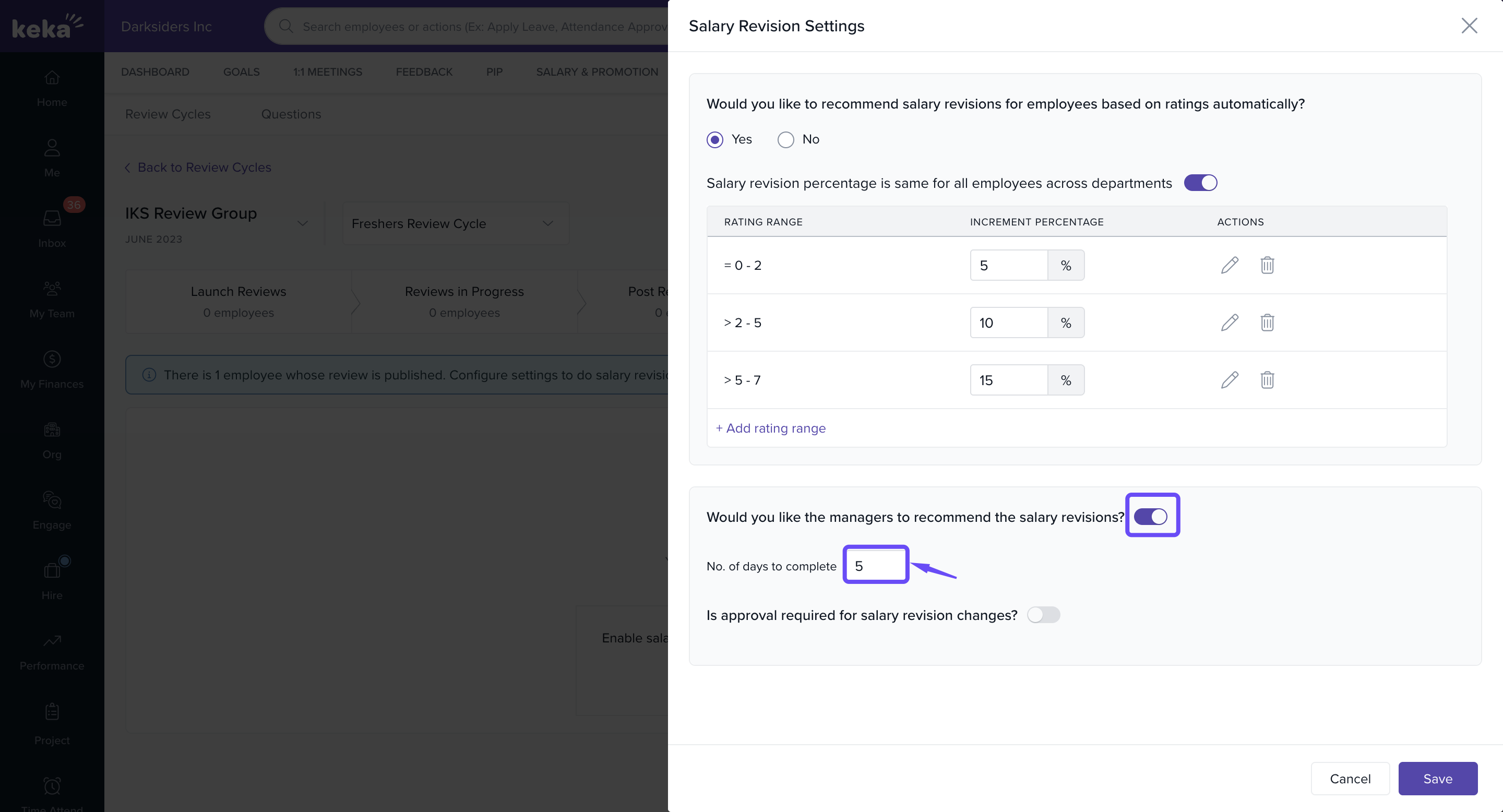
Toggle “Would you like the managers to recommend the salary increments?”.
-
Set a timeline by entering the number of days allowed to complete the recommendation process.
Streamlining Approvals with an Approval Chain
To keep salary decisions fair and structured, Keka allows admins to set up an approval chain.
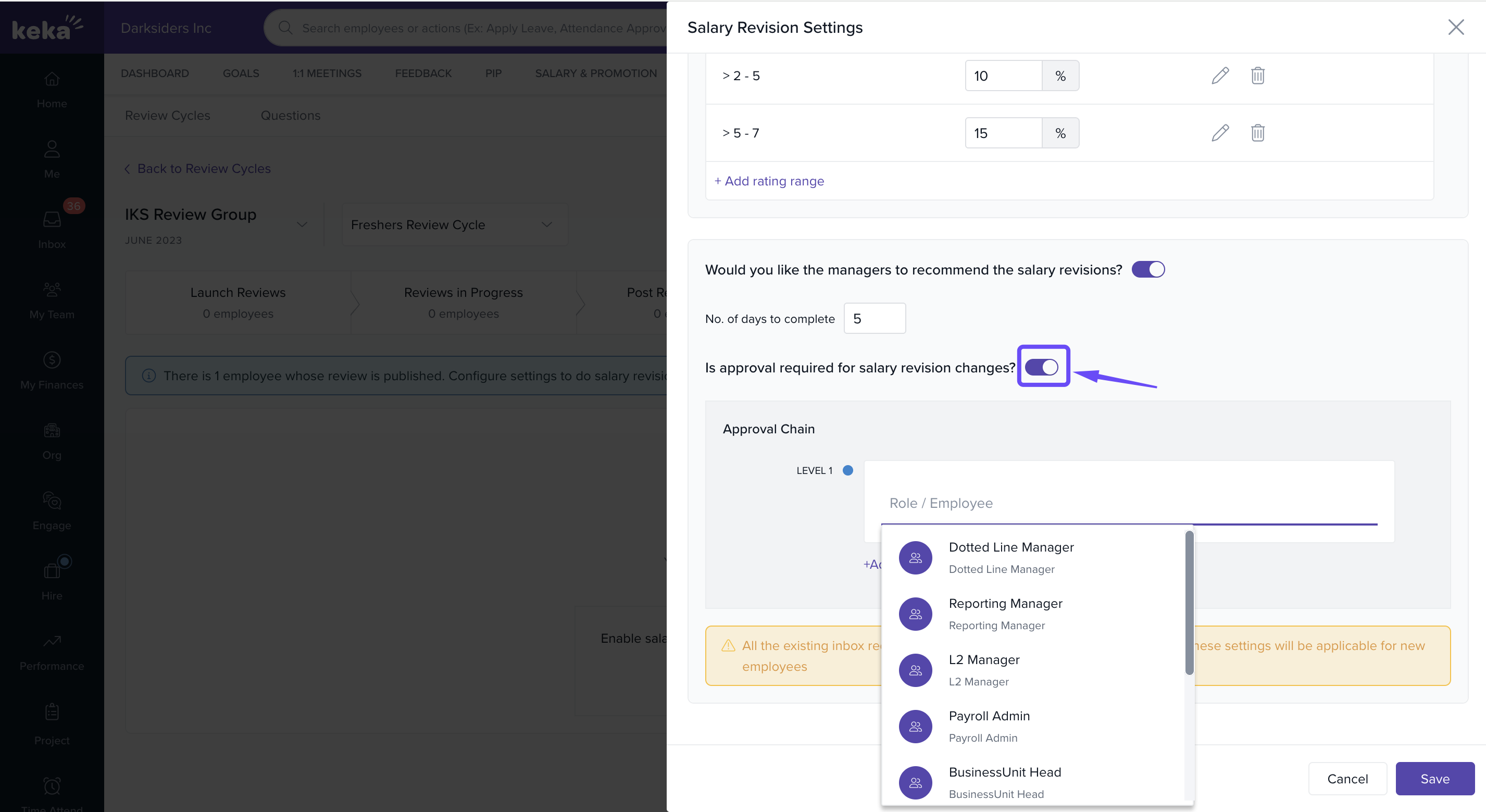
In Salary Increment Settings, toggle the option to require approval.
Define the chain by adding roles or employees who must review increments.
-
Configure multiple levels if needed (e.g., manager → department head → HR).
For Administrators: Inviting Managers
Once the feature is enabled:
Go to the Salary & Promotion section.
-
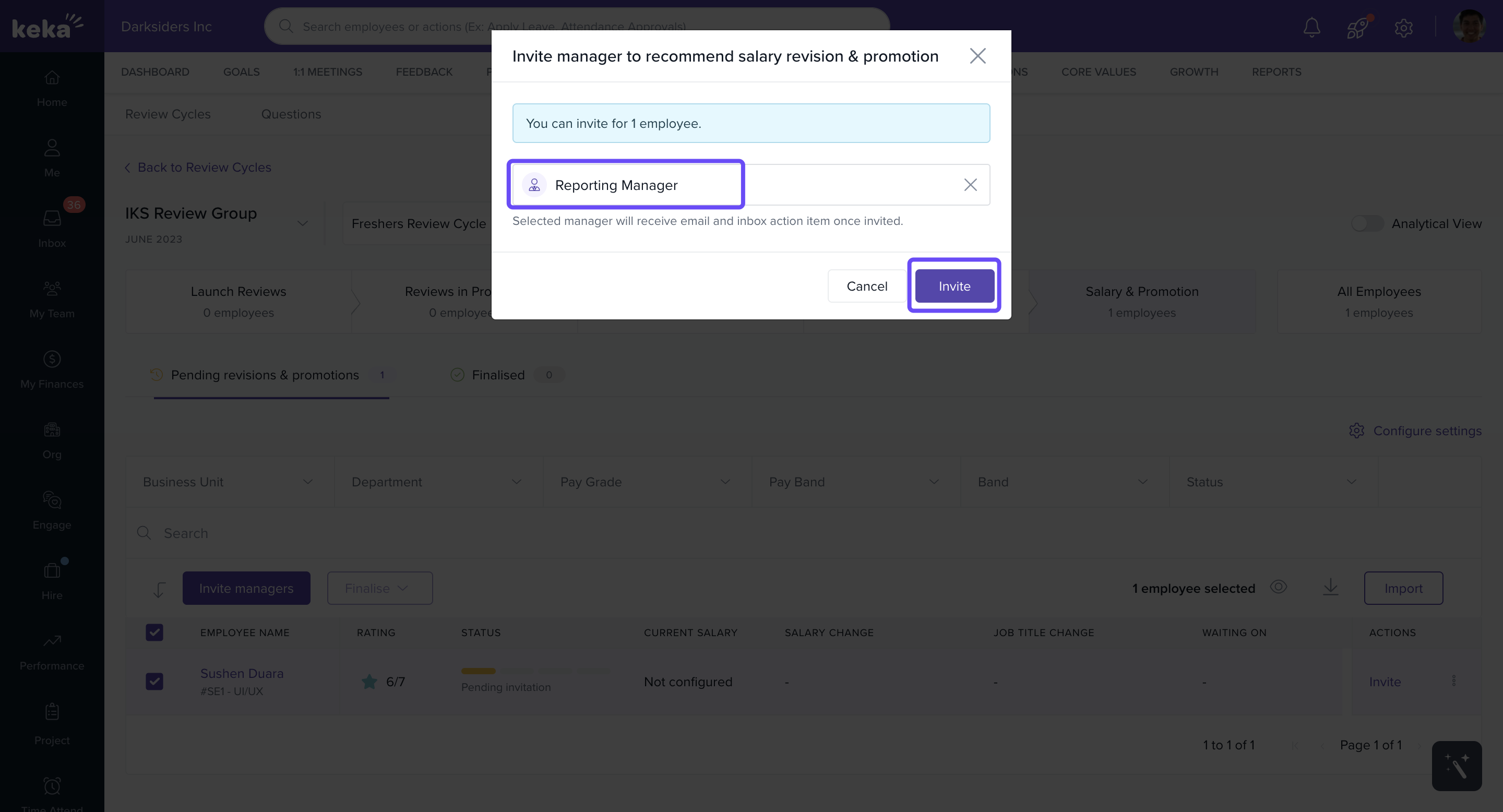
Find the employee record and click Invite.
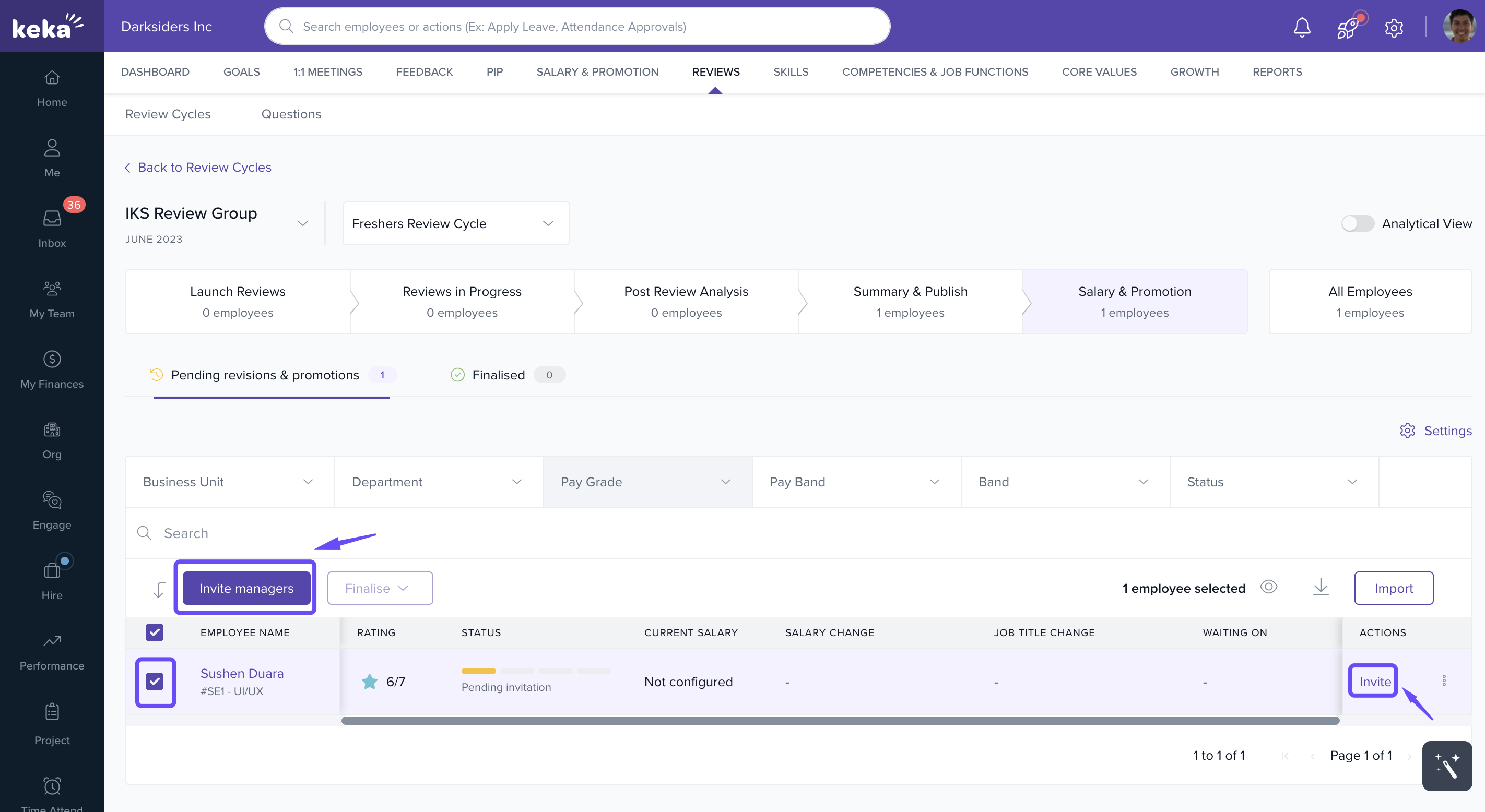
In the pop-up, choose who should provide the recommendation (reporting manager, dotted-line manager, L2 manager, department head, or BU head).
-
Click Invite to send a notification.
During review cycles, admins also see helpful statistics, such as:
Yet to Publish vs Published employee reviews.
Statuses under Launch Reviews and Reviews in Progress.
These stats highlight pending actions so admins can act quickly.
For Managers: Making Recommendations
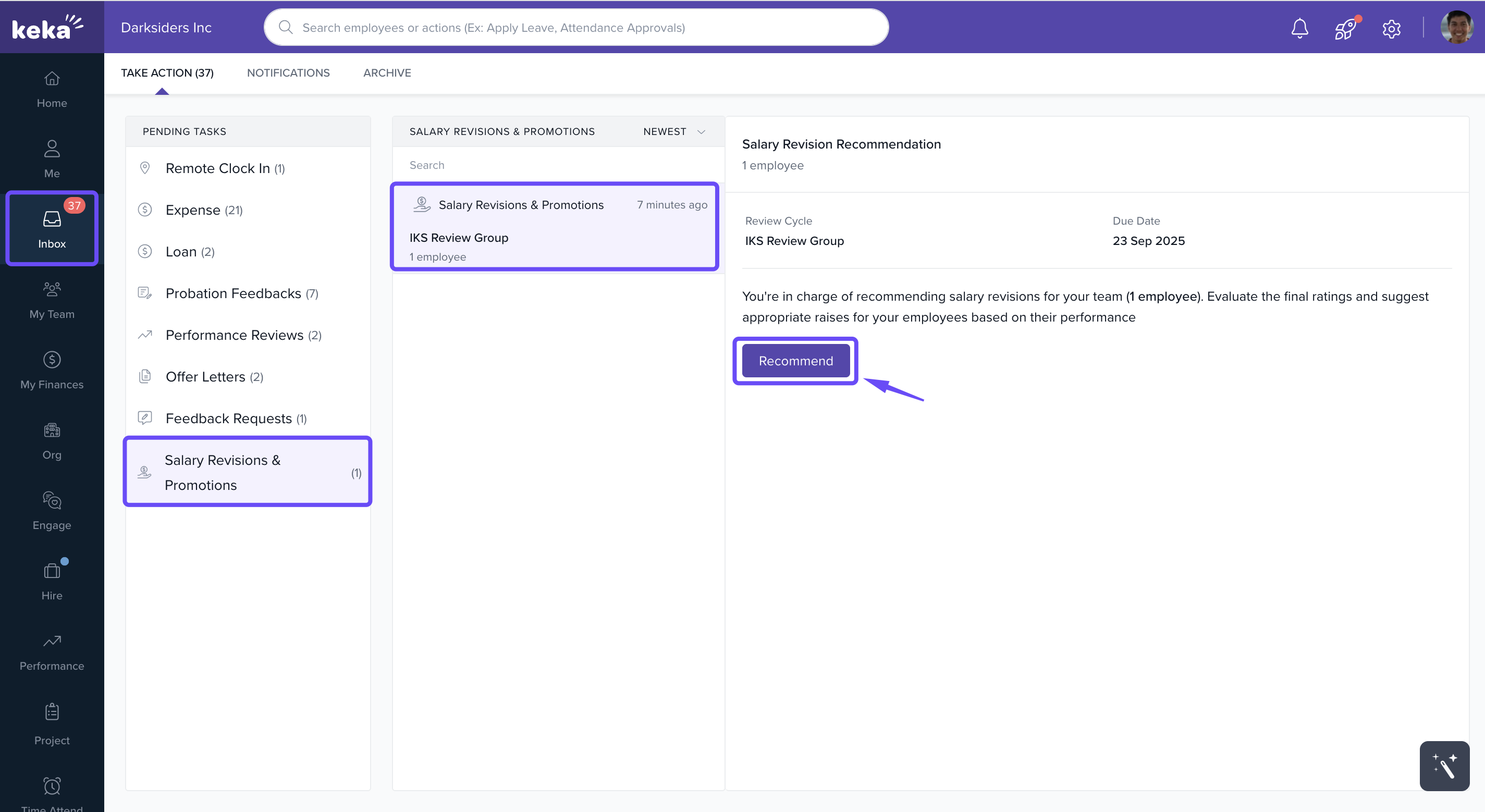
When invited, managers receive a notification in their Inbox > Salary Increments.
Steps to recommend:
-
Click Recommend to open the recommendation page.
-
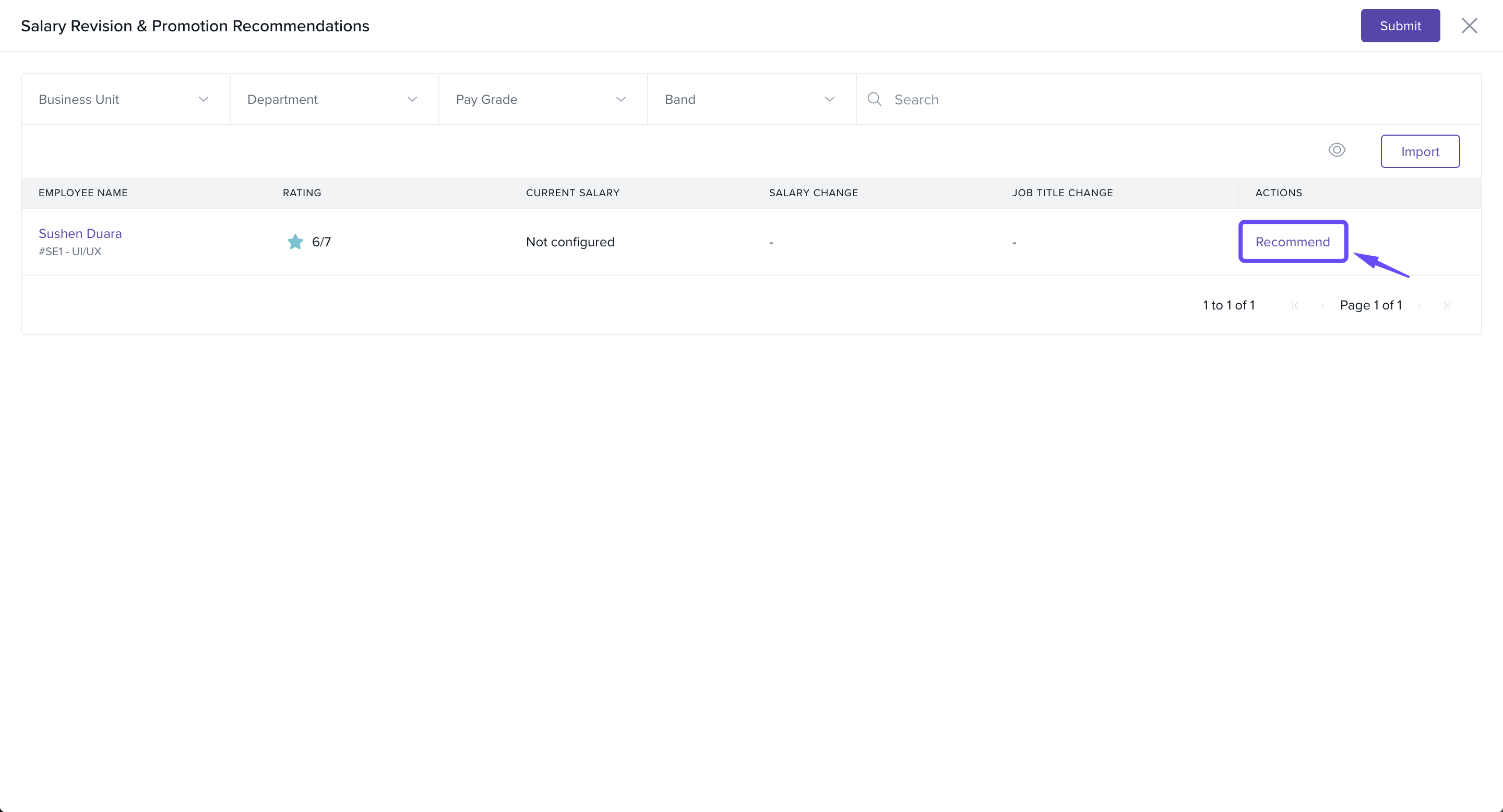
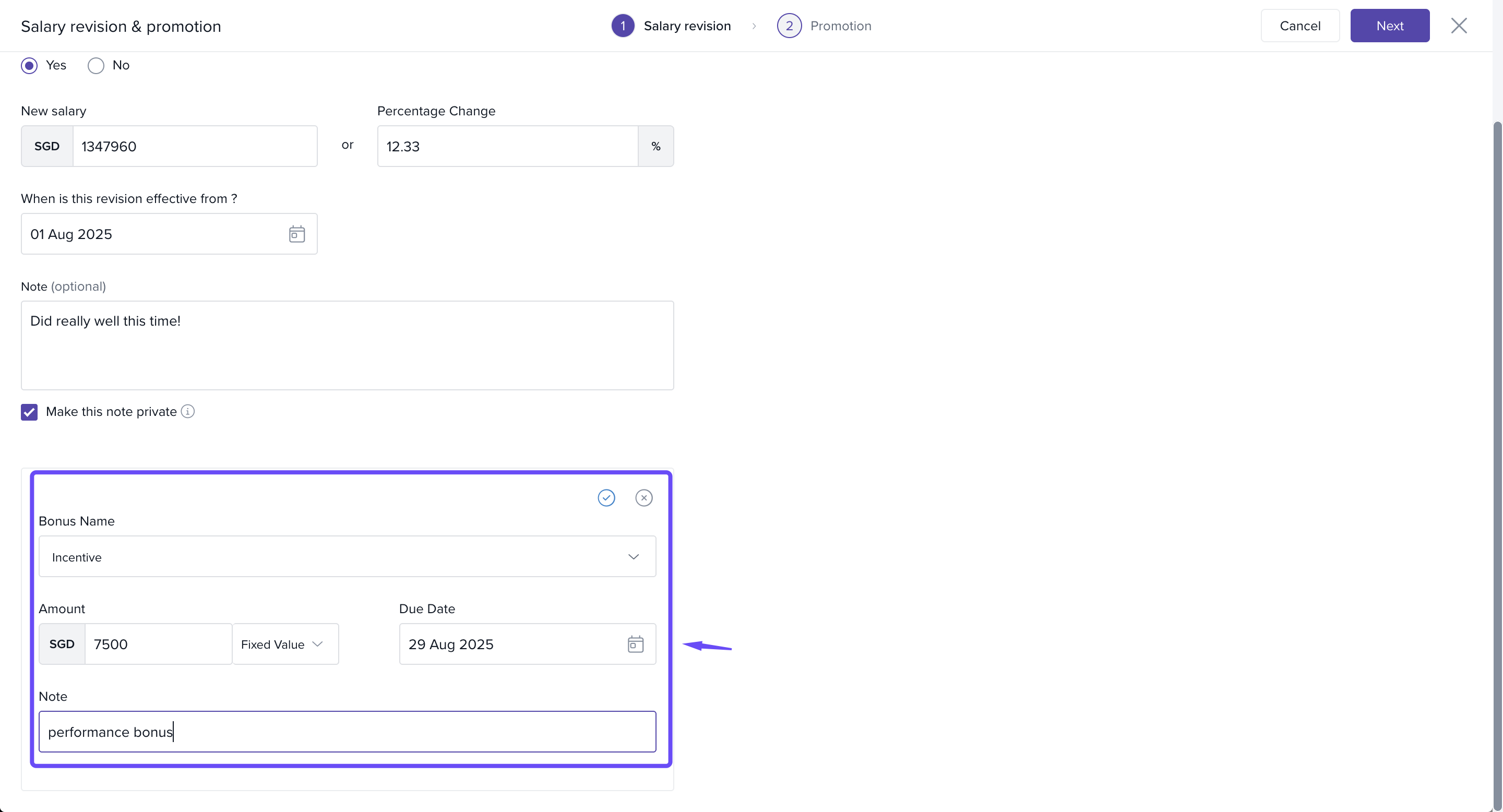
On the salary increment recommendation page, managers can review the employee’s performance rating and indicate whether they recommend the employee for promotion.
-
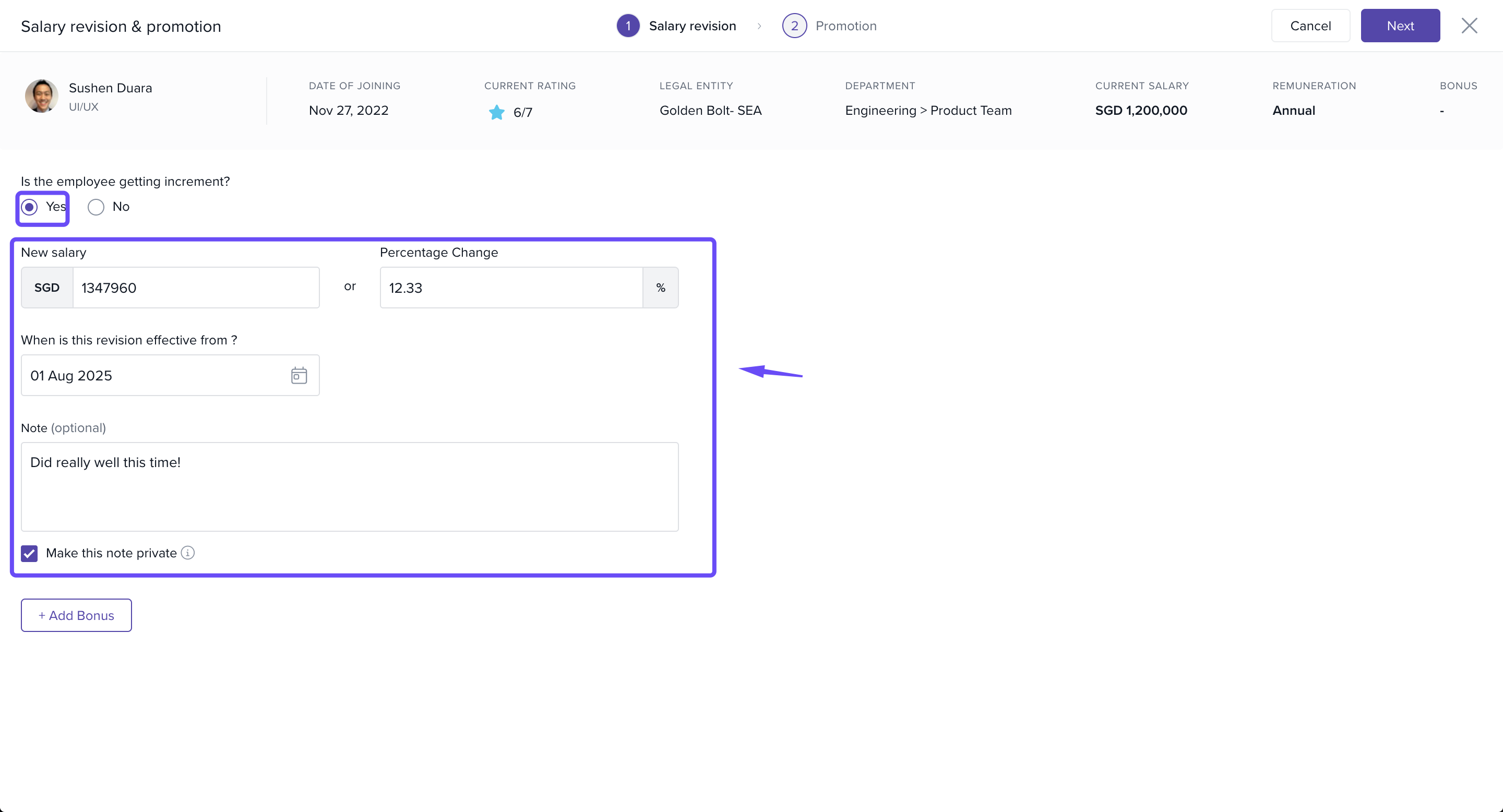
Select whether the employee should receive a salary increment. Managers should enter the proposed percentage increase and provide a clear justification to support their recommendation, ensuring transparency in the review process. There is also an option to mark notes as private if needed.
-
You can also click +Add Bonus to recommend an incentive or a year-end bonus for the employee.
-
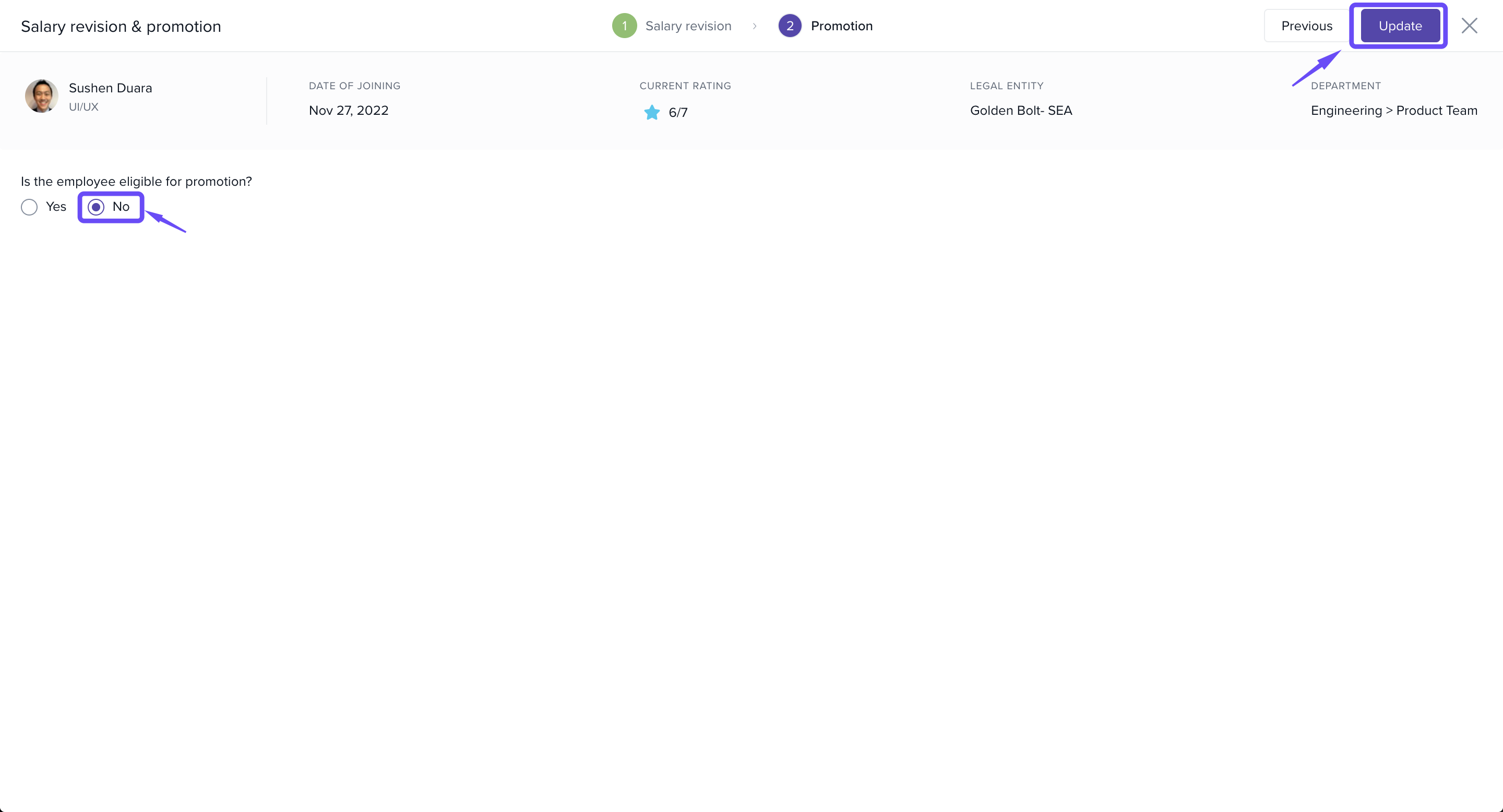
Optionally, mark if the employee is recommended for promotion in the promotion window and click on Update to proceed.
-
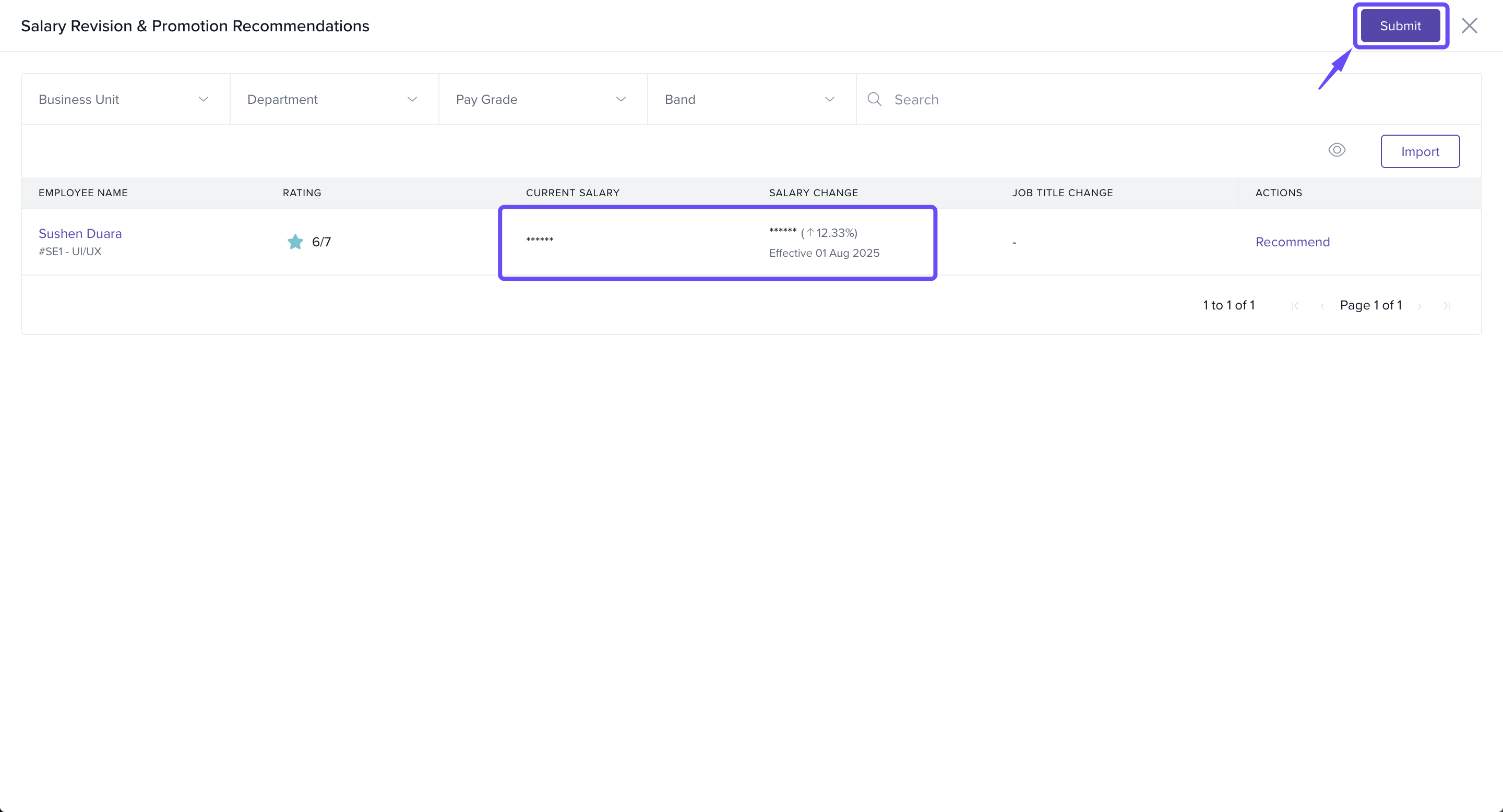
Finally, click Submit.
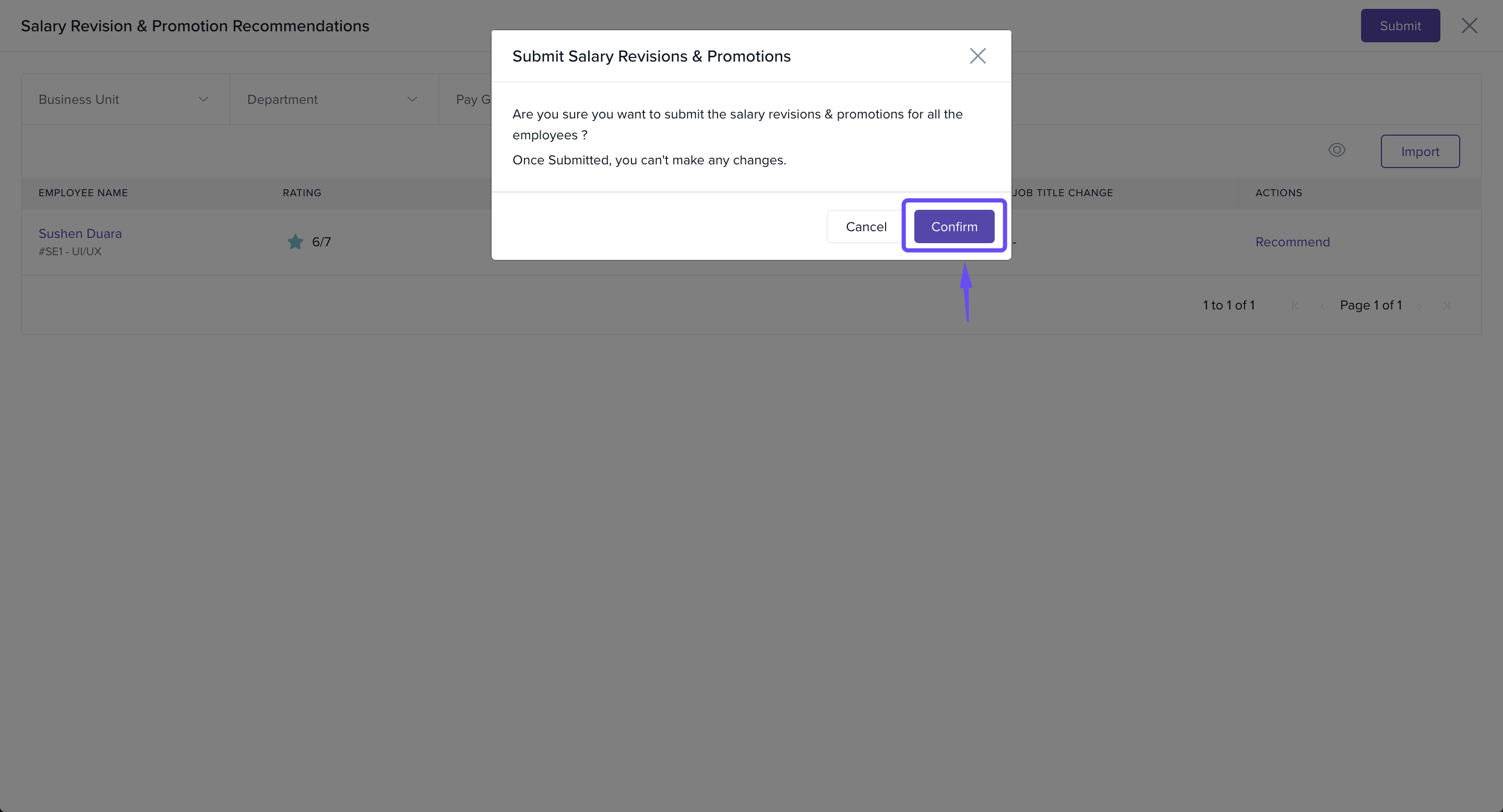
- In the pop-up window, click Confirm.
Providing reasons adds transparency and helps align recommendations with company goals.
For Admins: Approving Manager Recommendations
Once a manager submits a recommendation:
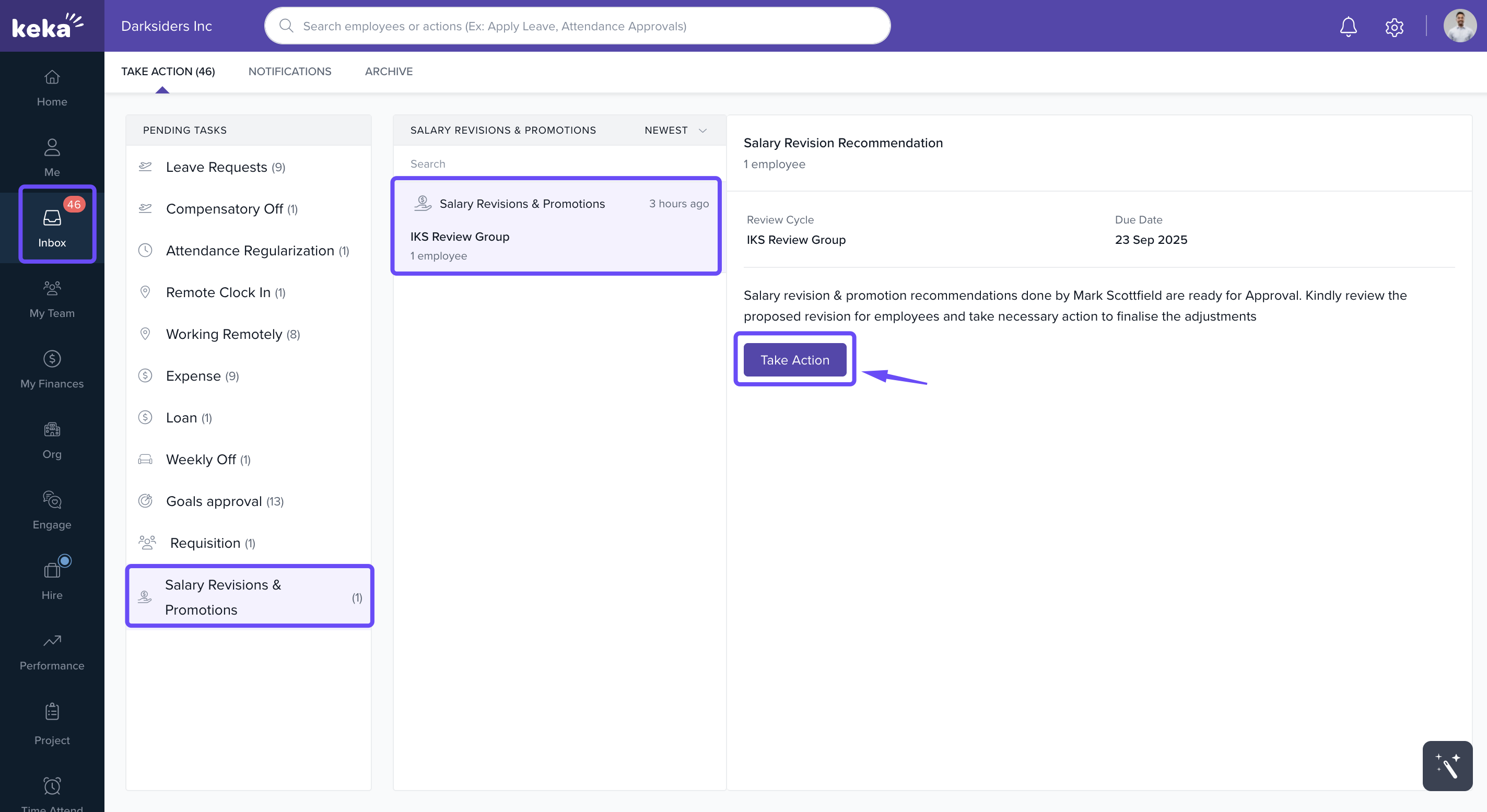
Admins (or approvers in the chain) receive an Inbox notification under Salary Increments.
-
Click Take Action.
-
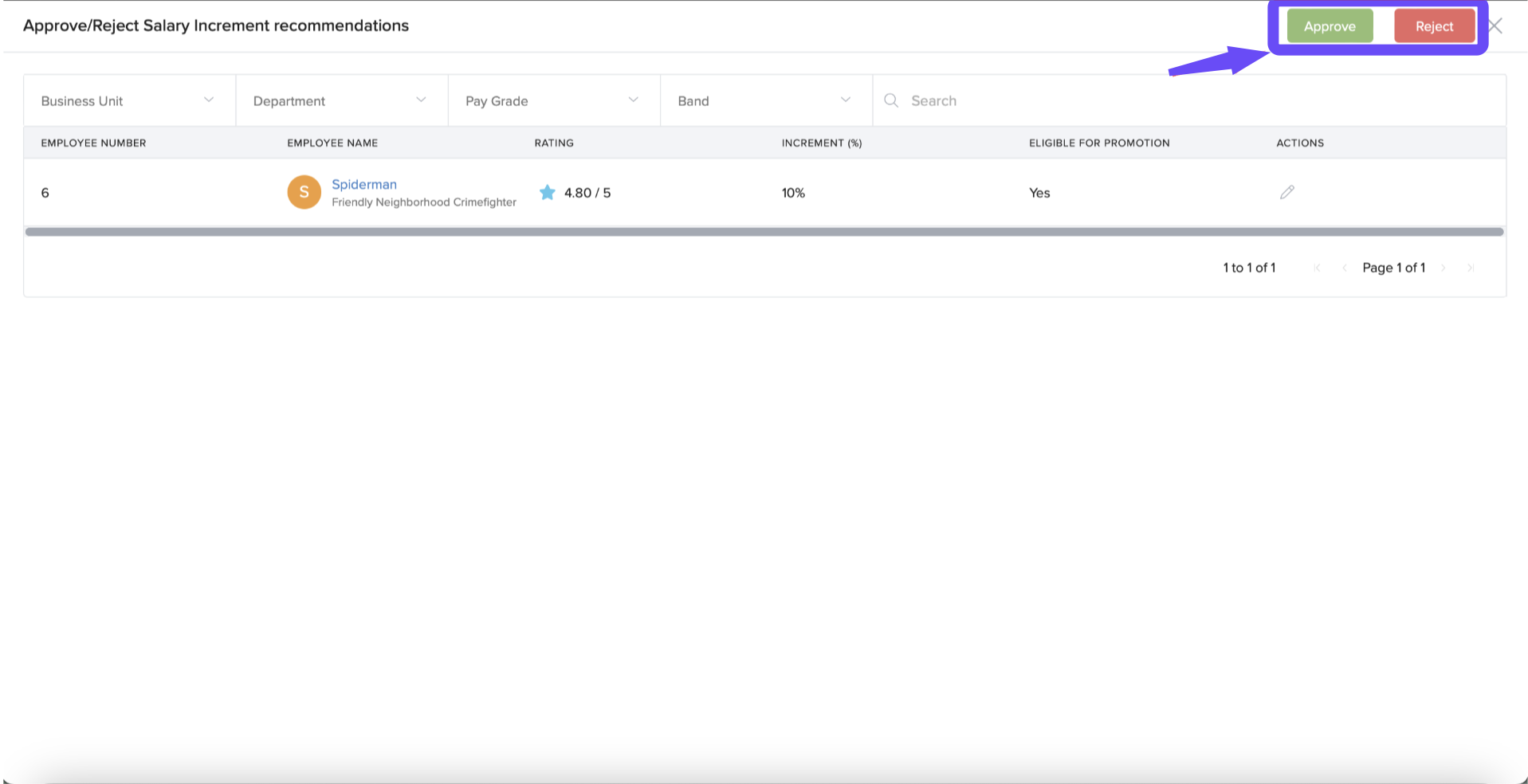
Review the details, then:
Approve the increment
Reject the recommendation
Edit details before finalising.
Notes & Tips
Tip: Always set clear timelines for managers to avoid delays in the increment cycle.
Important: Encourage managers to provide detailed justifications for each recommendation.
Note: Approval chains ensure fairness and prevent bias in compensation changes.
Examples & Use Cases
Performance-Driven Rewards: A high-performing employee receives a recommendation from their manager with a justification citing key achievements.
Multi-Level Oversight: HR and department heads review recommendations to maintain budgetary and strategic alignment.
Transparency in Decisions: Employees know increments are based on structured recommendations, not arbitrary decisions.
The Manager Recommendations and Approval Chains feature in Keka combines manager insights with structured oversight to create a fair, transparent salary increment process. With clear workflows and accountability, organisations can reward performance effectively while keeping compensation decisions consistent.
For additional help, please fill out this form for personal assistance.
Comments
0 comments
Please sign in to leave a comment.