Introduction
To keep learning content relevant and courses well-managed, admins need access to the right privileges in Keka Learn. These privileges enable tasks such as monitoring course progress, managing enrollments, and analyzing learner data.
You can do this by creating roles with learn privileges and then assigning users to those roles.
Creating Learn Privilege Roles
Go to Global Settings .
Navigate to Roles and Permissions .
Under the User Roles tab, click New Role .
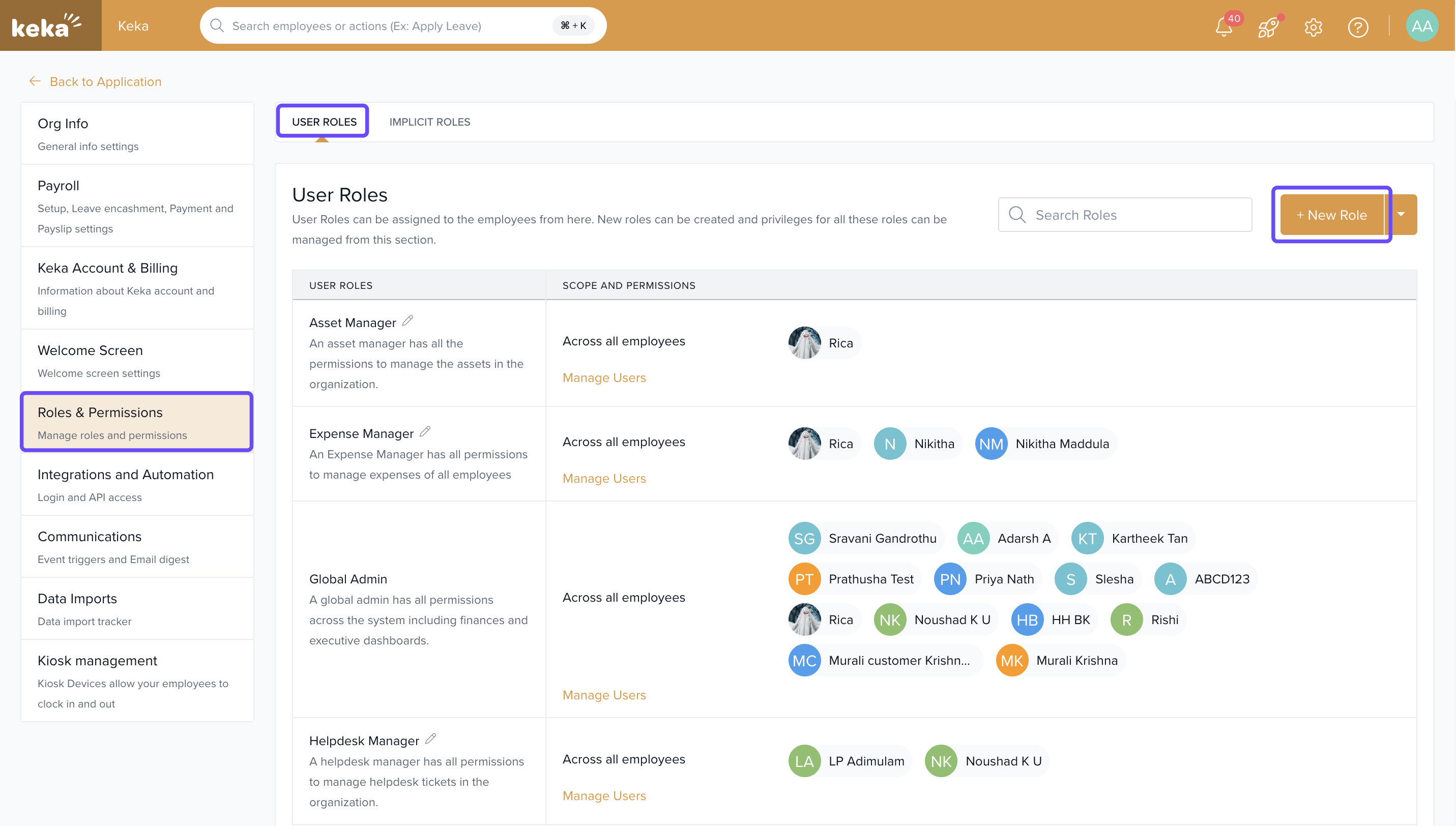
In the Features menu on the left, scroll to Learners .
-
Select the privileges you want to assign:
Check specific permissions individually, or
Select all privileges at once.
Click Save to create the new role.
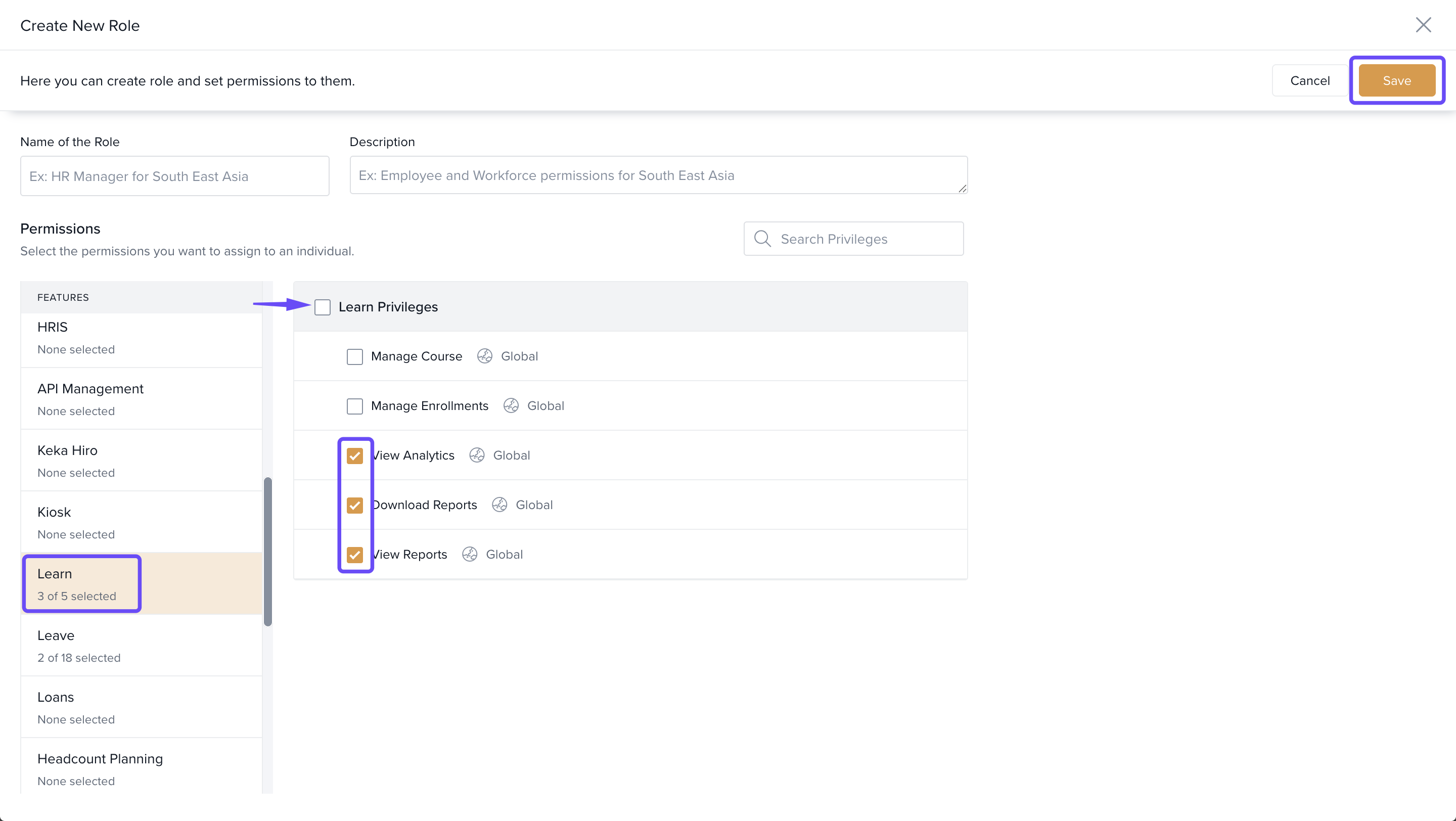
This creates a custom role with the exact level of access you want.
Note: Privileges can be assigned individually or in bulk depending on how much control you want to delegate.
Adding Users to Roles
Next to the role you created, click Manage Users.
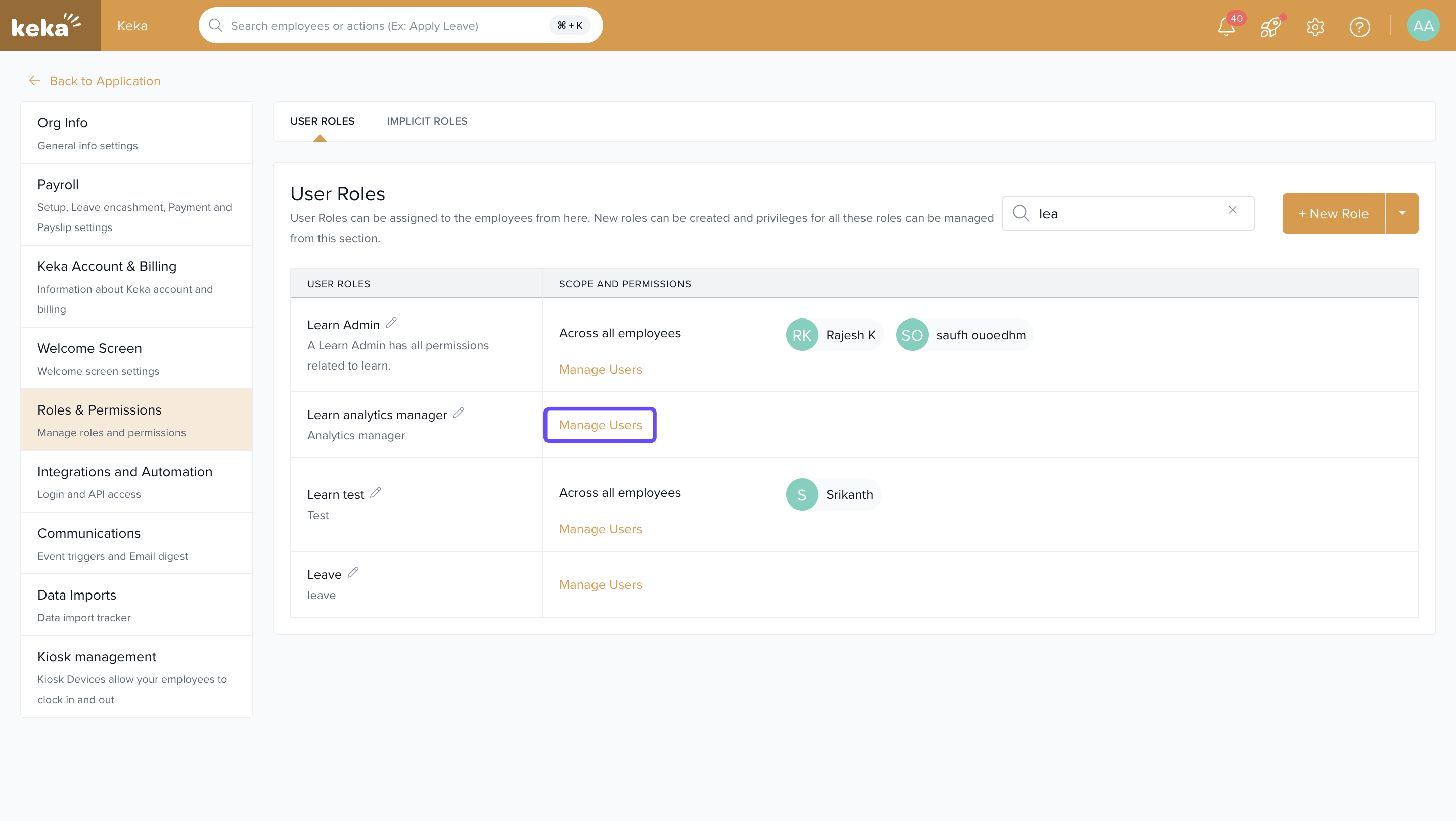
In the Manage Roles tab, search for employees by name and add them.
-
(Optional) Define the scope of a role: This allows you to, for example, assign one learning manager for a specific department or location.
Click +Add New Scope.
Choose a location or department.
Assign a specific user for that scope.
Click Save to confirm your changes.
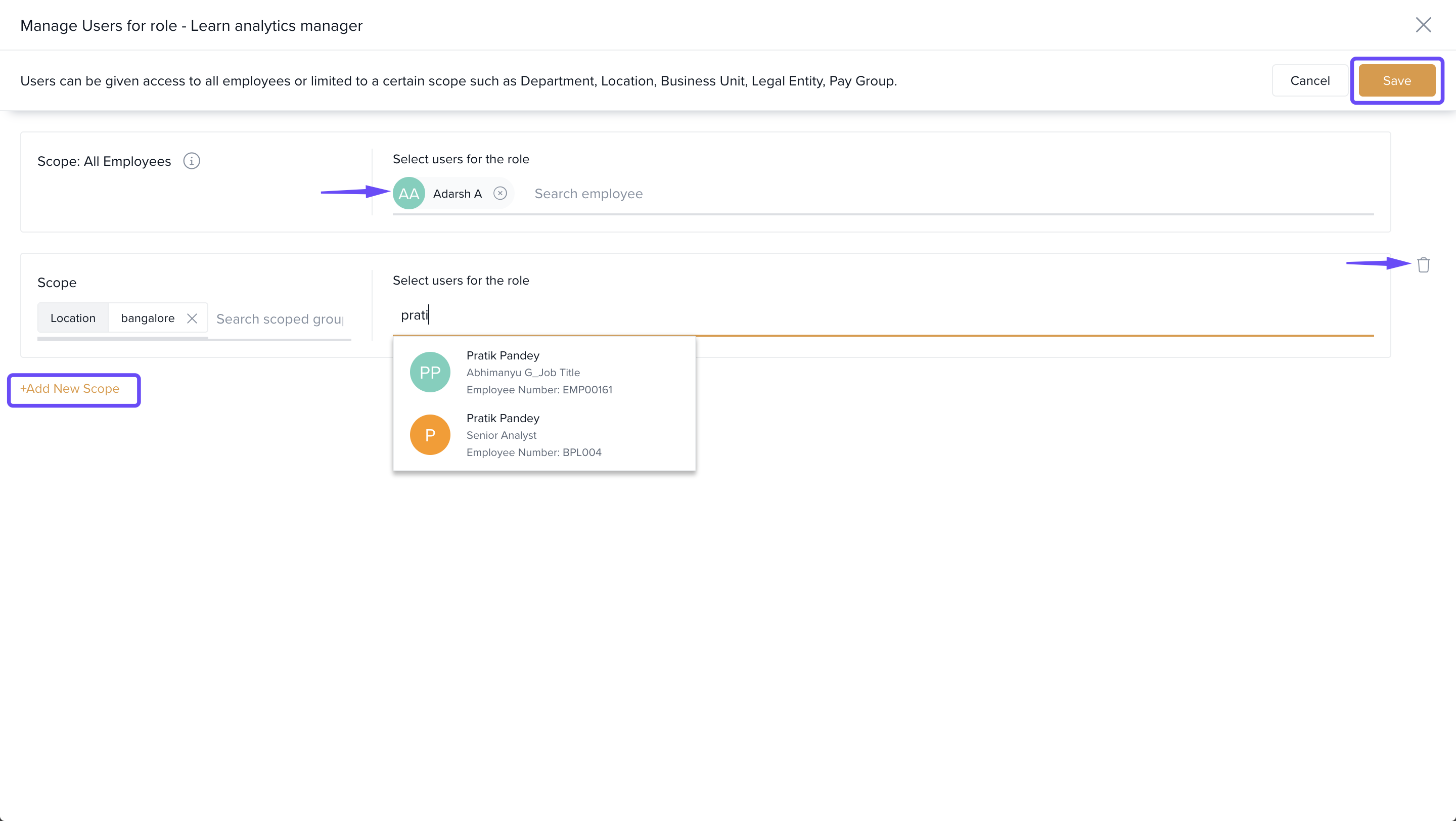
Tip: Use scopes to delegate learning management regionally (e.g., by location) or functionally (e.g., by department).
Comments
0 comments
Please sign in to leave a comment.